@Li-Xiao
Wow, pretty pretty cool. I need still a few more tries to figure out how
"Adjust Position" works. It's still unpredictable for me at the moment.
By the way, since I used to work as a screen printer for a few years,
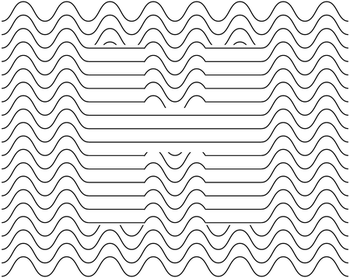
I'm familiar with moiré patterns that can occur with halftone printing
or overlapping Screen folie. Always found them interesting.
I had a few ideas after watching your video. One was that if you use red
and green dots and some of the old 3D red-green glasses, you might be
able to see a 3D effect.
But I've also seen many other uses.
Again, thank you very much for your help and the insights you've given
me and I'm sure other users will be grateful to you for that too.