How to configure the image tracer?
-
I have a hard time to configure the tracer to do something useful. There is a plethora of VS settings and cannot detect which ones to get a proper result. Tried to find documentation on VS homepage on the subject but couldn't.
I've attached a test file:
0_1765708461389_vs-imagetrace.zipWhat would one choose of settings in VS to achieve a result like the one from https://vectormagic.com:
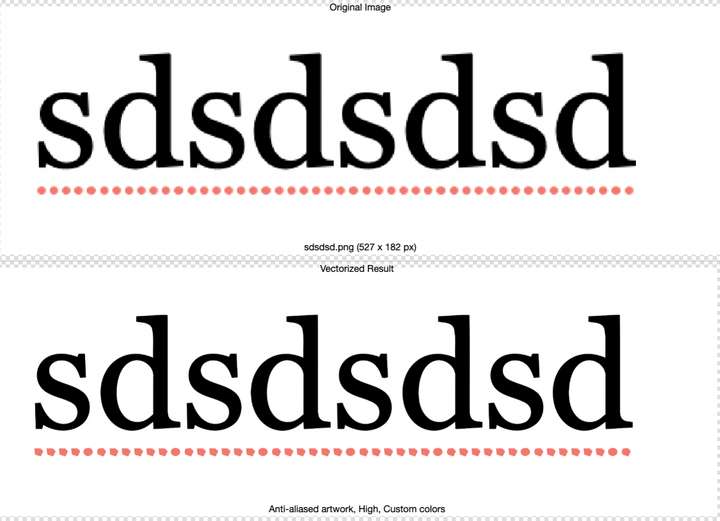
-
@Raaskot With that resolution VS cannot achieve this trace quality. It needs a higher resolution image.
-
@VectorStyler
Thanks. I think it a better quality should be achieved. The resolution is the same for the test in Vectormagic. Too bad if one have to license 3rd part vectorizer to make this.Do you have a link to a tracing guide in the documentation?
-
-
I think it's not that easy to achieve better tracing quality
inside of vector graphics app.Vector Magic seems to have been specifically designed for tracing.
Incidentally, one of the best image tracing programs I've ever used
was this one. I haven't seen anything that comes close.
And I'm not easily impressed.
-
@VectorStyler Hi! following the thread. I made some testing, im not figuring which preset is the more accurated vectorizing text of well defined shapes. I typed the same that Raaskot, and saved as high res image, but cant get an accurate trace of it.
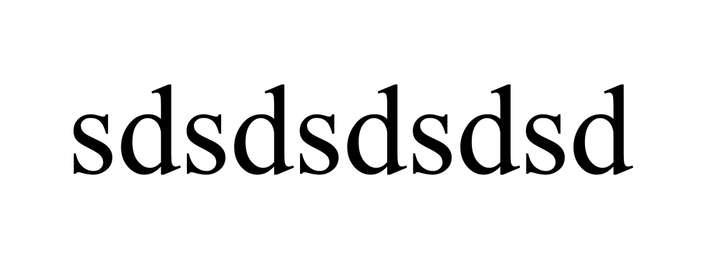
The closer trace of this image is using the "photographic" preset, but it has some distortions on it:
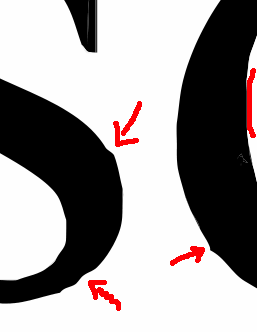
Im interested. I see lot of options in the trace "more options" but feel a little lost. Documentations states that the best is to use presets. Im costumed -im sorry to compare with other software, i know is not nice, but i feel could help- inkscape tracing that by default gives accuracy that can easily be softened or not. In the screenshot is shown results without smooth.
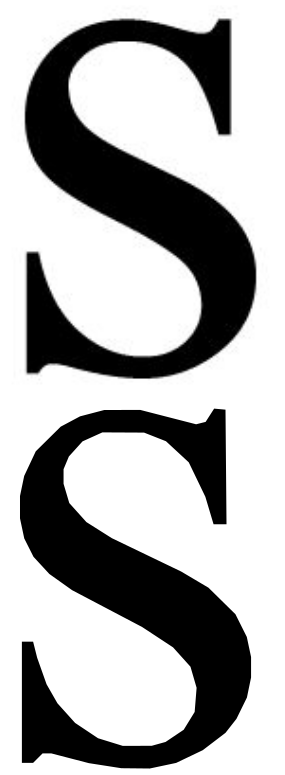
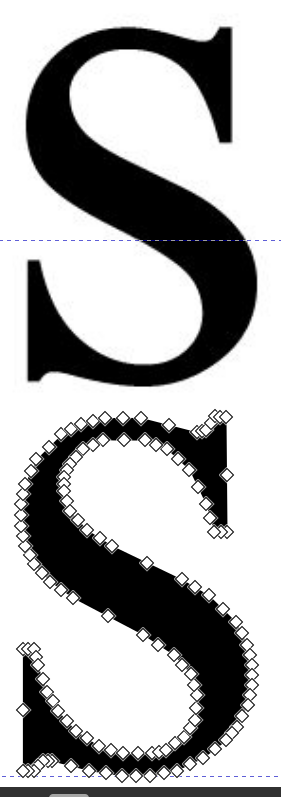
In this result you got a single shape easily editable by the nodes, that you can simplify easily, or smooth.
Im not quite sure how this can be achieved with VS trace, that looks powerfull, but a little bit complex to me.
-
Back in the days, I would trace such bitmaps by hand.
I used also the Corel Image Tracer, but it wasn't always helpful.One way I see to potentially alleviate the problem is to use an image
upscaler, which allows for a higher resolution and might therefore produce
better results in VS.Here's a very good, free one.
https://www.vectorstyler.com/forum/topic/3033/upscayl-win-mac-free-open-source-upscaler/7
-
@Subpath Well, i used a very high res image, you say it will improve using something so big?
-
Well, I don't know the Resolution.
But whether it brings an improvement can easily be determined by trying it out.
-
@Subpath said in How to configure the image tracer?:
Well, I don't know the Resolution.
But whether it brings an improvement can easily be determined by trying it out.Hi Subpath. I made a test. With low res image to high res. It is here. Even the results are better, always is added some distortion:
https://icedrive.net/s/ZF5TyWig1T56gW32TFW1C792WkRV
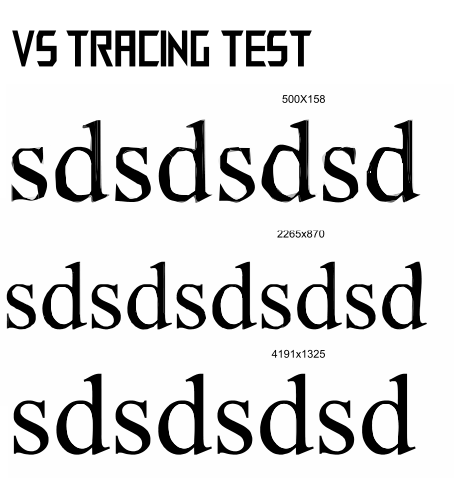
-
@marce said in How to configure the image tracer?:
@Subpath said in How to configure the image tracer?:
Well, I don't know the Resolution.
But whether it brings an improvement can easily be determined by trying it out.Hi Subpath. I made a test. With low res image to high res. It is here. Even the results are better, always is added some distortion:
I made the same test with inkscape to take some reference. The accuracy improves a little with higher rest, but is not so dependent as can be seen here:
https://icedrive.net/s/kDgWzBfiXwVWwXNAVABPFwCNwG7G
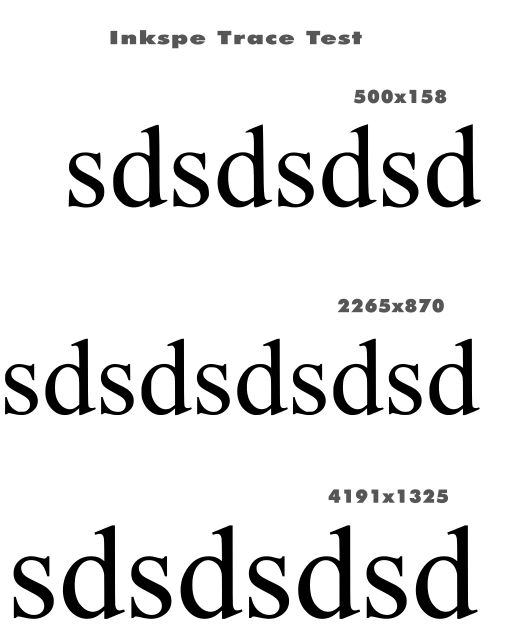
-
Well, when I talk about better resolution, I mean the difference between the
left and the right side. Significantly less jagged edges.The part on the right is magnified 4x using Upscayler.
Which can magnify up to 16x.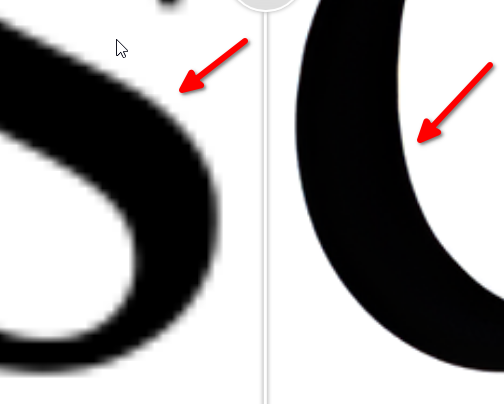
.
.
.
Here's my tracing result from Corel Tracer based on
the 4x magnified image. I choose "Logo" as the tracing mode.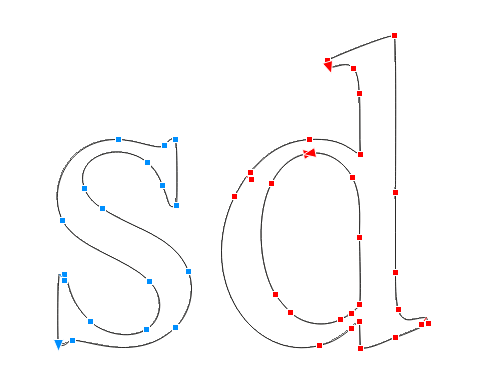
.
.
.
By the way, since "sd" is repeated, I only enlarged and traced those
two letters.
-
@Subpath Nice results in Corel. Minimum amount of Nodes, and a very editable shape. In inkscape -i take it as reference, since their trace module is very good imho- this is are the results of the very low image you shared:
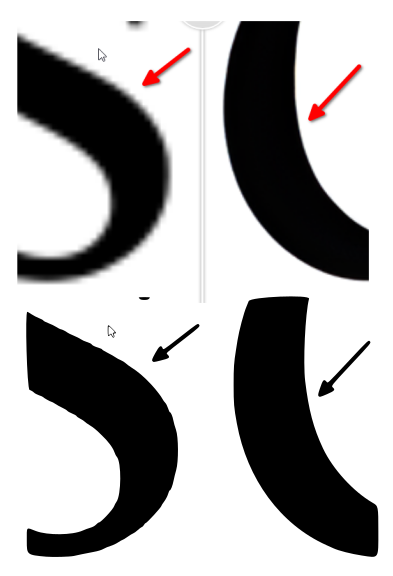
Must said, are very good, taking account of the low res source.
Using the good res last image you uploaded, tweaking the smooth corners and optimize, i got similar results in inkscape to Corel:
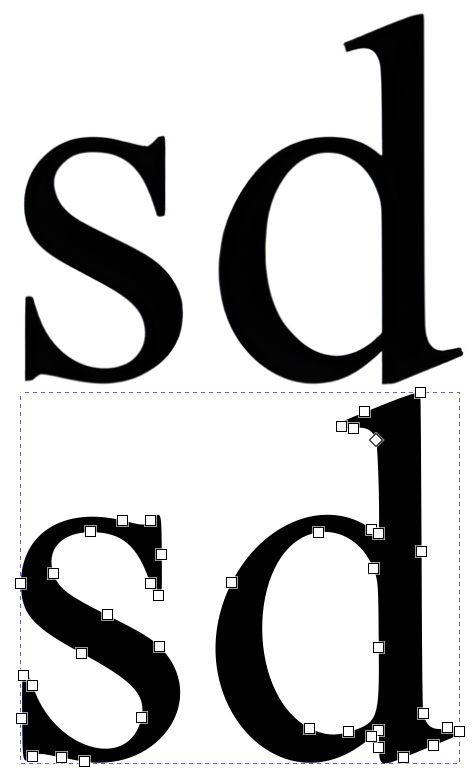
So, i believe that really is not necessary so high res images as source, but some kind of optimization of the trace process in VS.
-
I would say you need both.
High resolution, to me, means the smoothest possible contours,
as jagged outlines negatively affect the result of a tracing.I haven't spent much time with VS Tracer yet. But I think the results
may also be improved by adjusting the settings a bit.
-
@Subpath Well, low res images are better in some cases. Look in the sample below. This is an old scanned Capital letter —from etc.usf.edu. The original source is very rough. In the case you want to conserve the original roughnes is ok to use the High Res image. But if you want a smooth and flowing drawing, a low res will make the trick. The first Z at the right, in red, is a nice result, and it comes from the low res image. The High res trace result is exact, but not what i want, that is, a kind of vectorizing photo retouching.
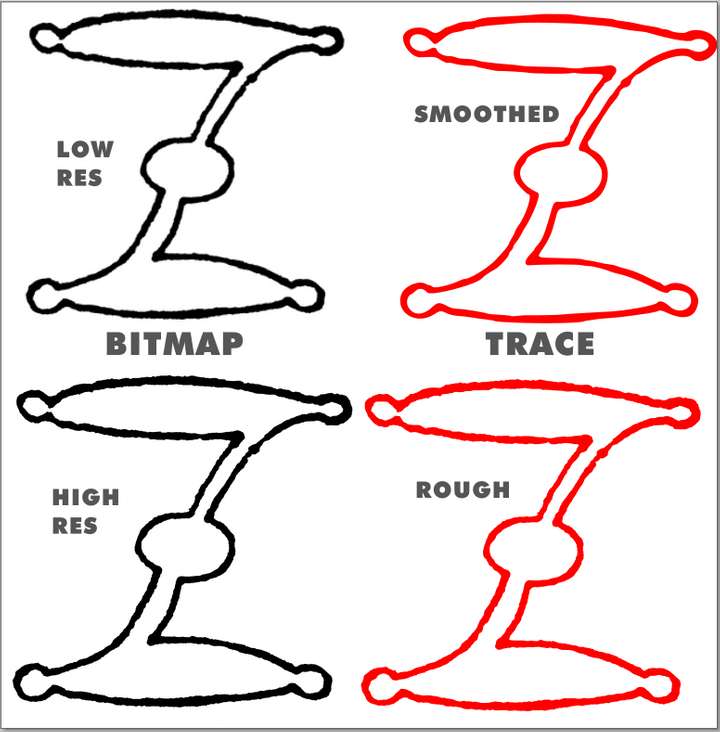
This both results are using the same settings, in inkscape, but the change is the resolution of the source image.
-
Well, that's due to the smoothing algorithm of the vector tracer. I think a slightly
better result could perhaps be achieved with the high-resolution version using
slightly different settings for smoothing.I would have vectorized the template you created here by tracing a simple line
in the middle of the contour (Corel Trace has a mode for this) and then
assigning an appropriate line weight.I've created a lot of bitmap traces professionally (in digital printing).
Many by hand, because the trace results were too poor. I can't recall a
single instance where I would have preferred a low-resolution bitmap
version if I had the choice.