VectorStyler
    • Categories
    • Unread
    • Recent
    • Tags
    • Popular
    • Users
    • Groups
    • Admin
    • Register
    • Login

    beta 1.2.014

    Scheduled Pinned Locked Moved VectorStyler 1.2 beta
    20 Posts 0 Posters 18.1k Views 2 Watching
    Loading More Posts
    • Oldest to Newest
    • Newest to Oldest
    • Most Votes
    Reply
    • Reply as topic
    Log in to reply
    This topic has been deleted. Only users with topic management privileges can see it.
    • V Offline
      vectoradmin
      last edited by

      VectorStyler 1.2.014 release notes

      • General stability improvements.
      • Allow sorting symbols in the Symbols panel.
      • Keep the the symbols list position fixed.
      • Fixed symbol tool pressure handling.
      • Repeater to work correctly if repeated shape is an open path.
      • Fixed the elastic warp density settings problem.
      • Fixed glyph handling with missing code mapping.
      • Number field handling in Canvas and Artboards panel.
      • Fixed a mesh and warp distortion effect bug.
      • Fixed a text frame fitting bug with frames having no previous scaling.
      • Added a new isolation mode to isolate the object and not its content.
      • Added isolation mode rendering for the non-isolated objects.
      • Show highlights in stroke dash, stripe and width profile lists.
      • Allow making new selections with the corner tool by clicking.
      BoldlineB 1 Reply Last reply Reply Quote 8
      • BoldlineB Offline
        Boldline @vectoradmin
        last edited by

        @VectorStyler said in beta 1.2.014:

        Added a new isolation mode to isolate the object and not its content.
        Added isolation mode rendering for the non-isolated objects.

        Thanks for the new update! Would you be wiling to elaborate on how to utilize these new features?

        🍎 macOS Sequoia 15.3, Mac mini (M1, 2020), Chip Apple M1, Memory 16 GB
        Cintiq 27QHD Display and LG Ultra HD Display

        V 1 Reply Last reply Reply Quote 1
        • V Offline
          vectoradmin @Boldline
          last edited by

          @Boldline said in beta 1.2.014:

          Added a new isolation mode to isolate the object and not its content.

          Yes. The idea is that if we want to edit an object (or multiple objects) but not interfere with other objects then this isolation mode does that.
          The previous isolation mode edited the objects inside the isolated object.
          This new isolation mode edits the isolated object (not its content).

          This new isolation mode is accessible from the menu (same as the other) but also from the toolbox (top row, towards the end).

          Added isolation mode rendering for the non-isolated objects.

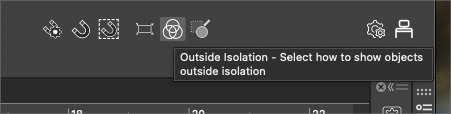
          Here we can select how the objects outside of isolation are displayed. Both for Isolate Inside and Isolate Selected modes.
          Previously, the other objects were dimmed, now we can have hidden, outline, dimmed or normal display.
          The button to select this is in the toolbox just before the drawing place icon.

          BoldlineB B 2 Replies Last reply Reply Quote 1
          • BoldlineB Offline
            Boldline @vectoradmin
            last edited by

            @VectorStyler I like where this is headed! I can see this being very useful.

            Is it just me or do the options in the top right side of the menubar not fully correspond with those listed in the "select> isolate selected/isolate inside"? Should they have the same options in both places?
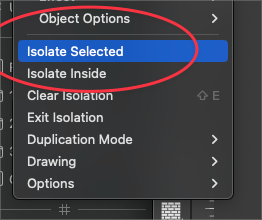
            0_1709247909759_1d03193f-b4a1-415d-8caa-b6d85c9e3d0c-BLD 2024-02-29 at 18.04.50.png
            0_1709247833264_a8c0a2e9-c391-432a-9a35-708791c6df9a-BLD 2024-02-29 at 18.02.05.png
            0_1709247852942_7c826e87-3a2f-4417-880a-e614cc6aad13-BLD 2024-02-29 at 18.04.03.png

            🍎 macOS Sequoia 15.3, Mac mini (M1, 2020), Chip Apple M1, Memory 16 GB
            Cintiq 27QHD Display and LG Ultra HD Display

            V 1 Reply Last reply Reply Quote 1
            • V Offline
              vectoradmin @Boldline
              last edited by

              @Boldline said in beta 1.2.014:

              Should they have the same options in both places?
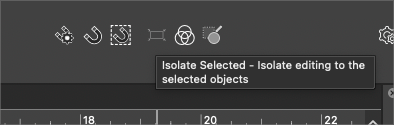
              The toolbox contains the Isolate Selected only, the "Outside Isolation" is not shown in the menu (will be added later).

              B 1 Reply Last reply Reply Quote 0
              • B Offline
                B-Vs-V @vectoradmin
                last edited by

                @VectorStyler I'm not used to working in isolation mode, so I'm sorry if I don't quite understand the nuances of this; when you double-click on an object in VS, it seems to me that we're in isolation mode (?) but the object can't undergo any transformation... so what's the point of this?

                W11 Pro 25H2 - 12th Gen Intel(R) i7-12700K 3.61 GHz - RAM 64 Go - NVIDIA GF GTX 4070 Ti - Intuos - Dell UP3216Q / Eizo ColorEdge
                W11 Pro 25H2 - 12th Gen Intel(R) i7-12700KF 3.60 GHz -RAM 64 Go - NVIDIA GF GTX 3080 - IntuosPro- ProArt PA329C

                1 Reply Last reply Reply Quote 0
                • B Offline
                  B-Vs-V @vectoradmin
                  last edited by

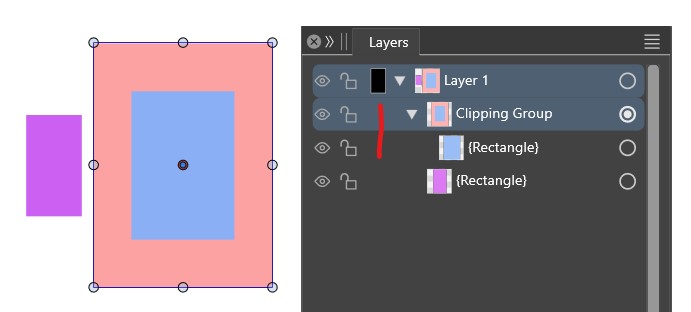
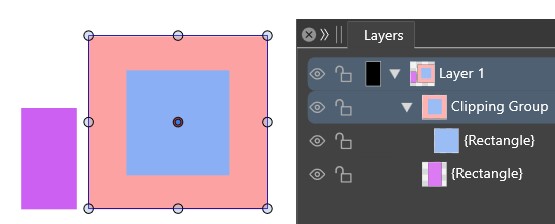
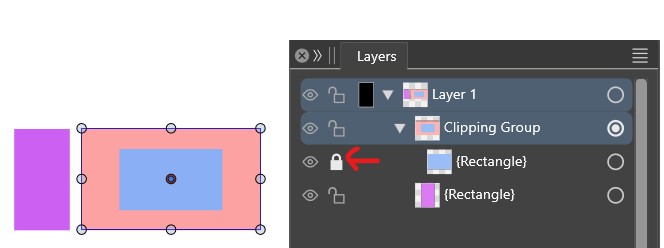
                  @VectorStyler while testing the isolation mode, I realise that I don't know (anymore?) how to maintain the dimensions of an object clipped into another? clicking on the lock doesn't maintain its dimensions. Thanks ☺

                  0_1709280440609_o1.jpg

                  0_1709280447032_o2.jpg

                  0_1709280453054_o3.jpg

                  W11 Pro 25H2 - 12th Gen Intel(R) i7-12700K 3.61 GHz - RAM 64 Go - NVIDIA GF GTX 4070 Ti - Intuos - Dell UP3216Q / Eizo ColorEdge
                  W11 Pro 25H2 - 12th Gen Intel(R) i7-12700KF 3.60 GHz -RAM 64 Go - NVIDIA GF GTX 3080 - IntuosPro- ProArt PA329C

                  V 1 Reply Last reply Reply Quote 0
                  • V Offline
                    vectoradmin @B-Vs-V
                    last edited by

                    @Pat There is no need to lock to maintain the dimensions. Did you use drag&drop to move the rectangle into the clipping group?
                    Not sure what could cause this issue, can you send me the file? Thanks!

                    B 1 Reply Last reply Reply Quote 0
                    • B Offline
                      B-Vs-V @vectoradmin
                      last edited by

                      @VectorStyler Yes, drag-drop from the layer panel. Issue reproducible, new file sent ☺

                      W11 Pro 25H2 - 12th Gen Intel(R) i7-12700K 3.61 GHz - RAM 64 Go - NVIDIA GF GTX 4070 Ti - Intuos - Dell UP3216Q / Eizo ColorEdge
                      W11 Pro 25H2 - 12th Gen Intel(R) i7-12700KF 3.60 GHz -RAM 64 Go - NVIDIA GF GTX 3080 - IntuosPro- ProArt PA329C

                      V 1 Reply Last reply Reply Quote 1
                      • V Offline
                        vectoradmin @B-Vs-V
                        last edited by

                        @Pat Got the file, but I just realized that I was thinking of another case.
                        So the rectangle is already inside when the clipping group is scaled?
                        In that case, yes the content is always scaled.

                        B 1 Reply Last reply Reply Quote 0
                        • B Offline
                          B-Vs-V @vectoradmin
                          last edited by

                          @VectorStyler Thanks, no way then to maintain the dimensions of the clipped object ? Well, it would be interesting. I often use this feature in ADesigner in my graphics ("Lock/unlock children").

                          W11 Pro 25H2 - 12th Gen Intel(R) i7-12700K 3.61 GHz - RAM 64 Go - NVIDIA GF GTX 4070 Ti - Intuos - Dell UP3216Q / Eizo ColorEdge
                          W11 Pro 25H2 - 12th Gen Intel(R) i7-12700KF 3.60 GHz -RAM 64 Go - NVIDIA GF GTX 3080 - IntuosPro- ProArt PA329C

                          V 1 Reply Last reply Reply Quote 0
                          • V Offline
                            vectoradmin @B-Vs-V
                            last edited by

                            @Pat said in beta 1.2.014:

                            Thanks, no way then to maintain the dimensions of the clipped object ?

                            I added this to the feature request list. No lock/unlock yet in 1.2

                            But you can use the node editor tool to change the clipping shape.
                            Also: if you use the shape selector tool (grouped with the regular transform tool), and select the clipping group with that, it will select and transform its shape only.

                            B 1 Reply Last reply Reply Quote 0
                            • B Offline
                              B-Vs-V @vectoradmin
                              last edited by

                              @VectorStyler Thanks & if I understand your idea correctly 🤔 : that's what I'd do if I wanted to modify the clipped object, but if I want to modify the dimensions of the object in which the clipped object is, I can't do it without unclipping the object and reclipping it again.

                              W11 Pro 25H2 - 12th Gen Intel(R) i7-12700K 3.61 GHz - RAM 64 Go - NVIDIA GF GTX 4070 Ti - Intuos - Dell UP3216Q / Eizo ColorEdge
                              W11 Pro 25H2 - 12th Gen Intel(R) i7-12700KF 3.60 GHz -RAM 64 Go - NVIDIA GF GTX 3080 - IntuosPro- ProArt PA329C

                              V 1 Reply Last reply Reply Quote 0
                              • V Offline
                                vectoradmin @B-Vs-V
                                last edited by

                                @Pat said in beta 1.2.014:

                                that's what I'd do if I wanted to modify the clipped object

                                Yes, but with different tools:

                                • the first tool is to modify the whole group (clipped content also).
                                • the third tool is to modify the clipping shape (without the content).

                                0_1709297826175_tools.png

                                B 2 Replies Last reply Reply Quote 0
                                • B Offline
                                  B-Vs-V @vectoradmin
                                  last edited by

                                  @VectorStyler ok understood ☺ & no need for the 'lock/unlock children' feature then.

                                  W11 Pro 25H2 - 12th Gen Intel(R) i7-12700K 3.61 GHz - RAM 64 Go - NVIDIA GF GTX 4070 Ti - Intuos - Dell UP3216Q / Eizo ColorEdge
                                  W11 Pro 25H2 - 12th Gen Intel(R) i7-12700KF 3.60 GHz -RAM 64 Go - NVIDIA GF GTX 3080 - IntuosPro- ProArt PA329C

                                  1 Reply Last reply Reply Quote 0
                                  • B Offline
                                    B-Vs-V @vectoradmin
                                    last edited by

                                    @VectorStyler ... got an issue : the clipping object suddenly disappeared. I'll sent you the file in case it's usefull.

                                    W11 Pro 25H2 - 12th Gen Intel(R) i7-12700K 3.61 GHz - RAM 64 Go - NVIDIA GF GTX 4070 Ti - Intuos - Dell UP3216Q / Eizo ColorEdge
                                    W11 Pro 25H2 - 12th Gen Intel(R) i7-12700KF 3.60 GHz -RAM 64 Go - NVIDIA GF GTX 3080 - IntuosPro- ProArt PA329C

                                    V 1 Reply Last reply Reply Quote 1
                                    • V Offline
                                      vectoradmin @B-Vs-V
                                      last edited by

                                      @Pat Looks like there is a bug when scaling shape. The issue is fixed with undoing, or replacing (with shape copy / paste) the shape of the clipping group.

                                      B 1 Reply Last reply Reply Quote 0
                                      • B Offline
                                        B-Vs-V @vectoradmin
                                        last edited by

                                        @VectorStyler Once I've selected an object with the Shape tool, I can no longer modify it with the Node tool.

                                        W11 Pro 25H2 - 12th Gen Intel(R) i7-12700K 3.61 GHz - RAM 64 Go - NVIDIA GF GTX 4070 Ti - Intuos - Dell UP3216Q / Eizo ColorEdge
                                        W11 Pro 25H2 - 12th Gen Intel(R) i7-12700KF 3.60 GHz -RAM 64 Go - NVIDIA GF GTX 3080 - IntuosPro- ProArt PA329C

                                        V 2 Replies Last reply Reply Quote 1
                                        • V Offline
                                          vectoradmin @B-Vs-V
                                          last edited by

                                          @Pat said in beta 1.2.014:

                                          @VectorStyler Once I've selected an object with the Shape tool, I can no longer modify it with the Node tool.

                                          I opened a bug on this one.

                                          1 Reply Last reply Reply Quote 0
                                          • V Offline
                                            vectoradmin @B-Vs-V
                                            last edited by

                                            @Pat said in beta 1.2.014:

                                            @VectorStyler Once I've selected an object with the Shape tool, I can no longer modify it with the Node tool.

                                            A "Convert to Curves" will make the shape editable again.

                                            1 Reply Last reply Reply Quote 0
                                            • First post
                                              Last post
                                            Powered by NodeBB.