VectorStyler
    • Categories
    • Unread
    • Recent
    • Tags
    • Popular
    • Register
    • Login

    Issue with the interface

    Scheduled Pinned Locked Moved Resolved 1.2 bugs
    30 Posts 4 Posters 48.1k Views 3 Watching
    Loading More Posts
    • Oldest to Newest
    • Newest to Oldest
    • Most Votes
    Reply
    • Reply as topic
    Log in to reply
    This topic has been deleted. Only users with topic management privileges can see it.
    • debraspicherD Offline
      debraspicher
      last edited by

      I can confirm when VS is closed with a "corrupt" interface without reloading the Default, it apparently saves itself as the new default. I followed @Pat's solution and had a WS saved in case which I used to get back the original state. Video: https://1drv.ms/v/s!AuWHX0h5bAoRifY4lt8pfV_Rsi3QjQ?e=WFdylB

      Once again, this issue appeared again when I left the PC on idle (monitors off).

      Windows 11 Build 26200.7171 (25H2)
      AMD Ryzen 7 9700X with Gigabyte X870E Aorus Pro Ice
      32GB RAM @ 6000MHz
      PNY NVIDIA RTX 5070 Ti 16GB; Display 1: 4K @150%; Display 2: 4K @200%
      Wacom Intuos Pro L (2025); Wacom Intuos Pro M; Epson ET-8550; Siser Romeo

      VectorStylerV 1 Reply Last reply Reply Quote 1
      • VectorStylerV Offline
        VectorStyler @debraspicher
        last edited by

        @debraspicher said in Issue with the interface:

        this issue appeared again when I left the PC on idle

        Can you save a workspace when VS is in this broken state, and send me the workspace file? I would like to replicate this.

        Also: the detached context panel is not really a bug (it can be detached by dragging).
        But the document tap showing at the bottom is a bug.

        B 1 Reply Last reply Reply Quote 1
        • B Offline
          B-Vs-V
          last edited by

          Over and over again... This time, VS didn't like me testing the Shape builder tool on a previously edited object. VS got "tangled" and I ended up with the same minimal interface. I downloaded a saved WS and had to redo it after closing and reopening the software. Again, the problem is to reproduce this issue. I hadn't thought of saving my last WS, better to do it.

          W11 Pro 25H2 - 12th Gen Intel(R) i7-12700K 3.61 GHz - RAM 64 Go - NVIDIA GF GTX 4070 Ti - Intuos - Dell UP3216Q / Eizo ColorEdge
          W11 Pro 25H2 - 12th Gen Intel(R) i7-12700KF 3.60 GHz -RAM 64 Go - NVIDIA GF GTX 3080 - IntuosPro- ProArt PA329C

          1 Reply Last reply Reply Quote 2
          • B Offline
            B-Vs-V @VectorStyler
            last edited by

            @VectorStyler Still happening in 1.2.049 ☹

            W11 Pro 25H2 - 12th Gen Intel(R) i7-12700K 3.61 GHz - RAM 64 Go - NVIDIA GF GTX 4070 Ti - Intuos - Dell UP3216Q / Eizo ColorEdge
            W11 Pro 25H2 - 12th Gen Intel(R) i7-12700KF 3.60 GHz -RAM 64 Go - NVIDIA GF GTX 3080 - IntuosPro- ProArt PA329C

            VectorStylerV 1 Reply Last reply Reply Quote 1
            • VectorStylerV Offline
              VectorStyler @B-Vs-V
              last edited by

              @B-Vs-V Somehow I will need to replicate this. Did this look similar to earlier screenshots?

              B 1 Reply Last reply Reply Quote 1
              • B Offline
                B-Vs-V @VectorStyler
                last edited by

                @VectorStyler Yes, it does: no toolbox (nothing to the left of workspace), no context panel & much less panels.

                W11 Pro 25H2 - 12th Gen Intel(R) i7-12700K 3.61 GHz - RAM 64 Go - NVIDIA GF GTX 4070 Ti - Intuos - Dell UP3216Q / Eizo ColorEdge
                W11 Pro 25H2 - 12th Gen Intel(R) i7-12700KF 3.60 GHz -RAM 64 Go - NVIDIA GF GTX 3080 - IntuosPro- ProArt PA329C

                1 Reply Last reply Reply Quote 0
                • debraspicherD Offline
                  debraspicher
                  last edited by debraspicher

                  A consistent trigger on my machine is when my monitors go to sleep and I wake my computer out of idle. I have 3 displays hooked up at the moment and the HDMI monitor waking up later always moves my Screen 1 applications to Screen 2 (HDMI is Screen 3) and it ALWAYS messes up VS.

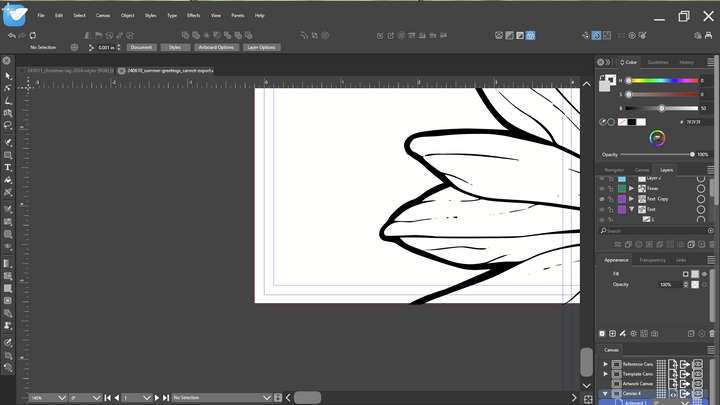
                  Right now when it does this, it does a thing where it has the min/maximize buttons only showing a grey background and nothing else. That is all that is visible and it's just in the corner by itself with everything else running on that screen completely visible. If I try to move the VS window in-between monitors using Windows Key + Shift + left/right arrow when it is in this state, it completely ignores Windows Key snapping commands.

                  I did manage to get it to come back by using Snapping by right-clicking on the VS instance and selecting Snap Left/Right, but it only worked once. It was usable, but in a janky state with some interface elements were overized and weird gaps appearing in places there weren't before... such as above the docked document window... but at least the interface was in the right order... I had to close and reopen it to get it back to normal.

                  Edit: Oh hey, it's back... I went to adjust resolution on Screen 2 and VS moved itself from Screen 2 to 3 (that's a Windows 10 quirk, not VS)... but yeah this is what it looks like if you can get it to appear... :
                  0_1732041286294_d90d439e-f63b-4b0b-9074-34289a26f641-image.png

                  Windows 11 Build 26200.7171 (25H2)
                  AMD Ryzen 7 9700X with Gigabyte X870E Aorus Pro Ice
                  32GB RAM @ 6000MHz
                  PNY NVIDIA RTX 5070 Ti 16GB; Display 1: 4K @150%; Display 2: 4K @200%
                  Wacom Intuos Pro L (2025); Wacom Intuos Pro M; Epson ET-8550; Siser Romeo

                  VectorStylerV 2 Replies Last reply Reply Quote 1
                  • VectorStylerV Offline
                    VectorStyler @debraspicher
                    last edited by

                    @debraspicher I will try to replicate this.

                    debraspicherD 1 Reply Last reply Reply Quote 0
                    • debraspicherD Offline
                      debraspicher @VectorStyler
                      last edited by

                      @VectorStyler I added a screenshot to the report. I got VS to restore itself.

                      Windows 11 Build 26200.7171 (25H2)
                      AMD Ryzen 7 9700X with Gigabyte X870E Aorus Pro Ice
                      32GB RAM @ 6000MHz
                      PNY NVIDIA RTX 5070 Ti 16GB; Display 1: 4K @150%; Display 2: 4K @200%
                      Wacom Intuos Pro L (2025); Wacom Intuos Pro M; Epson ET-8550; Siser Romeo

                      1 Reply Last reply Reply Quote 1
                      • VectorStylerV Offline
                        VectorStyler @debraspicher
                        last edited by

                        @debraspicher said in Issue with the interface:

                        Screen 1 applications to Screen 2 (HDMI is Screen 3)

                        Are all screens at 150% scale, or do you have different scaling per screen?

                        debraspicherD B 2 Replies Last reply Reply Quote 0
                        • debraspicherD Offline
                          debraspicher @VectorStyler
                          last edited by debraspicher

                          Screen 1 is 150%; Screen 2 & 3 are 100% (2 is set wrong and needs changing, but yeah).

                          Windows 11 Build 26200.7171 (25H2)
                          AMD Ryzen 7 9700X with Gigabyte X870E Aorus Pro Ice
                          32GB RAM @ 6000MHz
                          PNY NVIDIA RTX 5070 Ti 16GB; Display 1: 4K @150%; Display 2: 4K @200%
                          Wacom Intuos Pro L (2025); Wacom Intuos Pro M; Epson ET-8550; Siser Romeo

                          1 Reply Last reply Reply Quote 0
                          • B Offline
                            B-Vs-V @VectorStyler
                            last edited by

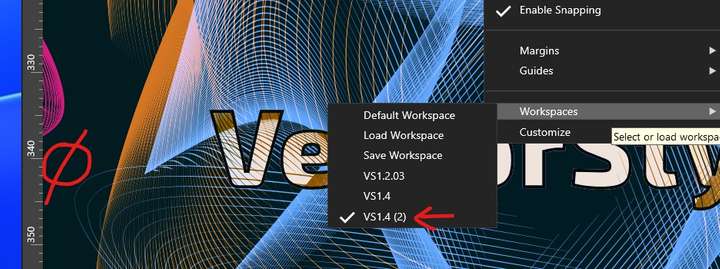
                            @VectorStyler Although VS indicates that a workspace is selected, I'm missing the tools panel and other panels... I don't know if that happens on Mac but on W, this is a recurring and fairly frequent issue (for me). Do I have to delete all ws and repeat creating them again ?
                            0_1732525372315_bug.jpg

                            W11 Pro 25H2 - 12th Gen Intel(R) i7-12700K 3.61 GHz - RAM 64 Go - NVIDIA GF GTX 4070 Ti - Intuos - Dell UP3216Q / Eizo ColorEdge
                            W11 Pro 25H2 - 12th Gen Intel(R) i7-12700KF 3.60 GHz -RAM 64 Go - NVIDIA GF GTX 3080 - IntuosPro- ProArt PA329C

                            1 Reply Last reply Reply Quote 1
                            • B Offline
                              B-Vs-V
                              last edited by

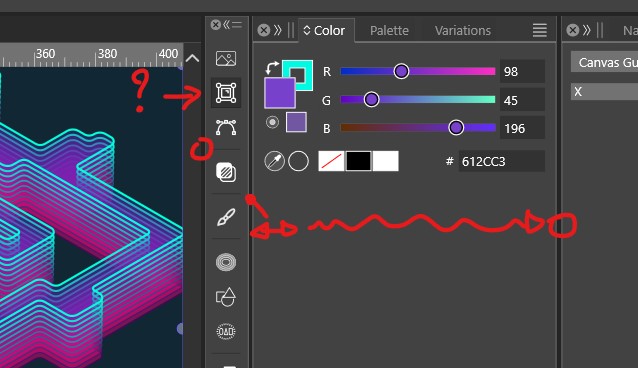
                              @VectorStyler There are still quite a few issues with the UI. Clicking on an icon doesn't open the panel, it's impossible to enlarge the width of a panels column, or trying to adjust the width of an intermediate column changes the width of the one on the far right...
                              0_1739777242484_f1.jpg

                              W11 Pro 25H2 - 12th Gen Intel(R) i7-12700K 3.61 GHz - RAM 64 Go - NVIDIA GF GTX 4070 Ti - Intuos - Dell UP3216Q / Eizo ColorEdge
                              W11 Pro 25H2 - 12th Gen Intel(R) i7-12700KF 3.60 GHz -RAM 64 Go - NVIDIA GF GTX 3080 - IntuosPro- ProArt PA329C

                              VectorStylerV 1 Reply Last reply Reply Quote 2
                              • VectorStylerV Offline
                                VectorStyler @B-Vs-V
                                last edited by

                                @B-Vs-V The iconified panel column width can be resized (to show the name). I have to replicate the icon not opening issue.


                                1 Reply Last reply Reply Quote 0
                                • First post
                                  Last post