VectorStyler
    • Categories
    • Unread
    • Recent
    • Tags
    • Popular
    • Register
    • Login

    Shape Weaving – Over-Under Paths
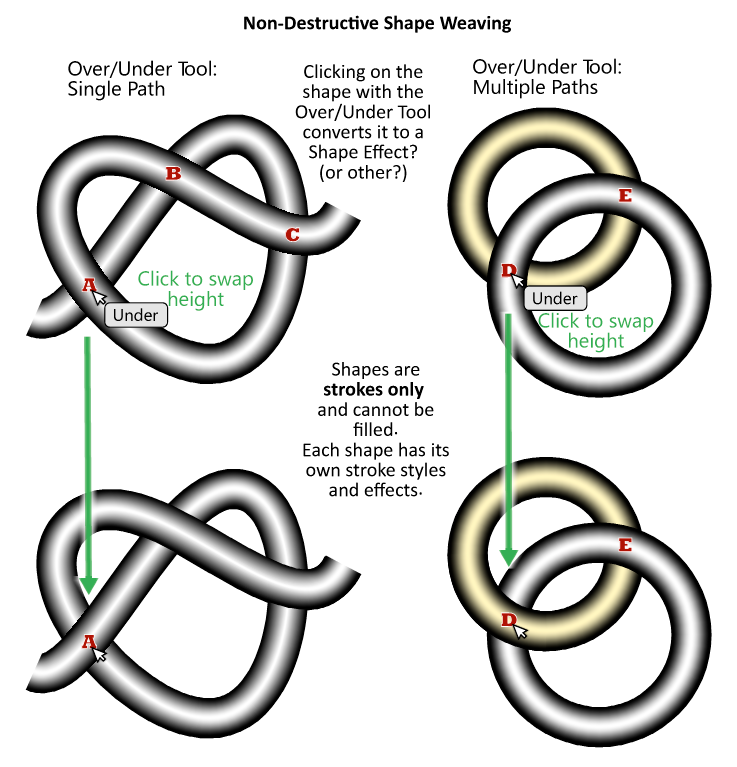
    Scheduled Pinned Locked Moved Features and Ideas
    idea
    21 Posts 5 Posters 45.3k Views 5 Watching
    Loading More Posts
    • Oldest to Newest
    • Newest to Oldest
    • Most Votes
    Reply
    • Reply as topic
    Log in to reply
    This topic has been deleted. Only users with topic management privileges can see it.
    • S Offline
      Subpath @Victor Vector
      last edited by Subpath

      @Victor-Vector

      i love this effect too 🙂

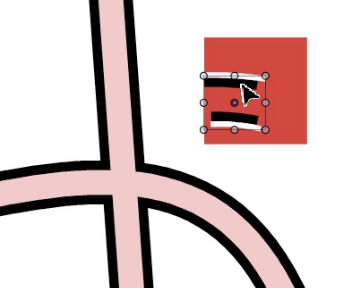
      For the overlapping parts, these are just short, simple strokes

      Video see here:

      .
      0_1652025266006_overlapping-strokes.png

      Win 11
      CPU: AMD Ryzen 5 9600X, 6-core.
      GPU: Nvidia Geforce RTX 5070.

      1 Reply Last reply Reply Quote 1
      • S Offline
        Subpath @Victor Vector
        last edited by

        @Victor-Vector

        Btw, there is yet another way to handle a overlap
        you could use "combined strokes" but i think it is
        difficult to use them on curves.

        You could also split strokes by delete a node
        and seperate them. The clone will follow.

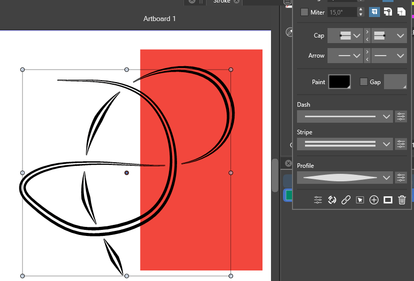
        Video: here a try from me
        .
        0_1652026576914_split-strokes.png

        Win 11
        CPU: AMD Ryzen 5 9600X, 6-core.
        GPU: Nvidia Geforce RTX 5070.

        1 Reply Last reply Reply Quote 1
        • encartE Offline
          encart
          last edited by encart

          @Victor-Vector Inkscape has this functionality built in.
          https://recordit.co/mPFctGJrmQ

          Edit:
          In VS we have Crossing Gap Effect, but without any modifications - the newer segments are always above.
          https://recordit.co/7TfjUJRseq

          MacBook Air M4 24Gb, Tahoe 26.2

          S 1 Reply Last reply Reply Quote 2
          • S Offline
            Subpath @encart
            last edited by Subpath

            @encart

            Thats cool 👍
            Thanks for the tip.
            Crazy, whats already build in VS.

            But, as I found out, you need to apply this effect to the layer.
            Does not work only on stroke.

            But it's no problem to then make a clone of the stroke and put it over it. The clone follows the gaps.
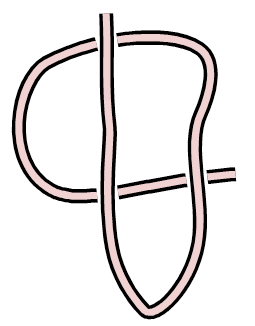
            0_1652039054314_Gap-in-Stroke.png
            .
            .
            you could also do this, this way
            without any clone
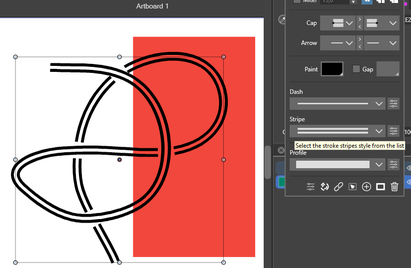
            0_1652039846574_Gap-in-Stroke-2.png
            .
            .
            and this way

            0_1652039871145_Gap-in-Stroke-3.png

            Win 11
            CPU: AMD Ryzen 5 9600X, 6-core.
            GPU: Nvidia Geforce RTX 5070.

            1 Reply Last reply Reply Quote 2
            • Victor VectorV Offline
              Victor Vector
              last edited by

              @encart Thank you for demonstrating the "Crossing Gap" in Effects > Shape Effects > Outline > Crossing Gap. I did not know about that, so I played around with it a bit.
              @Subpath I like how you refined the effect with the tapered double lines.

              I watched the Local Layering video shared by @vectorstyler https://dl.acm.org/doi/abs/10.1145/1531326.1531390 I appreciated understanding the potential issues and the logical problem solving he implemented.
              What is exciting is it looks like the idea is totally doable, especially for shapes.

              b77B 1 Reply Last reply Reply Quote 2
              • b77B Offline
                b77 @Victor Vector
                last edited by b77

                @VectorStyler It's great that the app has a way to achieve this already (thanks @encart , I didn't know about Crossing Gap) and this will come handy for an old project here.

                However, a small improvement I would suggest is making the gap values dependent on the stroke width, so that when you change it the gap is still the same.

                Currently, if the stroke width is 20 pt and the Above Gap is at 60 pt then you change the stroke to 30, the gap is gone. You need to go to Shape effects, open the Crossing Gap settings and readjust it to… 86, I think.

                If this value would be the distance between the overlapping path widths (say, 5 pt), changing the stroke widths would make readjusting the gap unnecessary.

                MacBook Pro (Intel) running Monterey 12.6.4

                1 Reply Last reply Reply Quote 0
                • S Offline
                  Subpath
                  last edited by Subpath

                  one observation i made, if you look at
                  this picture, it is not a Over-Under Effect
                  but still very handy in some cases
                  .
                  .
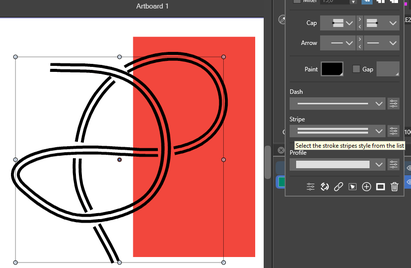
                  0_1652085081640_under or over.png

                  Win 11
                  CPU: AMD Ryzen 5 9600X, 6-core.
                  GPU: Nvidia Geforce RTX 5070.

                  1 Reply Last reply Reply Quote 0
                  • S Offline
                    Subpath
                    last edited by

                    Another find
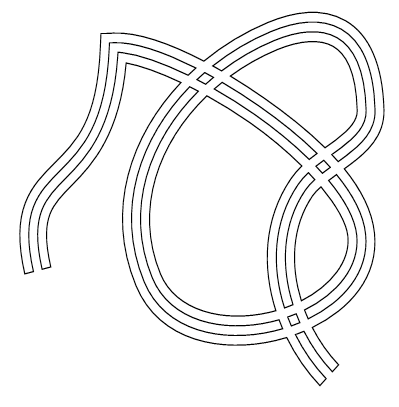
                    try Shape Effect -> Outline -> Outline Path on a Stroke
                    and play with "Stripe"

                    No clone is used for this effect.
                    .
                    .
                    0_1652111182135_Outline-Path.png

                    Win 11
                    CPU: AMD Ryzen 5 9600X, 6-core.
                    GPU: Nvidia Geforce RTX 5070.

                    1 Reply Last reply Reply Quote 2
                    • S Offline
                      Subpath
                      last edited by Subpath

                      The right one is a editable Gear-Shape and is still editable.

                      Have fun to explore how to make it 🙂
                      (Hint: read my previous post and use the Shape panel)
                      .
                      .
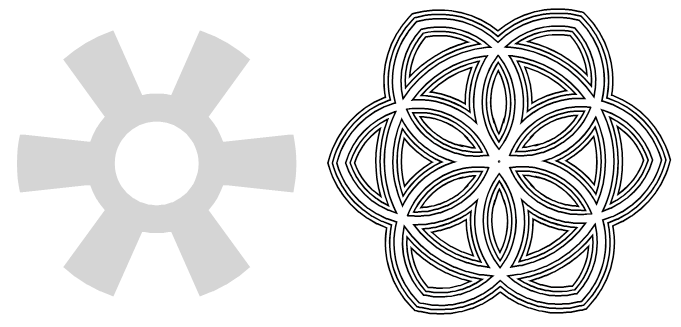
                      0_1652116516709_Gear-Shape-find-1.png
                      .
                      .
                      To simplify things a bit, you can copy a shape effect you once found
                      from a shape and paste it onto another shape!
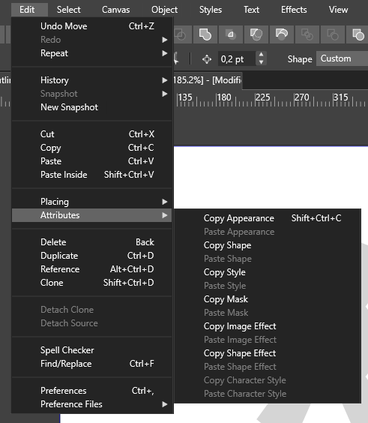
                      0_1652117008807_Copy-Shape-Effect.png

                      Win 11
                      CPU: AMD Ryzen 5 9600X, 6-core.
                      GPU: Nvidia Geforce RTX 5070.

                      Victor VectorV 1 Reply Last reply Reply Quote 4
                      • Victor VectorV Offline
                        Victor Vector @Subpath
                        last edited by

                        @Subpath Wow! I love the power of being able to create such an attractive shape from a gear shape. These are some fun explorations. Thank you for sharing!

                        S 1 Reply Last reply Reply Quote 1
                        • S Offline
                          Subpath @Victor Vector
                          last edited by

                          @Victor-Vector

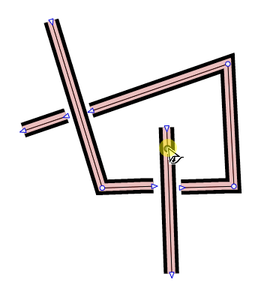
                          I love this too, VS seems to be an endless box of miracles 🙂
                          Win 11
                          CPU: AMD Ryzen 5 9600X, 6-core.
                          GPU: Nvidia Geforce RTX 5070.

                          1 Reply Last reply Reply Quote 2
                          • First post
                            Last post