VectorStyler
    • Categories
    • Unread
    • Recent
    • Tags
    • Popular
    • Register
    • Login

    Extend Square Star by one Point
    Scheduled Pinned Locked Moved Features and Ideas
    29 Posts 5 Posters 43.5k Views 4 Watching
    Loading More Posts
    • Oldest to Newest
    • Newest to Oldest
    • Most Votes
    Reply
    • Reply as topic
    Log in to reply
    This topic has been deleted. Only users with topic management privileges can see it.
    • VectorStylerV Offline
      VectorStyler @Subpath
      last edited by

      @Subpath The gear shape options are symmetric, in that they have the same effect for each knob.
      Would this peak be the same (as in the 3rd tow), so when dragged it would be on all knobs?
      In this case the example from the first row would not work.

      S 1 Reply Last reply Reply Quote 0
      • S Offline
        Subpath @VectorStyler
        last edited by Subpath

        @vectoradmin

        Such a shape was the original reason for my request.
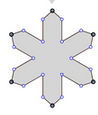
        0_1651856896829_First-Shape-1.png

        Yes, this shape is also possible with the gear shape.

        0_1651856968458_second-shape.png

        So only for the first form, my request is maybe a bit too much,
        but i still found it useful.

        Win 11
        CPU: AMD Ryzen 5 9600X, 6-core.
        GPU: Nvidia Geforce RTX 5070.

        Victor VectorV 1 Reply Last reply Reply Quote 0
        • Victor VectorV Offline
          Victor Vector @Subpath
          last edited by

          @Subpath I like your idea and I see value in adding this function.

          Here's an interface suggestion to make your idea easily editable:
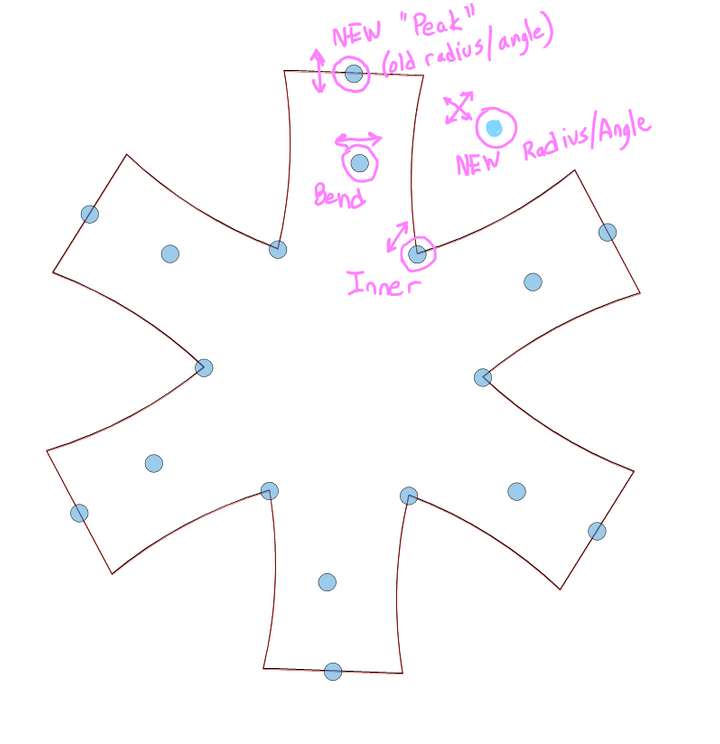
          0_1651857177590_Peak Square-Star.png

          Of course the Shape Panel would need to be updated as well.

          S 1 Reply Last reply Reply Quote 2
          • S Offline
            Subpath @b77
            last edited by Subpath

            @b77

            Yes, the position of the scaling point is the weak point in my request.
            Honestly, I don't really know where to put it.

            Win 11
            CPU: AMD Ryzen 5 9600X, 6-core.
            GPU: Nvidia Geforce RTX 5070.

            1 Reply Last reply Reply Quote 0
            • S Offline
              Subpath @Victor Vector
              last edited by

              @Victor-Vector

              Like your idea, for the scaling point.

              Win 11
              CPU: AMD Ryzen 5 9600X, 6-core.
              GPU: Nvidia Geforce RTX 5070.

              b77B 1 Reply Last reply Reply Quote 1
              • b77B Offline
                b77 @Subpath
                last edited by b77

                I thought about all this, and things might not be that simple.

                First, an observation:

                The bending knob of the Square Star shape is positioned between the two segments it bends, which is different from the Star and Gear shapes, where it is positioned on the segments:
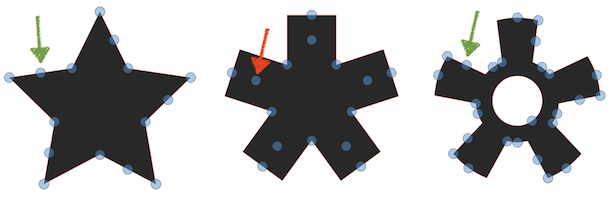
                0_1651876427871_sst.png

                Unless there is some good reason for this being in the middle, I would move it also on the segment — it makes more sense IMO.

                …………………… … .. .

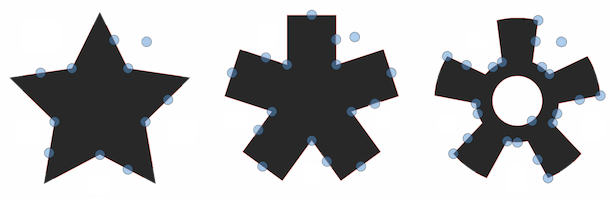
                Anyway, I made a mockup to see how the star-based shapes would look with the scaling knobs positioned between the rays:
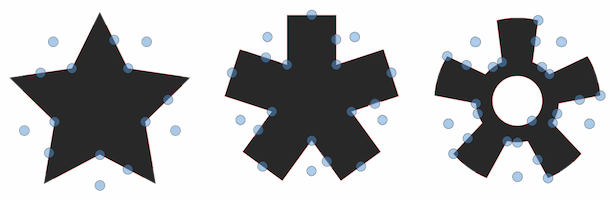
                0_1651881200973_sst copy.png

                What I'm afraid is that these knobs can be less visible if there are other objects in the background.

                The way half of each knob overlaps the shape now avoids this.

                And… it all looks a bit busy. Maybe use just one knob for scaling?
                0_1651881591885_sst cl.png

                …………………… … .. .

                Another thing:

                Can the bend knobs have a way to reset their segments to straight — a double-click maybe?

                And a question:

                Just in case the developer would include a [–|+] button/handle that allows you to change the ray count for the Star shapes directly on the canvas, where should such a handle be positioned? Somewhere between the rays of the shape or in a corner of the bounding box?

                MacBook Pro (Intel) running Monterey 12.6.4

                VectorStylerV S 2 Replies Last reply Reply Quote 1
                • VectorStylerV Offline
                  VectorStyler @b77
                  last edited by

                  @b77 I added these to the backlog for the extra shape parameter.

                  There is no bend knob reset at this time, but double click seems like an easy solution.

                  I would leave out a [+/-] handle for now. The up/down arrow keys can be used to change the count.

                  S 1 Reply Last reply Reply Quote 1
                  • S Offline
                    Subpath @b77
                    last edited by

                    @b77

                    Thank you for your explorations,
                    I really appreciate it.

                    Win 11
                    CPU: AMD Ryzen 5 9600X, 6-core.
                    GPU: Nvidia Geforce RTX 5070.

                    1 Reply Last reply Reply Quote 1
                    • S Offline
                      Subpath @VectorStyler
                      last edited by Subpath

                      @vectoradmin

                      I always use the Shape Panel to change the count
                      and also to reset the Bend.

                      But the Bend in the Rectangle/Square shape
                      doesnt have an Option to do that.
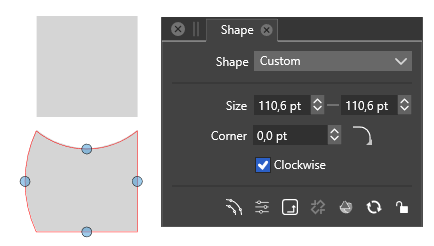
                      0_1651906941976_Shape-Option.png

                      Only the Rectangle Option have this
                      0_1651906974731_Rectangle Option.png

                      Win 11
                      CPU: AMD Ryzen 5 9600X, 6-core.
                      GPU: Nvidia Geforce RTX 5070.

                      1 Reply Last reply Reply Quote 1
                      • S Offline
                        Subpath
                        last edited by Subpath

                        First of all, I have to say that I am not in a hurry at all.

                        I will try to explain my somewhat diffuse thoughts.
                        .

                        One point of my thoughts is that I like the concept of non-destructive modeling
                        in 3D programs and, of course, in 2D. Therefore, in my vector graphics heaven,
                        shapes always remained editable.

                        VS already has a lot to offer in this regard.

                        The second point of my consideration is the creation of shapes that always
                        remain editable for pattern creation.

                        .
                        .
                        .

                        Using clones is certainly also a way to create such editable shapes.
                        Composite objects also offer some possibilities.
                        Unfortunately, both have transformation bugs at the moment.

                        If one day the transformation problems with them are solved,
                        then I see a very flexible way to create such editable shapes.
                        .
                        .
                        .

                        I looked at the shapes themselves and found that some shapes don't use
                        a scale point at all, they are scaled just with the normal selection rectangle.
                        So whats the scale point for ?
                        .

                        shapes without scaling point
                        0_1651906052930_without scaling point.png

                        shapes with a scaling point
                        0_1651906081400_with scaling point.png

                        Win 11
                        CPU: AMD Ryzen 5 9600X, 6-core.
                        GPU: Nvidia Geforce RTX 5070.

                        VectorStylerV Victor VectorV 2 Replies Last reply Reply Quote 2
                        • VectorStylerV Offline
                          VectorStyler @Subpath
                          last edited by

                          @Subpath The best way to keep shapes editable (and reused) is to enable the Shape role of an object, and select Shape styles.

                          The composite shape transformation errors will be fixed, but these concern only the arrangement of shapes inside a composite shape.

                          S 1 Reply Last reply Reply Quote 1
                          • S Offline
                            Subpath @VectorStyler
                            last edited by Subpath

                            @vectoradmin

                            I looked at under Object > Object Role and found only "Shape"
                            as a Role, did you mean this ?

                            And where will this be different instead of using symbols or clones
                            (i know the different between Symbols and Clones)

                            Win 11
                            CPU: AMD Ryzen 5 9600X, 6-core.
                            GPU: Nvidia Geforce RTX 5070.

                            VectorStylerV 1 Reply Last reply Reply Quote 0
                            • VectorStylerV Offline
                              VectorStyler @Subpath
                              last edited by

                              @Subpath Yes that is the "Shape" role. It can also be set in the Object Options view with the Role button.

                              The difference:
                              When using the Shape role a "virtual" shape style is created (think of a shape style as a fill or stroke style, but for shapes).
                              This shape style can then be selected on any object to be the shape of the object. These objects will not be symbol instances, and they may have any other local attributes, but their shape is linked as a style to the shape style.

                              S 1 Reply Last reply Reply Quote 2
                              • S Offline
                                Subpath @VectorStyler
                                last edited by Subpath

                                @vectoradmin

                                thank you for the explanation.
                                Could you briefly explain how I then pass this "style" to other objects ?
                                .
                                .
                                I think I figured out how to do this.
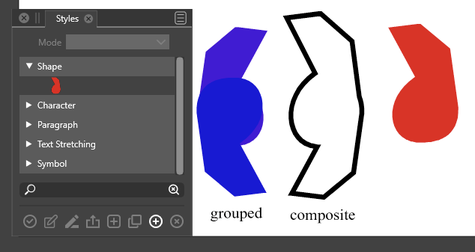
                                Select Panels > Styles > Styles (alt+v).

                                Open Shape in the panel and here is your previously
                                created Shape role

                                Select the object(s) you want to apply it to and press the icon in the bottom
                                left corner. To test it, just scale your original object

                                Did some tests:
                                Node editing is possible
                                Group shapes after you applied the style too
                                Even composite objects work (not possible with clone)
                                but give me a fixable strange position for an object inside the composite object
                                .
                                will explore this further

                                0_1651916012455_Style apply-2.png
                                .
                                .
                                Video: here my results

                                Win 11
                                CPU: AMD Ryzen 5 9600X, 6-core.
                                GPU: Nvidia Geforce RTX 5070.
                                VectorStylerV 2 Replies Last reply Reply Quote 1
                                • VectorStylerV Offline
                                  VectorStyler @Subpath
                                  last edited by

                                  @Subpath When an object is selected, the Shape panel (and the Context panel) will contain a "Shape" drop down, that lists all the Shape styles and presets.
                                  Select the shape from there. The shape is listed with the name that was assigned to the object with the Shape role.

                                  1 Reply Last reply Reply Quote 1
                                  • VectorStylerV Offline
                                    VectorStyler @Subpath
                                    last edited by

                                    @Subpath Yes, the Styles panel also works for this.

                                    1 Reply Last reply Reply Quote 0
                                    • Victor VectorV Offline
                                      Victor Vector @Subpath
                                      last edited by

                                      @Subpath said in Extend Square Star by one Point:

                                      shapes without scaling point
                                      0_1651906052930_without scaling point.png

                                      shapes with a scaling point
                                      0_1651906081400_with scaling point.png

                                      For consistency, and to clean up the Shape Tool "blue point" interface, it wouldn't bother me if there were no scaling points, but scaling was achieved via the Transform Tool, or the Shape Panel.

                                      But I do like the "one point" scaler idea too!

                                      @b77 said in Extend Square Star by one Point:

                                      And… it all looks a bit busy. Maybe use just one knob for scaling?

                                      0_1651881591885_sst cl.png

                                      S 1 Reply Last reply Reply Quote 0
                                      • S Offline
                                        Subpath @Victor Vector
                                        last edited by

                                        @Victor-Vector

                                        As from my point of view, i dont know the cause that Point for scaling by now.

                                        It doesnt matter that much to me if there is one or non.
                                        So i have nothing against your Idea, if you like one.

                                        The Post of mine where you reply to is just an observation i made.

                                        Win 11
                                        CPU: AMD Ryzen 5 9600X, 6-core.
                                        GPU: Nvidia Geforce RTX 5070.

                                        b77B 1 Reply Last reply Reply Quote 0
                                        • b77B Offline
                                          b77 @Subpath
                                          last edited by b77

                                          Having a knob or knobs for scaling the shape when in Shape Editing mode (shortcut: A) means you don't have to switch to the Move/Transform tool (V) for scaling.
                                          So I'm not suggesting it should go away.

                                          MacBook Pro (Intel) running Monterey 12.6.4

                                          S 1 Reply Last reply Reply Quote 0
                                          • S Offline
                                            Subpath @b77
                                            last edited by

                                            @b77

                                            A knob for scaling can stay. I have nothing against it.
                                            But it is surprising why some Shapes have one and others do not.

                                            Win 11
                                            CPU: AMD Ryzen 5 9600X, 6-core.
                                            GPU: Nvidia Geforce RTX 5070.

                                            Victor VectorV b77B 2 Replies Last reply Reply Quote 0
                                            • First post
                                              Last post