VectorStyler
    • Categories
    • Unread
    • Recent
    • Tags
    • Popular
    • Register
    • Login

    How. would I create this pattern in VS?

    Scheduled Pinned Locked Moved Questions and Support
    7 Posts 4 Posters 5.9k Views 3 Watching
    Loading More Posts
    • Oldest to Newest
    • Newest to Oldest
    • Most Votes
    Reply
    • Reply as topic
    Log in to reply
    This topic has been deleted. Only users with topic management privileges can see it.
    • BoldlineB Online
      Boldline
      last edited by Boldline

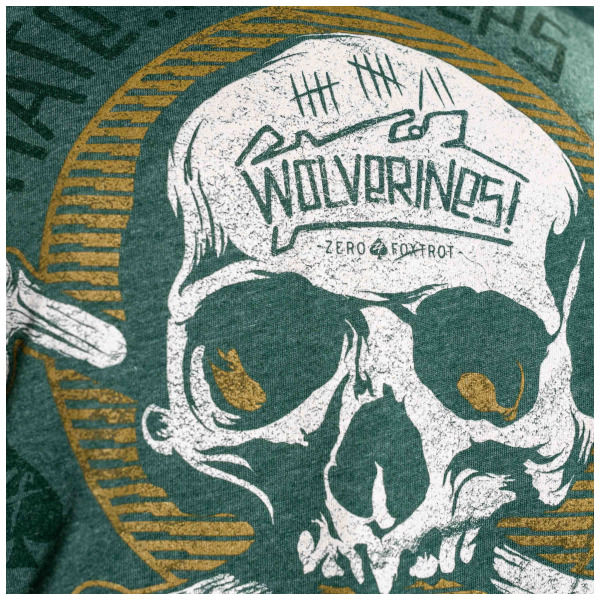
      I want to create this pattern behind the skull in Vectorstyler. I am trying to think of the best way to create it. Anyone have any suggestions? The round circular look is throwing me off
      0_1712701200256_2386d3b0-b6b1-490c-a30a-7baf4488499d-Image.jpg

      🍎 macOS Sequoia 15.3, Mac mini (M1, 2020), Chip Apple M1, Memory 16 GB
      Cintiq 27QHD Display and LG Ultra HD Display

      VectorStylerV 1 Reply Last reply Reply Quote 0
      • VectorStylerV Offline
        VectorStyler @Boldline
        last edited by

        @Boldline Is that the yellow clipped thing around the skull?

        BoldlineB 1 Reply Last reply Reply Quote 0
        • BoldlineB Online
          Boldline @VectorStyler
          last edited by

          @VectorStyler I just have a picture off the internet, not the original file. I wanted to replicate the line pattern in the yellow circular shape behind the skull

          🍎 macOS Sequoia 15.3, Mac mini (M1, 2020), Chip Apple M1, Memory 16 GB
          Cintiq 27QHD Display and LG Ultra HD Display

          S 1 Reply Last reply Reply Quote 1
          • S Offline
            Subpath @Boldline
            last edited by Subpath

            @Boldline

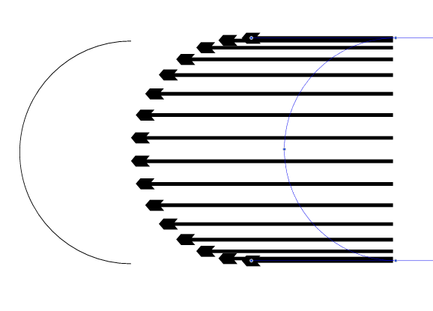
            would try it with a blend on a half circle
            for a more equal distances between the strokes
            i would use the technique which i descriped in this
            tutorial

            at last a boolean or clipping with a circle may be needed
            for the curved look on the left side of the pattern ends
            https://www.vectorstyler.com/forum/topic/3307/curious-little-tricks-using-clones-when-aligning-shapes-to-a-path

            0_1712725957661_blend.png

            another way i see was boolean intersect

            0_1712728158573_boolean intersect.png

            Win 11
            CPU: AMD Ryzen 5 9600X, 6-core.
            GPU: Nvidia Geforce RTX 5070.

            1 Reply Last reply Reply Quote 3
            • encartE Offline
              encart
              last edited by

              The first thing that came to my mind was to use strokes, changing the shape of the profile to the one in the photo. Trimming them so that the beginning coincides with the outer edge, and then clipping the inside. I will check later if this theory is correct 🙂

              Windows 11 Home 10.0.22621

              1 Reply Last reply Reply Quote 1
              • BoldlineB Online
                Boldline
                last edited by

                @Subpath @encart Thank you for your suggestions. They helped me visualize better what needed to be done (at least another variant of a solution!)

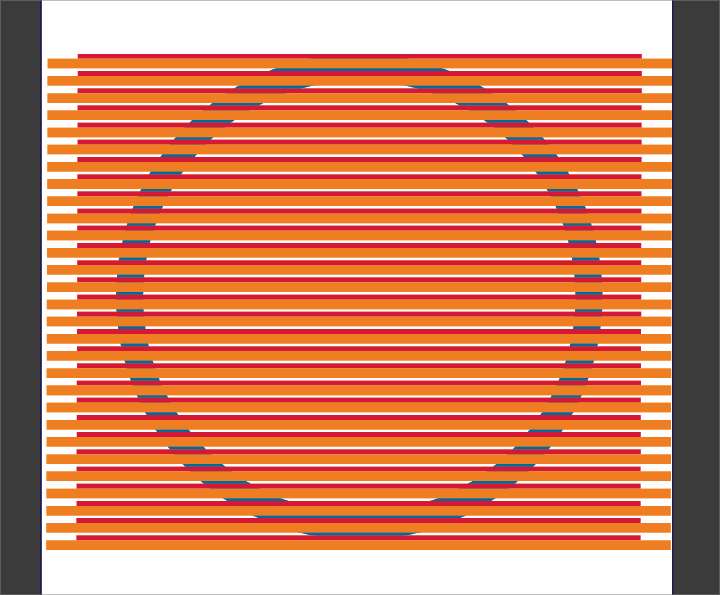
                1. I created a blue circle with a thick stroke and expanded it to a shape. I created a thin rectangle in red to represent the thin final lines and larger orange rectangle to represent the eventual empty negative shape. I grouped them and used blend to make a pattern of them that fit the circle.
                0_1712860784063_BLD 2024-04-11 at 14.34.08.png

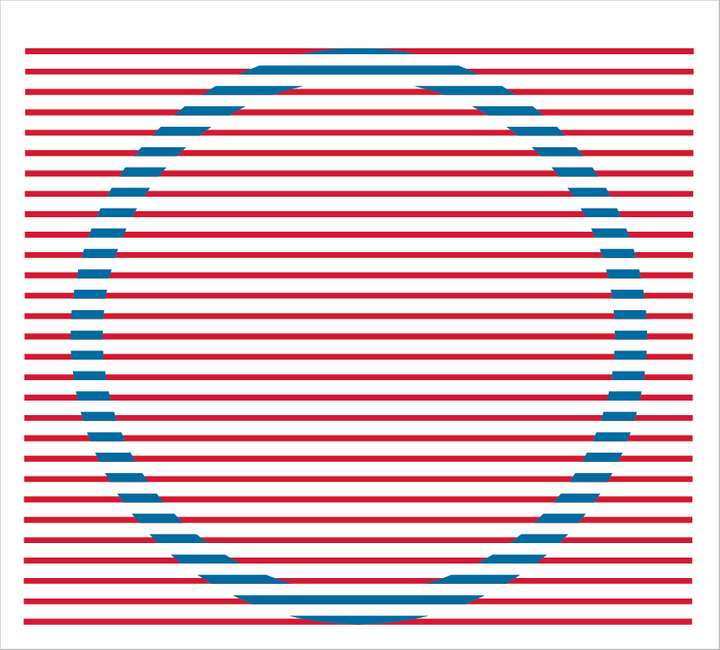
                1. I expanded the blend and ungrouped it and then grouped all the orange pieces together and grouped the red lines together. Then I selected the blue circle and the orange rectangle grouping and merged them so the orange cut away the blue where they overlapped. I then ungrouped and delted the orange rectangles
                0_1712860798921_BLD 2024-04-11 at 14.36.08.png

                1. I then selected the remaining blue of the circle and the red rectangle group and merged those. After ungrouping again, i was able to select the outer red pieces and delete them, keeping only the red rectangle sections inside the circle.
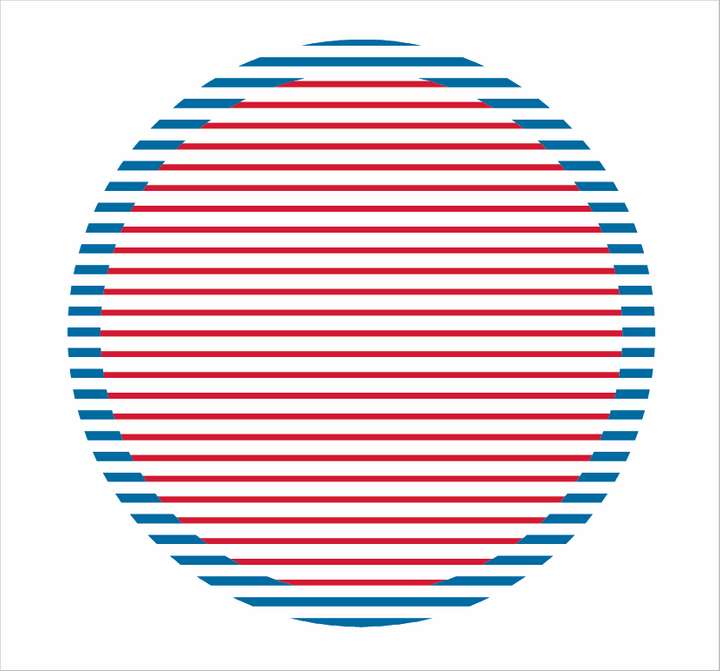
                  0_1712860815103_BLD 2024-04-11 at 14.36.34.png

                2. I selected all the interior red rectangle pieces and used "unite" to make them the same color and full shapes

                  0_1712860827986_BLD 2024-04-11 at 14.37.02.png

                🍎 macOS Sequoia 15.3, Mac mini (M1, 2020), Chip Apple M1, Memory 16 GB
                Cintiq 27QHD Display and LG Ultra HD Display

                S 1 Reply Last reply Reply Quote 3
                • S Offline
                  Subpath @Boldline
                  last edited by

                  @Boldline

                  your welcome
                  looks good

                  Win 11
                  CPU: AMD Ryzen 5 9600X, 6-core.
                  GPU: Nvidia Geforce RTX 5070.

                  1 Reply Last reply Reply Quote 1
                  • First post
                    Last post
