VectorStyler
    • Categories
    • Unread
    • Recent
    • Tags
    • Popular
    • Register
    • Login

    Best solution for breaking apart merge results

    Scheduled Pinned Locked Moved Questions and Support
    28 Posts 4 Posters 60.0k Views 1 Watching
    Loading More Posts
    • Oldest to Newest
    • Newest to Oldest
    • Most Votes
    Reply
    • Reply as topic
    Log in to reply
    This topic has been deleted. Only users with topic management privileges can see it.
    • BoldlineB Offline
      Boldline @b77
      last edited by

      @b77 Is that any different than just "ungroup all"?

      🍎 macOS Tahoe 26.2, Mac mini (M1, 2020), Chip Apple M1, Memory 16 GB
      Cintiq 27QHD Display and LG Ultra HD Display

      b77B 1 Reply Last reply Reply Quote 0
      • b77B Offline
        b77 @Boldline
        last edited by b77

        @Boldline Groups can be:

        • individual objects grouped together;
        • multiple groups that are grouped together;
        • a mix of individual objects and groups grouped together.

        'Ungroup' ungroups separate objects or groups that were grouped.

        'Ungroup All' does successive ungrouping until any grouped groups are ungrouped.

        'Separate Path' explodes one composite shape into separate objects.

        MacBook Pro (Intel) running Monterey 12.6.4

        BoldlineB 1 Reply Last reply Reply Quote 1
        • encartE Offline
          encart
          last edited by

          Another problem I faced. I haven't found the perfect solution. You usually have to do something manually. If there are any holes inside it becomes a mess . i have two paths for you.

          1. Break Apart, then Divide and remove useless parts.
            https://recordit.co/QwsCGQ3rOW
            2.You could try Shapebuilder.
            https://recordit.co/Vjlyyuyjxy
            Sorry to post an AI link, but I get weird things out in our VS. I want to show you a possible solution to the problem Perhaps it will go better in your case on Mac.
            I'm waiting for VS's Shapebuilder to handle complex shapes badly:)

          Windows 11 Home 10.0.22621

          BoldlineB 1 Reply Last reply Reply Quote 1
          • b77B Offline
            b77
            last edited by b77

            @encart Regarding the 1st video:

            No app could figure out you don't need those three strokes and remove them automatically. 🙂
            You need to remove them manually before breaking the complex shape apart, so they won't leave holes in the bigger shapes.

            (BoldLine's problem was being able to turn the "negative space" of the volleyball shape into fillable shapes. Any unconnected brush strokes in the volleyball are needed, I think).

            …………………………………

            Regarding the 2nd video:

            I guess the app's Shapebuilder tool can be used to "disolve" those holes left from the unconnected strokes. Is that not working?

            MacBook Pro (Intel) running Monterey 12.6.4

            1 Reply Last reply Reply Quote 0
            • BoldlineB Offline
              Boldline @b77
              last edited by

              @b77 Thank you for breaking that down - that makes total sense now.
              So "separate path" would be the solution if I had a compound shape/ if I used the combine boolean operation prior to make a compound shape

              🍎 macOS Tahoe 26.2, Mac mini (M1, 2020), Chip Apple M1, Memory 16 GB
              Cintiq 27QHD Display and LG Ultra HD Display

              b77B 1 Reply Last reply Reply Quote 0
              • b77B Offline
                b77 @Boldline
                last edited by b77

                @Boldline Yes, any shape made with the Composite operations in the Object menu can be "exploded" into the initial shapes with 'Separate Path'.

                Not so with shapes made with the destructive Combine operations (Object > Combine).

                MacBook Pro (Intel) running Monterey 12.6.4

                1 Reply Last reply Reply Quote 0
                • BoldlineB Offline
                  Boldline @encart
                  last edited by

                  @encart I appreciate your input and your idea to use the "divide" function after "break apart" makes a lot of sense. I tried it out myself and it worked well for times I don't need the backing fill shape provided by "break apart" - ( though that could also just be clicked on and deleted). Hitting the divide "shows" me the different shapes and allows for easy selection and color change

                  I also tried the Shapebuilder option on the mac in VS much like you did in Illustrator with mixed results. It reminds me a little of the "Live Paint" option in Illustrator and this would be a great addition to VS though I assume it's a 2.0 update. I'd even suggest the function of live paint in illustrator could just be part of the existing Shapebuilder in VS.
                  @vectoradmin could the shapebuilder be improved to accomplish what @encart was trying to do with shapebuilder in his video as well as my attempt in my second video??
                  I also saw there is a "shape paint tool" already in VS - though I need to try it out more. it wasn't working for me but it might be my lack of understanding it

                  🍎 macOS Tahoe 26.2, Mac mini (M1, 2020), Chip Apple M1, Memory 16 GB
                  Cintiq 27QHD Display and LG Ultra HD Display

                  encartE 1 Reply Last reply Reply Quote 0
                  • encartE Offline
                    encart @Boldline
                    last edited by

                    @Boldline said in Best solution for breaking apart merge results:

                    I also tried the Shapebuilder option on the mac in VS much like you did in Illustrator with mixed results.

                    Select the object/objects before you switch for Shapebuilder tool.

                    Windows 11 Home 10.0.22621

                    BoldlineB 1 Reply Last reply Reply Quote 0
                    • BoldlineB Offline
                      Boldline @encart
                      last edited by

                      @encart I had the same issues with Shapebuilder when I selected the shape first as when I did not....

                      🍎 macOS Tahoe 26.2, Mac mini (M1, 2020), Chip Apple M1, Memory 16 GB
                      Cintiq 27QHD Display and LG Ultra HD Display

                      1 Reply Last reply Reply Quote 0
                      • BoldlineB Offline
                        Boldline
                        last edited by

                        This is how quick and efficient the task can be done in Illustrator. After merging, you just ungroup and delete any excess you don't need

                        🍎 macOS Tahoe 26.2, Mac mini (M1, 2020), Chip Apple M1, Memory 16 GB
                        Cintiq 27QHD Display and LG Ultra HD Display

                        b77B 1 Reply Last reply Reply Quote 0
                        • b77B Offline
                          b77 @Boldline
                          last edited by

                          @Boldline Just four steps here in VS: 🙂

                          • select the voleyball shape and the rectangle;
                          • click the Combine button (the first one), or choose Combine (Object menu > Combine > Combine);
                          • use Break Apart;
                          • delete excess.

                          MacBook Pro (Intel) running Monterey 12.6.4

                          BoldlineB 2 Replies Last reply Reply Quote 1
                          • BoldlineB Offline
                            Boldline @b77
                            last edited by

                            @b77 there are many benefits to the way you are suggesting, but in the end, you still have to sort through a pile of objects all the same color and all stacked over top each other and change their stacking order and their colors to get back what you are needing.
                            I'd be more inclined to see the break apart as the best overall solution, if the colors did not all become the same, and the stacking order remained correct. if those edits can be made to "break apart" I'm all for it

                            🍎 macOS Tahoe 26.2, Mac mini (M1, 2020), Chip Apple M1, Memory 16 GB
                            Cintiq 27QHD Display and LG Ultra HD Display

                            1 Reply Last reply Reply Quote 0
                            • BoldlineB Offline
                              Boldline @b77
                              last edited by

                              @b77 you say it's four steps when it's really more like 6 steps. because you need to rearrange the stacking order and also change the colors of the individual pieces

                              🍎 macOS Tahoe 26.2, Mac mini (M1, 2020), Chip Apple M1, Memory 16 GB
                              Cintiq 27QHD Display and LG Ultra HD Display

                              b77B 1 Reply Last reply Reply Quote 0
                              • b77B Offline
                                b77 @Boldline
                                last edited by

                                @Boldline Well, both you and me suggested that on Break Apart the biggest shape should be placed in the back of all the others, and the developer said this will be implemented. Soon I hope. 🙂

                                MacBook Pro (Intel) running Monterey 12.6.4

                                BoldlineB 1 Reply Last reply Reply Quote 1
                                • BoldlineB Offline
                                  Boldline @b77
                                  last edited by Boldline

                                  @b77 lol yes we can agree on that for sure! The stacking order should be reversed regardless. I'd hope there's a way to retain colors as well. Those two edits tot he tool and I thin it will be in great condition
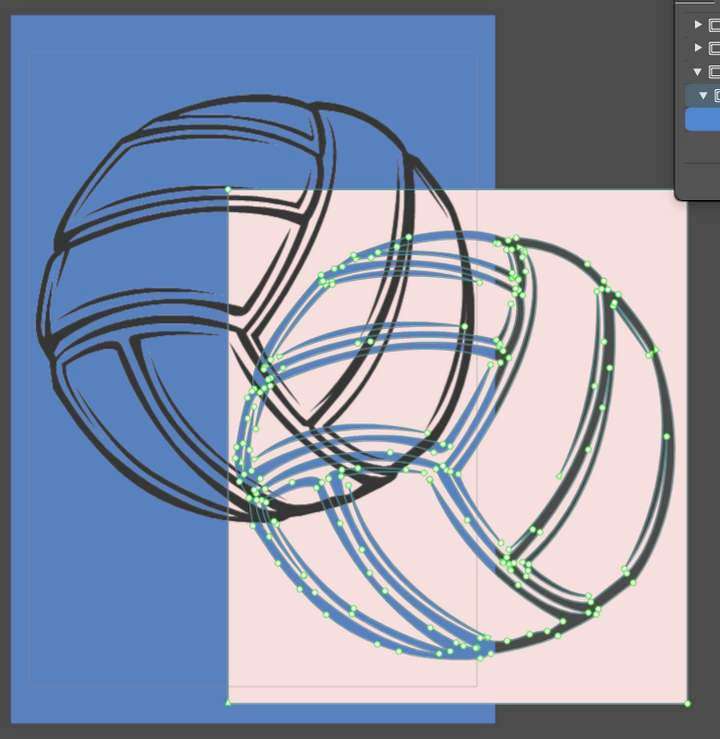
                                  The "Break apart" is a really awesome tool that I plan to use a lot in my work inside VS. I don't think we have to only choose one way to do this task - with the blessing of @vectoradmin both options could be available. Merging a fill shape behind a vector with open spaces already "cuts" into the fill shape - now we just need a way to ungroup that merged result (see pic below)
                                  0_1634944977834_bd512c44-784a-4a9b-8926-eaf9415f9649-image.png

                                  🍎 macOS Tahoe 26.2, Mac mini (M1, 2020), Chip Apple M1, Memory 16 GB
                                  Cintiq 27QHD Display and LG Ultra HD Display

                                  1 Reply Last reply Reply Quote 0
                                  • First post
                                    Last post