VectorStyler
    • Categories
    • Unread
    • Recent
    • Tags
    • Popular
    • Register
    • Login

    Image Not Shown in PDF

    Scheduled Pinned Locked Moved Questions and Support
    4 Posts 2 Posters 5.2k Views 2 Watching
    Loading More Posts
    • Oldest to Newest
    • Newest to Oldest
    • Most Votes
    Reply
    • Reply as topic
    Log in to reply
    This topic has been deleted. Only users with topic management privileges can see it.
    • G Offline
      gotanidea
      last edited by

      To reproduce it:

      1. Download the image and VectorStyler files below:

      0_1673058911348_TestGradientSmall.jpg

      0_1673058919780_Image_Not_Shown_in_Artboard.vstyler

      1. Open the VectorStyler file

      2. Drag the image file from a Windows folder into VectorStyler, to link the image file in the software

      3. There are two artboards in the VectorStyler file. Put the image in an artboard, then duplicate it and put the duplicate in the other artboard

      4. Export the VectorStyler file into a PDF file, using File > Export command (the hotkey is Ctrl + E)

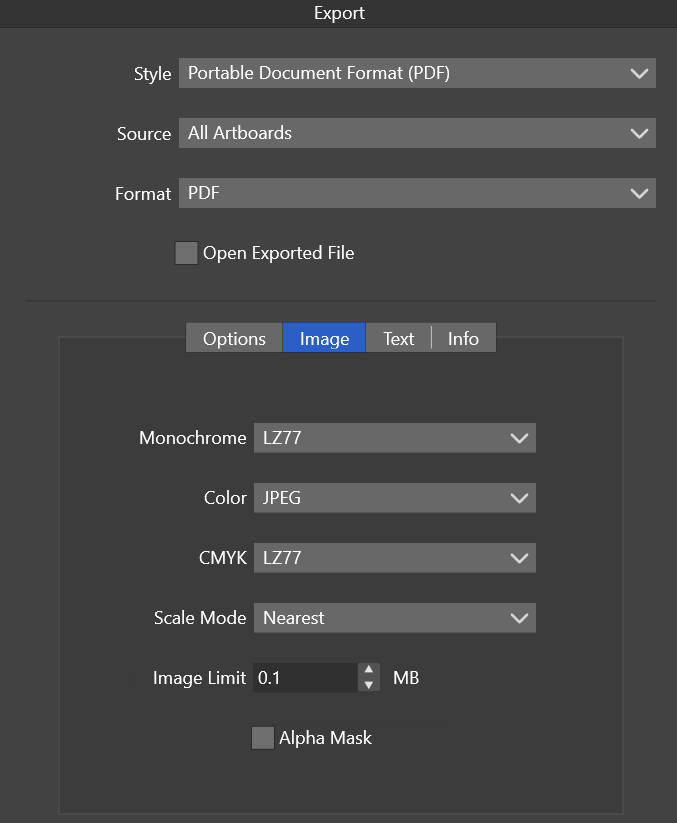
      5. Use the following PDF export settings:
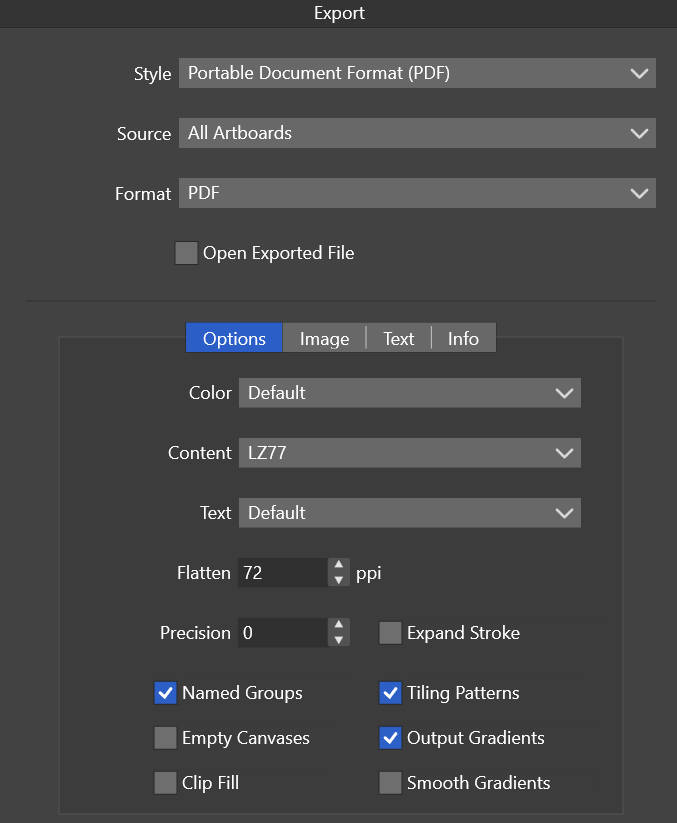
      0_1673059341468_PDF_Export_Settings_1.jpg

      0_1673059360280_PDF_Export_Settings_2.jpg

      1. Open the generated PDF file.

      There is no image in the PDF. Do I need to set something to make them appear in the PDF?

      VectorStylerV 2 Replies Last reply Reply Quote 0
      • VectorStylerV Offline
        VectorStyler @gotanidea
        last edited by

        @gotanidea Replicated, will try to fix it ASAP.

        1 Reply Last reply Reply Quote 1
        • VectorStylerV Offline
          VectorStyler @gotanidea
          last edited by

          @gotanidea The Precision field (first export view - PDF Options) should be larger than 0, more like 2.
          (should not allow 0 here, will fix this).

          G 1 Reply Last reply Reply Quote 1
          • G Offline
            gotanidea @VectorStyler
            last edited by

            @VectorStyler said in Image Not Shown in PDF:

            @gotanidea The Precision field (first export view - PDF Options) should be larger than 0, more like 2.
            (should not allow 0 here, will fix this).

            I see. Thanks Admin

            1 Reply Last reply Reply Quote 0
            • First post
              Last post