Some basics regarding the creation and use of artistic brushes, as well as a fast way for selecting such a brush.
-
This little Tut will show some Basics, around how to create a Artistic Brush in Vectorstyler.
It consists of three parts.
This part, the first part shows how to create and save an Artistic Brush.
The second part covers where to find, select, and—if necessary—delete the Artistic Brush you have created.
The third part shows a very fast way to select and use an Artistic Brush.First Part:
How to create a Artistic Brush the BasicsMade a Shape for a new Brush by combining two existes Brushes (Boolean Union)
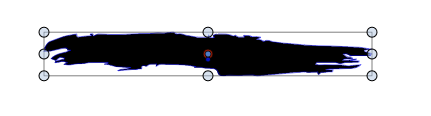
Select the Shape and choose
Menu > Styles > Create Styles > Create Artistic Brush PresetIf you unsure about using Style or Preset, choose Preset
A Style would work with a Document
A Preset work with all DocumentsA Panel appaers give your Brush a name and set “Tint” to “Solid”
This allows to change the color of a Artistic Brush.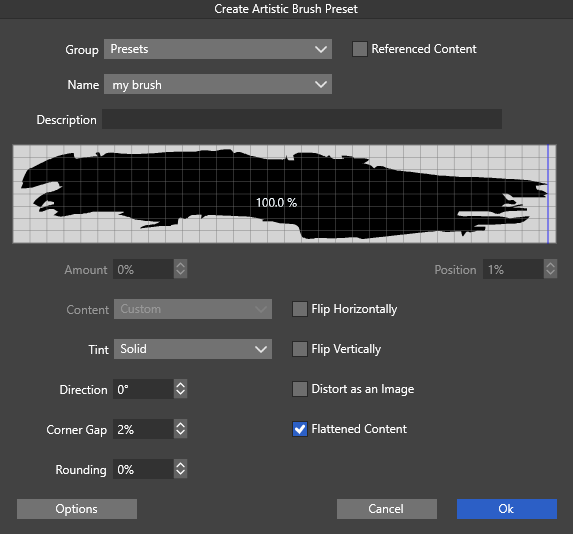
-
Part two:
Where to find a new created Artistic Brush and how to delete a Artistic Brush presetUsually you find a new Artistic Brush down below at the Brush drop down menu
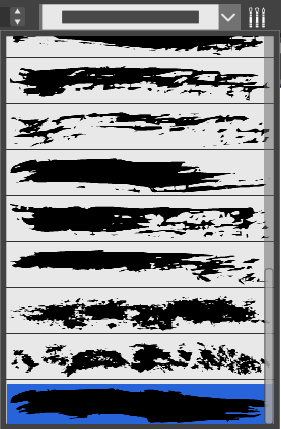
.
.
.
Calling the Brush Preset Panel are a way which may a bit more comfortable for selecting an Artistic Brush.For this go to
Menu > Window > Presets > Brush Presets
which opens the Brush Presets Panel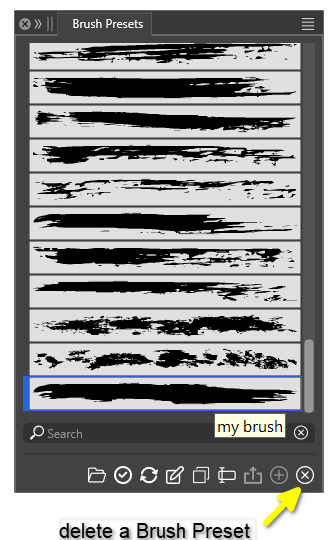
This Panel is also helpful if you like to delete a Brush Preset
Select the Brush and press "Remove the selected Presets" -
Part Three:
A special and fast way to select an Artistic Brush
.
.
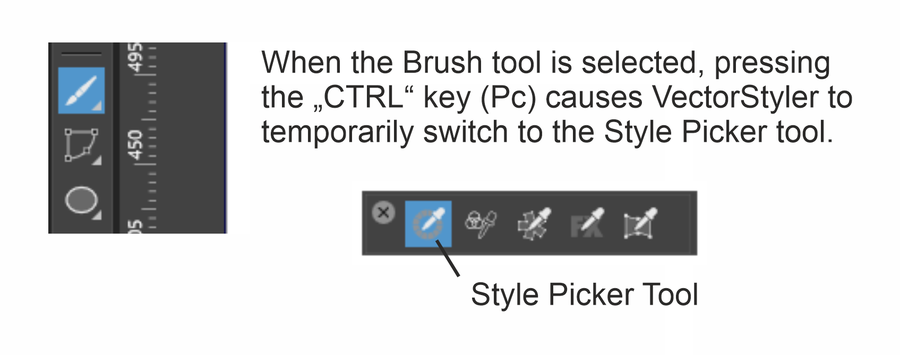
.
.To show you how you can use this Feature for fast Brush selecting
do the following:Draw your most used Artistic Brushes at a Side.
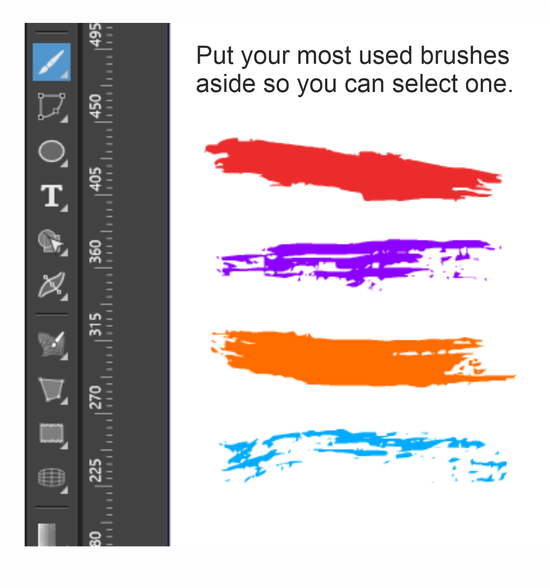
.
.
Select a Brush with the Transform Tool
then select the Brush Tool and draw a Brush stroke with it
.
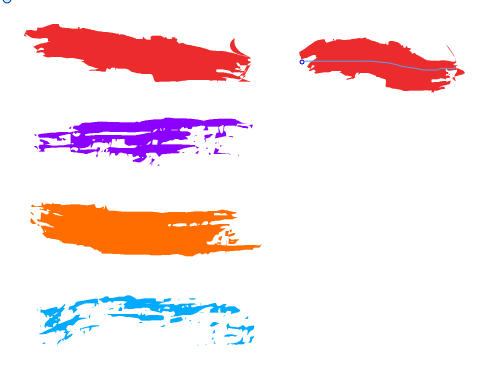
While the Brush Tool and the new created Brush Stroke is still selected
hold the Ctrl key (PC) down.You see the Nodes then and your Mouse pointer switch to a triangle.
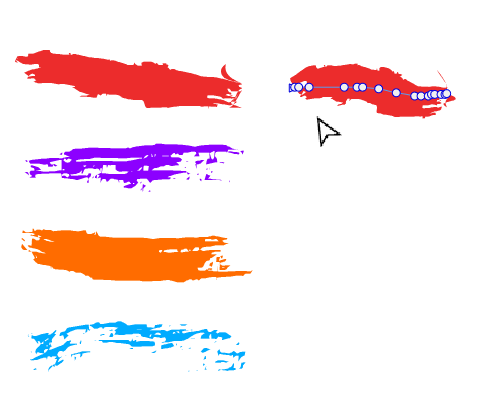
Now, hover your mouse cursor over another brush stroke. Its nodes should
then appear. Simply click on one of these Node.Clicking on a node is the surest way to select the brush's properties.
Clicking the path works too, but a node is easier to hit.Since the Style Picker remains active while you hold down the Ctrl key, the properties
of that brush stroke will be applied and will be used when you draw your next Brush Stroke.Now release the Ctrl key, which returns you to the Brush tool, and draw a brush stroke.
And you can see that you are now drawing with the properties of this brush.This is the fastest method I know in VectorStyler for switching between brushes.
By the way, you don't have to place the brushes next to your artwork.
However, it might be helpful. You can also simply paint, change colors, and then use
the method described to switch back to the brush you want to use.That's it – have fun painting with Vectorstylers Artistic Brushes.
-
S Subpath referenced this topic
-
Great foundational tutorial! Thanks for sharing.