New transformation tool
-
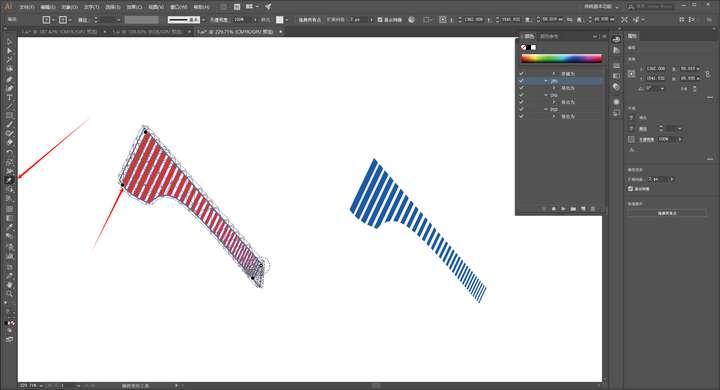
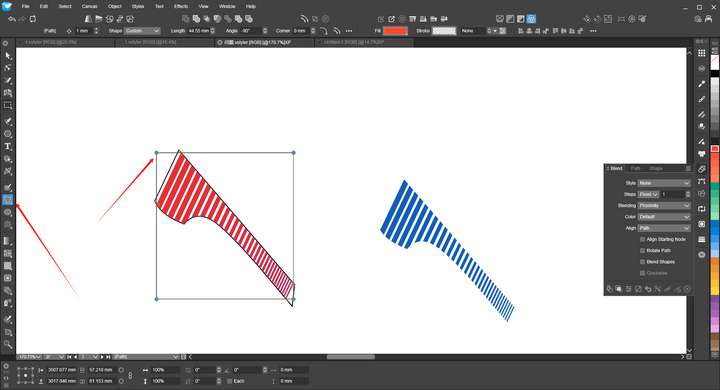
https://www.vectorstyler.com/forum/topic/5187/add-graphics
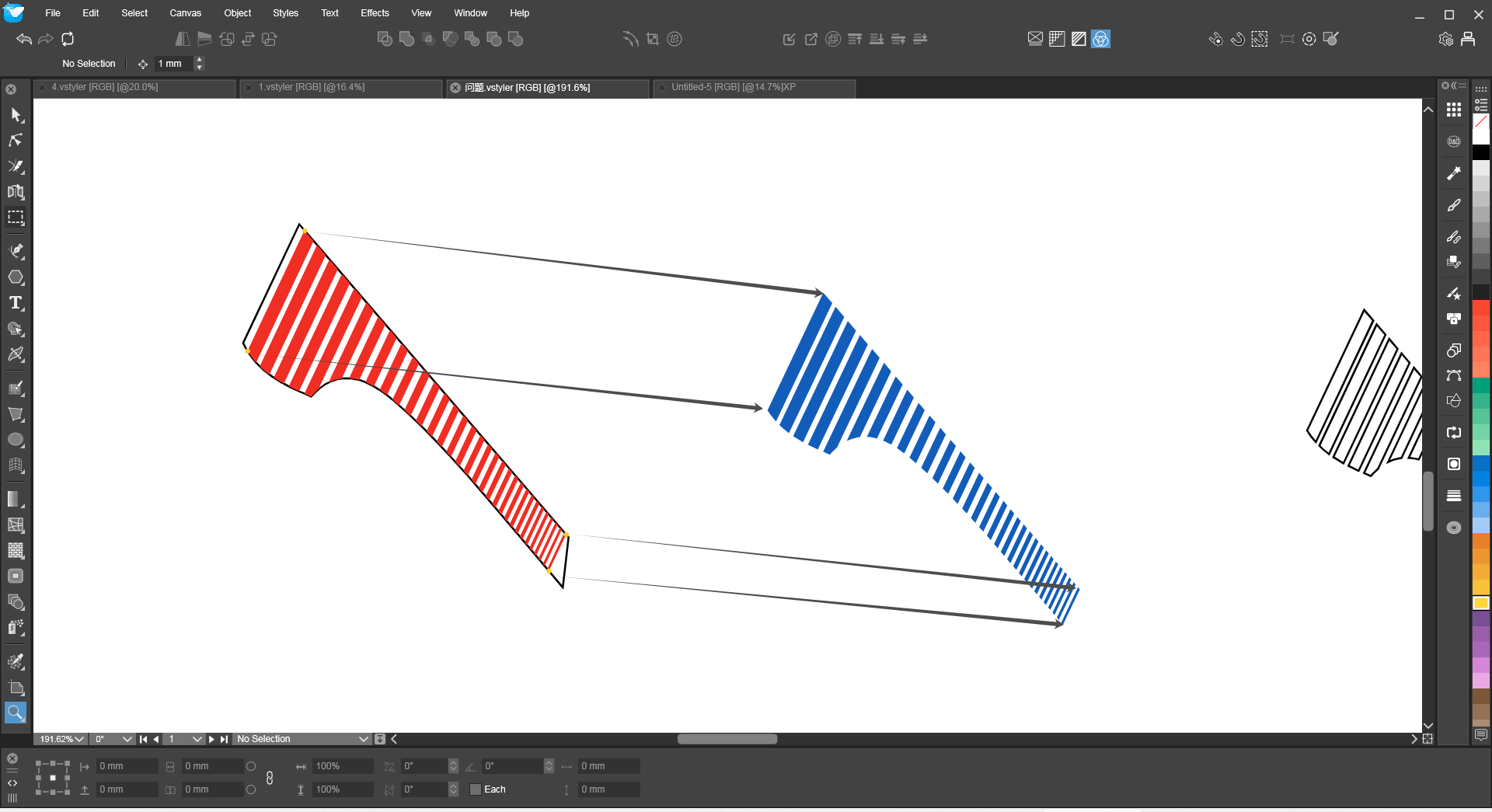
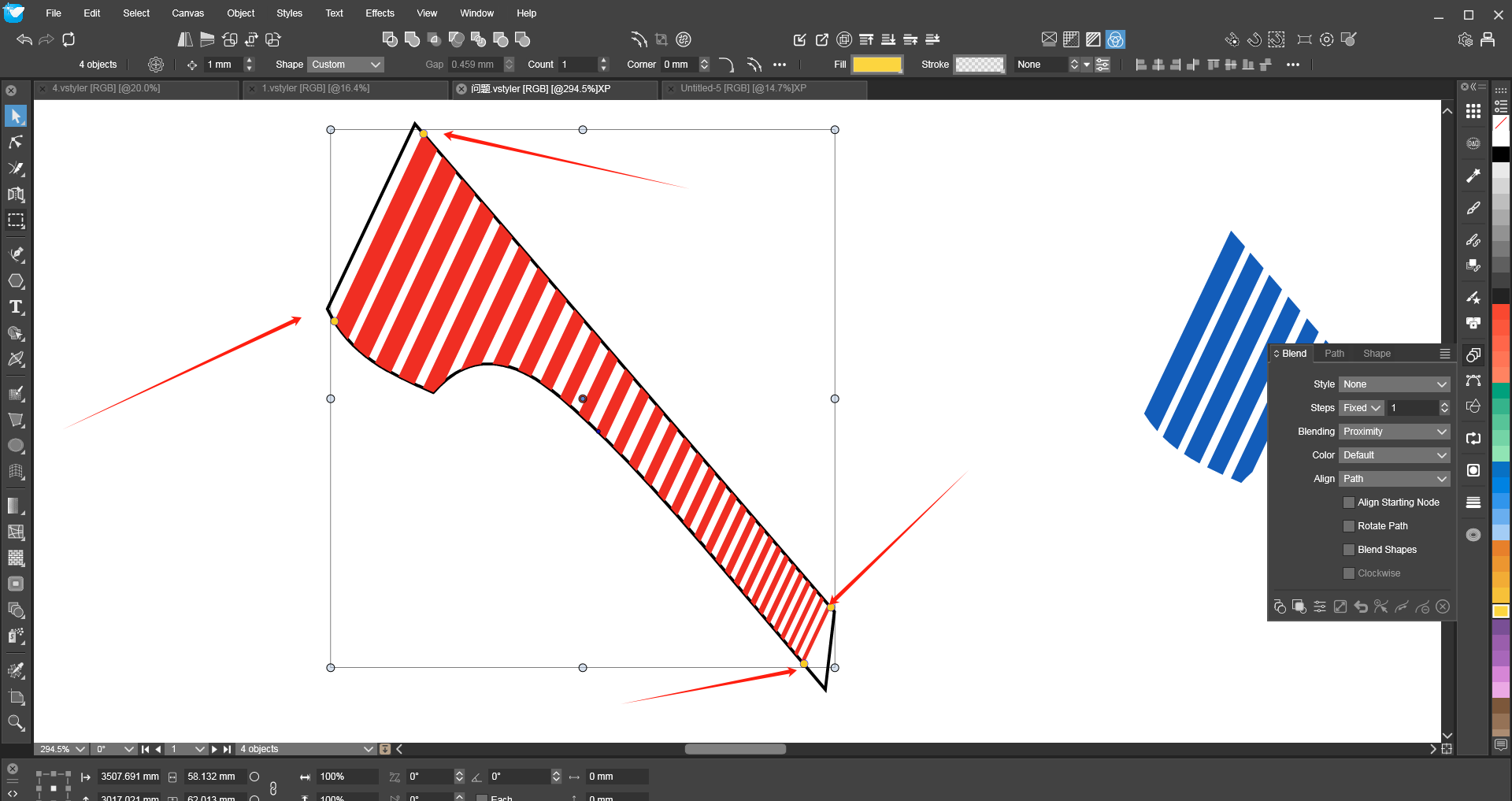
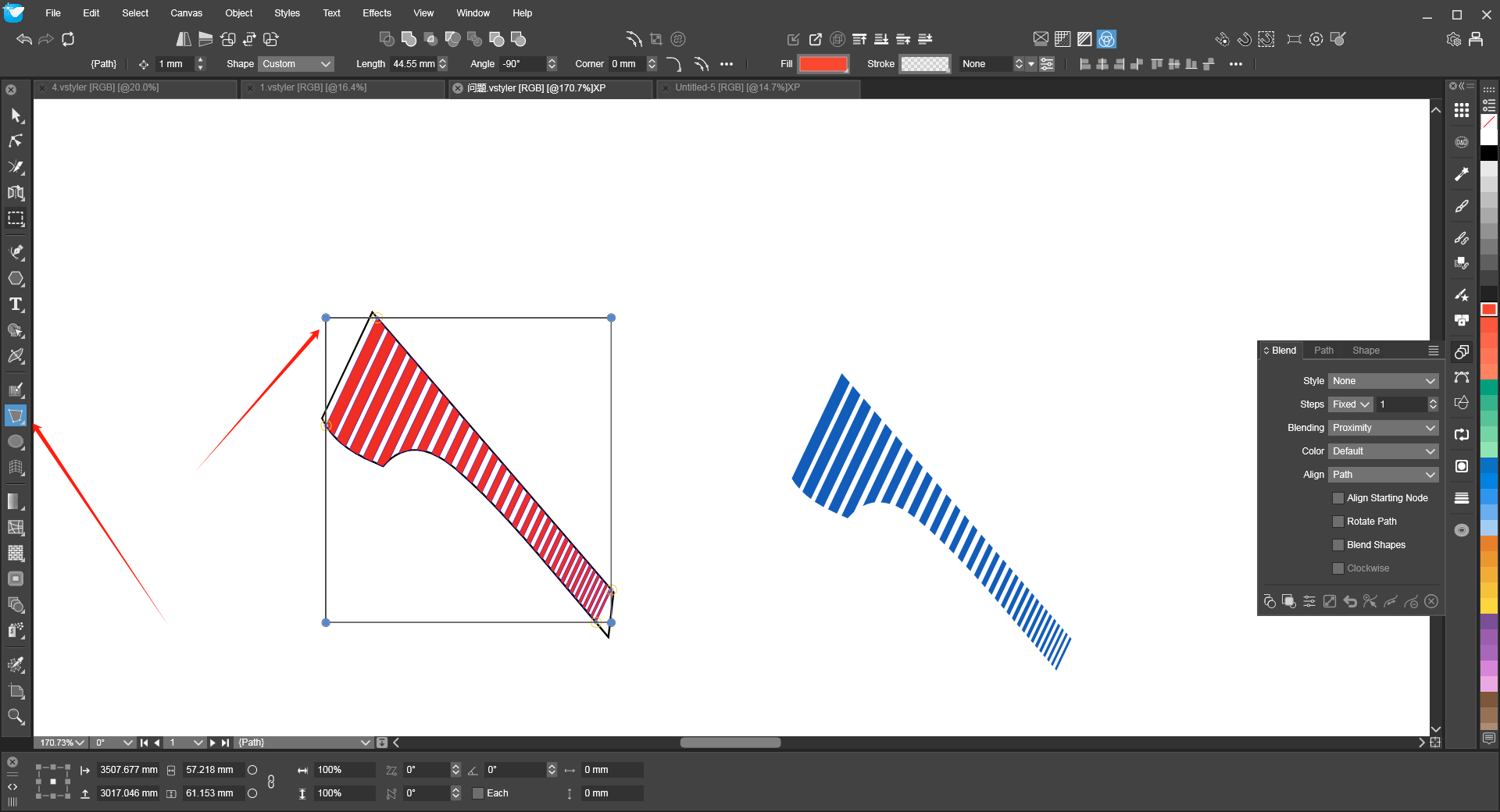
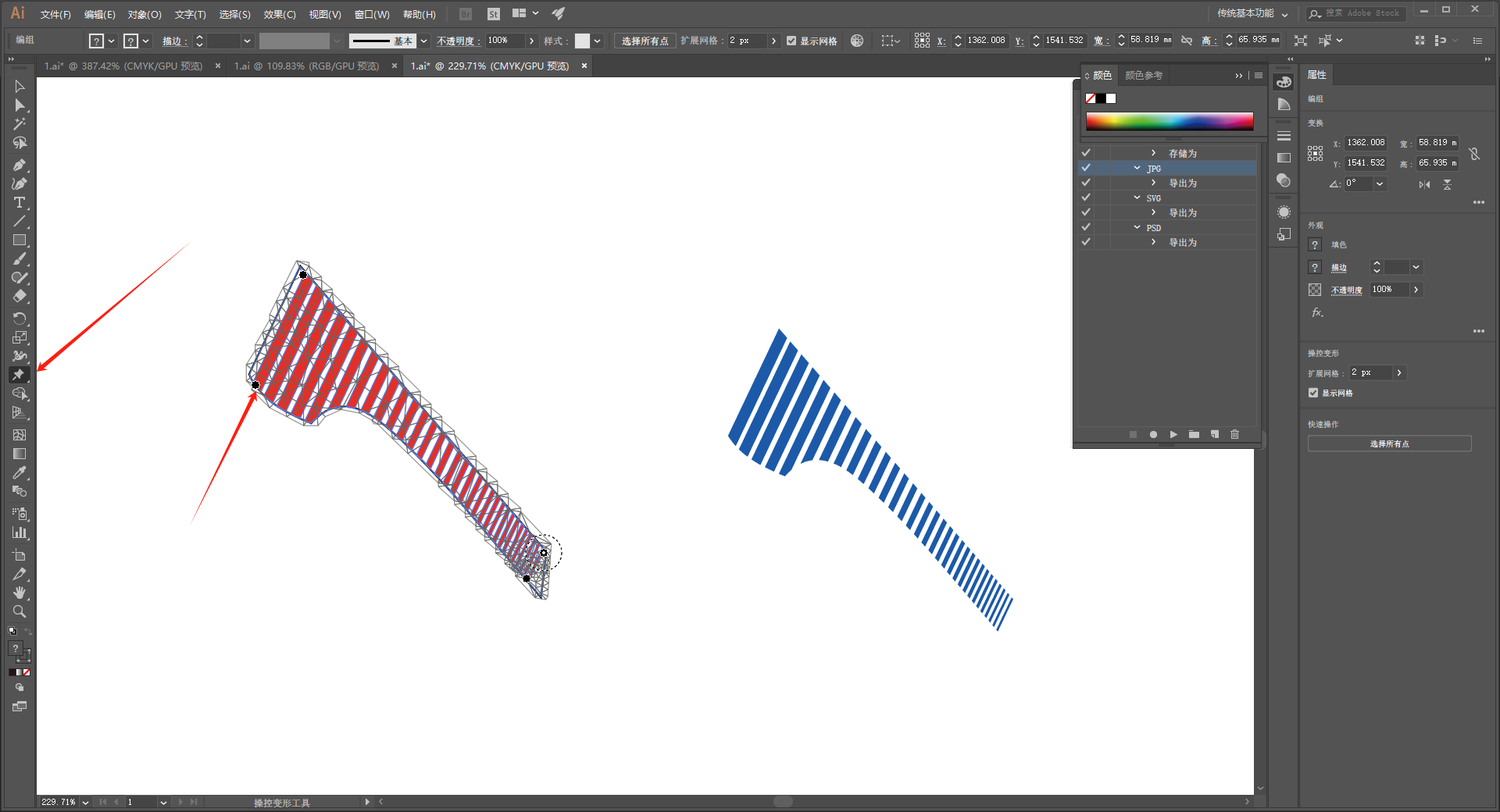
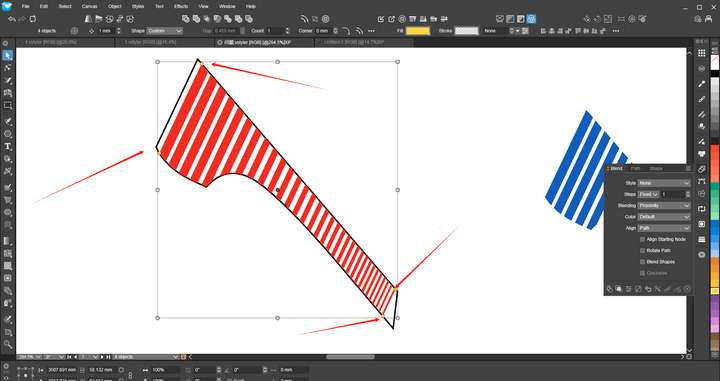
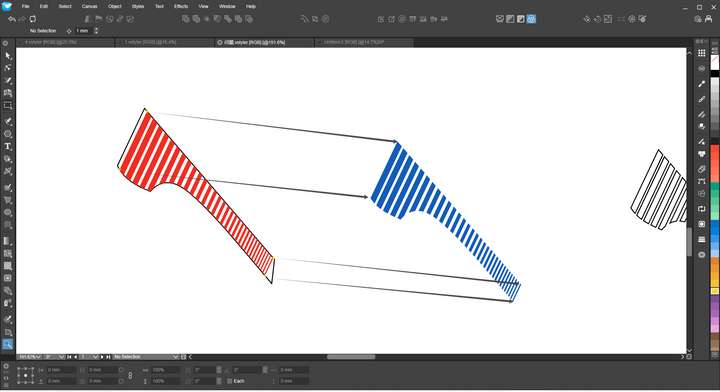
Due to an omission error that occurred at work, I found that VS doesn't have a good way to handle the issue in my post. After thinking for a few days, I came up with a tool that is currently a relatively good solution. It is similar to the "Puppet Warp Tool" in AI, which can randomly add control points to graphics (we only need four control points). It is also similar to the four-point control effect in VS. First, add control points at four positions in Figure 3. The positions of my control points happen to be the node positions. The control points can be freely moved to select the required control positions. After confirmation, click to lock the four control points. Looking at the effect in Figure 4, you can turn on the snapping switch and move the four control points one by one to the positions specified by the arrows, so that the angle and size of the graphics can be perfectly matched. I hope such a function can be added. Thank you. -
@monsterfox said in New transformation tool:
It is similar to the "Puppet Warp Tool" in AI
A similar tool called Elastic Warp exists in VS
-
@VectorStyler Oh, thanks. I'll give it a try tomorrow.
-
@VectorStyler
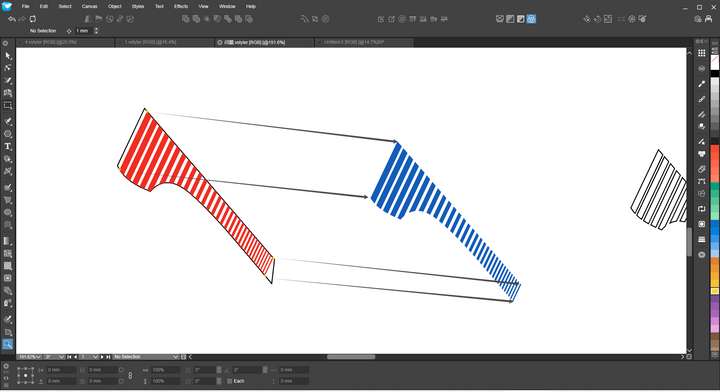
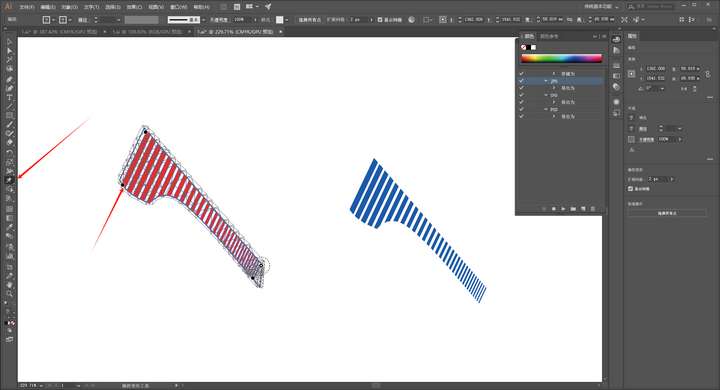
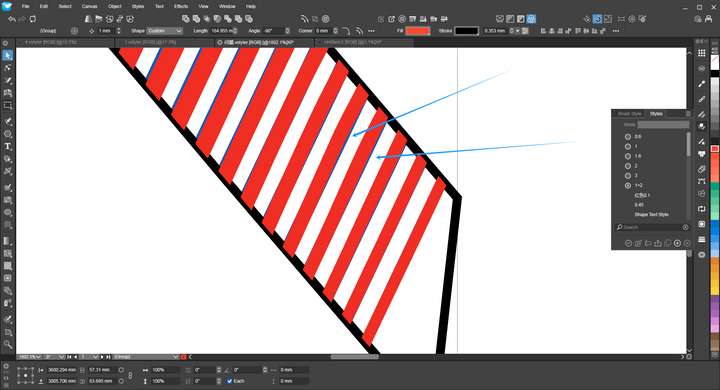
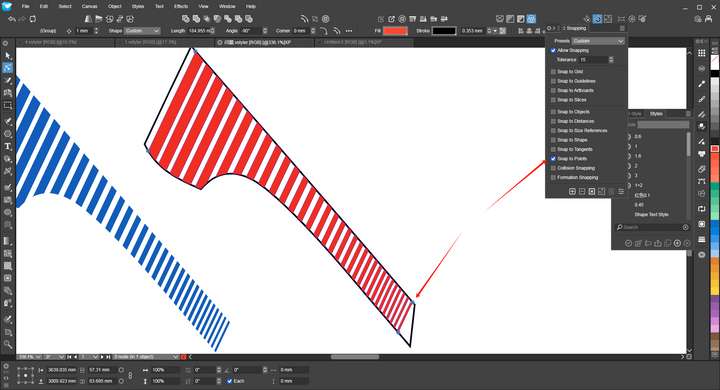
Today I tested Elastic Warp (Elastic Warp Tool), which is similar to the functionality I described, but I found three issues:1. When adding control points, even though I enabled the point snapping function, it didn't work in this tool—I couldn't accurately add control points to a specific node position.
2. A straight graphic became curved after operations. (I only used four control points, and this curving didn't occur when I used 4-Point Distortion.)
3. When the red graphic was matched to the blue graphic, the overall alignment was basically consistent (the error caused by Issue 1 is ignored here for now), but there is a black line outside the red graphic—although the main body of the graphic matched the blue graphic, when I realigned the matched graphic to the original red object, the black line also roughly matched. In other words, the four control points only control the distances between the points and cannot accommodate the stretching and matching of the black line part. I know this may seem normal, but I wonder if it's possible to take into account the stretching and matching of the black line. -
@monsterfox I think the snapping is missing from this tool, I have to check that.
Curving is normal once you move a point, but it can be disabled if you open the Shape Effects panel and open the Elastic Warp options.
