Bezigon Tool
-
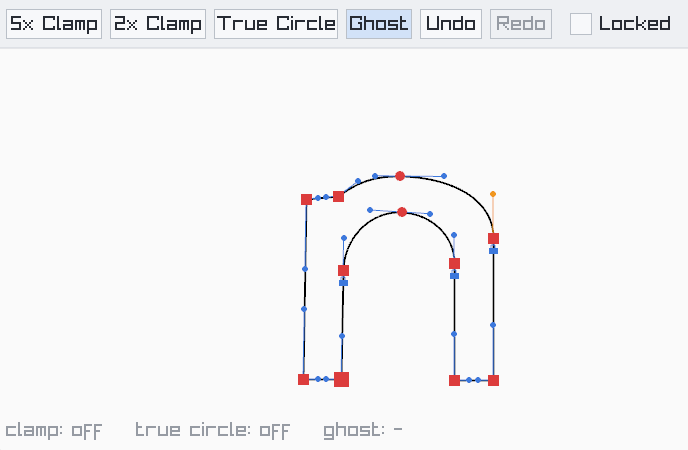
So happy! I drew that in 10 seconds! Notice them little locks. So cute.
Work: Windows 11 | Intel i9 14900HS (24 Cores/32 Threads) | GeForce RTX 4070 | 64 GB RAM
Personal: Windows 11 | Amd Ryzen 9 7950X (16 Core, 32 Threads) | GeForce RTX 3060 | 32 GB RAM -
@Daniel Thank you for your explanation and your work! That all sounds super exciting. Since I don't have a Windows computer, I can't run your test, but I will definitely have a look at the new code and probably adapt the online editor I made to the new version.
I understand that you don't want to open a GitHub account. It was just a suggestion to maximise the impact. But now that I've found this thread, I'll follow along here. -
@Daniel I tried the bezigon playground simulator. The key commands for each type of node felt very natural; smooth with a shift-click, tangent with a control-click, a corner with the regular click and no modifier. I'd love to see the bezigon tool set up this way in VS
-
@Boldline: Did you try the true circle mode? You can toggle that on along with ghost lines. Now you'll get circular arcs instead of Bezigon approximations. Like in Spiro.

-
@Daniel How do I turn on true circle and ghost mode in the simulator website version?
Also, it would be cool if the examples to trace and follow could remain on screen at a low opacity view to trace over instead of disappearing
Another thought on the bezigon tool, especially for type design: should we add the ability to constrain Bézier handles to the horizontal and vertical axes, snapping to 90° increments? Thought of it when looking at your example of an "n" shape and some of the handles were not straight (I understand it was a fast rough example you made)
-
said in Bezigon Tool:
So happy! I drew that in 10 seconds! Notice them little locks. So cute.
@boldline: Notice the buttons at the top. Toggle it on. Also, unless you exaggerate the curves, you won't see the true circle just yet. Because Bezigon already very closely follows circle arcs.
Angle constraint for handles. Yes. I assume it will be already a part of VS. So did not add it. Also, there should no node drawing mode where only handle are visible. It means you won't accidentally move the node.
Additionally, top of locking node handle to chord. A very useful option, already proposed before, is the ability to lock node coordinate position. So you don't accidentally move a certain set of nodes.
Yes, my n was just a very swift drawing. If I spent a few more minutes, I can get it right. Also, there's no ruler, no guide, no snapping in demo. In VS, all these auxiliary tools would make it supremely fast, as you can place 45 degree points perfectly.
-
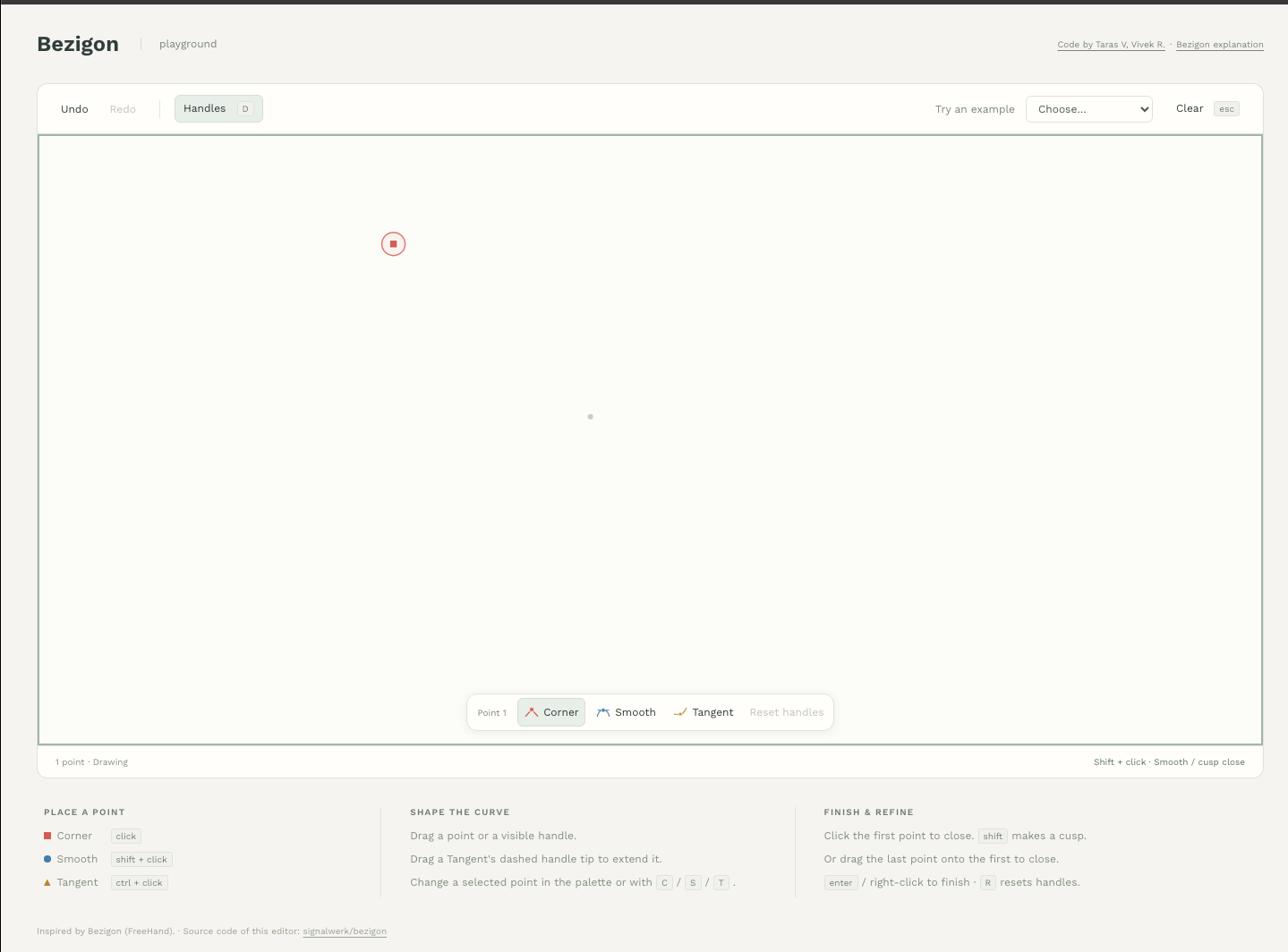
@Daniel I'm not seeing those options to toggle at the top (or anywhere). is there something I have to press or do?
-
@Boldline: That's not mine. That was done by another user. https://drive.google.com/file/d/1BDM-JtO3t5E3_iCCTFpNOw5Xa4DwZwM-/view?usp=sharing - Mine is here.
It's a .exe file on Windows.The online one runs the 4.2.0 V with three node system. There's no ghost lines or circle mode.
-
@Daniel oh! ok. I'll try it when I get my windows laptop out thank you!
-
I found an extremely simply alternative to tangent nodes. This avoids even the need for locked nodes. You simply snap to chord. That's it. But locking would still be extremely useful.