VectorStyler
    • Categories
    • Unread
    • Recent
    • Tags
    • Popular
    • Register
    • Login

    WIP - Testing Blending: not yet a tutorial but soon for beginners


    Scheduled Pinned Locked Moved Tutorials
    123 Posts 7 Posters 474.5k Views 7 Watching
    Loading More Posts
    • Oldest to Newest
    • Newest to Oldest
    • Most Votes
    Reply
    • Reply as topic
    Log in to reply
    This topic has been deleted. Only users with topic management privileges can see it.
    • S Offline
      Subpath @B-Vs-V
      last edited by Subpath

      @Pat

      "Can be modified endlessly..." thats so very true 🙂

      I like the filigree design and the extra dimension
      with the objects in the background.
      The gradient looks nice as well.

      Win 11
      CPU: AMD Ryzen 5 9600X, 6-core.
      GPU: Nvidia Geforce RTX 5070.

      B 1 Reply Last reply Reply Quote 1
      • B Offline
        B-Vs-V @Subpath
        last edited by

        ... endlessly...

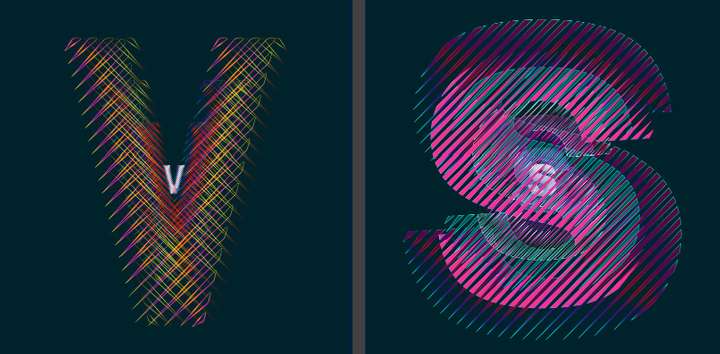
        0_1670184518743_VS.jpg

        W11 Pro 25H2 - 12th Gen Intel(R) i7-12700K 3.61 GHz - RAM 64 Go - NVIDIA GF GTX 4070 Ti - Intuos - Dell UP3216Q / Eizo ColorEdge
        W11 Pro 25H2 - 12th Gen Intel(R) i7-12700KF 3.60 GHz -RAM 64 Go - NVIDIA GF GTX 3080 - IntuosPro- ProArt PA329C

        1 Reply Last reply Reply Quote 4
        • Devil DinosaurD Offline
          Devil Dinosaur
          last edited by

          Your experiments are really interesting 👍

          Fred.
          MacBook Pro (M1) - MacOs Sonoma 14

          B 1 Reply Last reply Reply Quote 1
          • B Offline
            B-Vs-V @Devil Dinosaur
            last edited by

            @Devil-Dinosaur Thank you. I'll come back with other different objects/shapes.

            W11 Pro 25H2 - 12th Gen Intel(R) i7-12700K 3.61 GHz - RAM 64 Go - NVIDIA GF GTX 4070 Ti - Intuos - Dell UP3216Q / Eizo ColorEdge
            W11 Pro 25H2 - 12th Gen Intel(R) i7-12700KF 3.60 GHz -RAM 64 Go - NVIDIA GF GTX 3080 - IntuosPro- ProArt PA329C

            1 Reply Last reply Reply Quote 0
            • B Offline
              B-Vs-V
              last edited by B-Vs-V

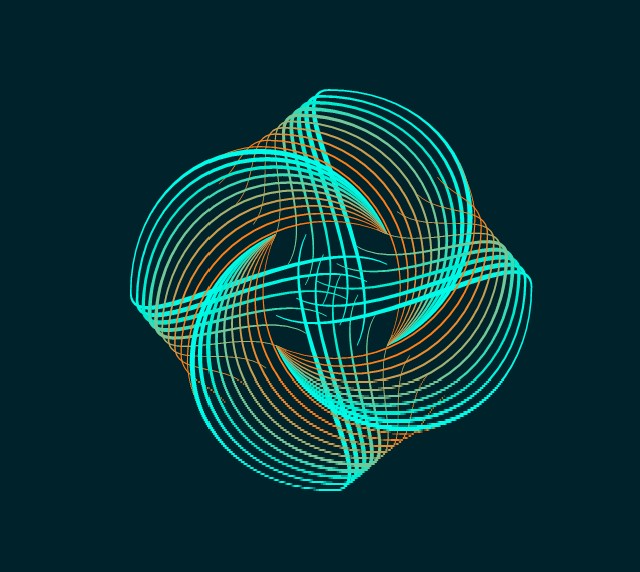
              Following @Subpath tips in "Converting a tutorial from Illustrator (Blend Function) to VectorStyler", one can have interesting and complex abstract shapes. Nothing fancy below but one need to select the nodes and not the object, otherwise, one can't get this effect. Thanks @Subpath ☺

              0_1670601173046_Test.jpg

              0_1670601181253_test2.jpg

              W11 Pro 25H2 - 12th Gen Intel(R) i7-12700K 3.61 GHz - RAM 64 Go - NVIDIA GF GTX 4070 Ti - Intuos - Dell UP3216Q / Eizo ColorEdge
              W11 Pro 25H2 - 12th Gen Intel(R) i7-12700KF 3.60 GHz -RAM 64 Go - NVIDIA GF GTX 3080 - IntuosPro- ProArt PA329C

              S 1 Reply Last reply Reply Quote 4
              • S Offline
                Subpath @B-Vs-V
                last edited by

                @Pat

                nice design

                thanks, like to experiment myself
                and VS is a pretty good Tool for that
                as you know 🙂

                btw here are some inspirations from me
                where i also used Clones
                https://www.vectorstyler.com/forum/topic/2142/the-shape-of-things-using-parametric-shapes-for-pattern-making

                Win 11
                CPU: AMD Ryzen 5 9600X, 6-core.
                GPU: Nvidia Geforce RTX 5070.

                1 Reply Last reply Reply Quote 2
                • B Offline
                  B-Vs-V
                  last edited by

                  Testing .73 & rendering in W10/11 is much better.
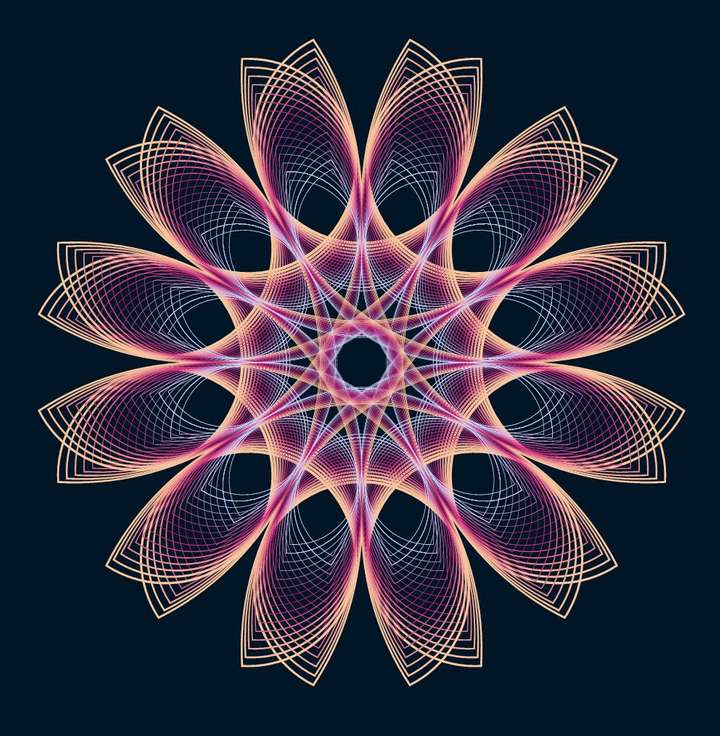
                  Just the transformation of one rectangle:
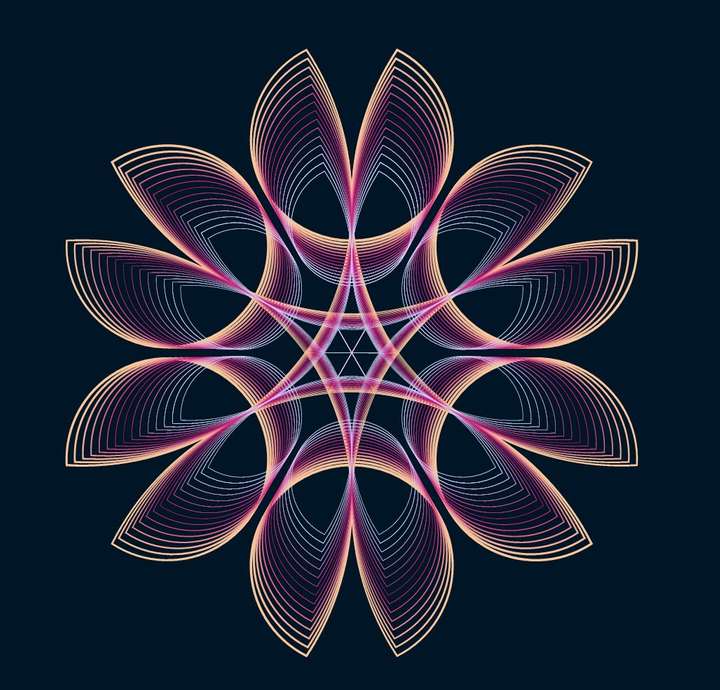
                  0_1673540222685_Capture.JPG

                  W11 Pro 25H2 - 12th Gen Intel(R) i7-12700K 3.61 GHz - RAM 64 Go - NVIDIA GF GTX 4070 Ti - Intuos - Dell UP3216Q / Eizo ColorEdge
                  W11 Pro 25H2 - 12th Gen Intel(R) i7-12700KF 3.60 GHz -RAM 64 Go - NVIDIA GF GTX 3080 - IntuosPro- ProArt PA329C

                  S 1 Reply Last reply Reply Quote 4
                  • B Offline
                    B-Vs-V
                    last edited by

                    This tutorial by @Subpath gave me the idea to test the pattern creation from this object:
                    0_1673716665691_ForPattern.JPG

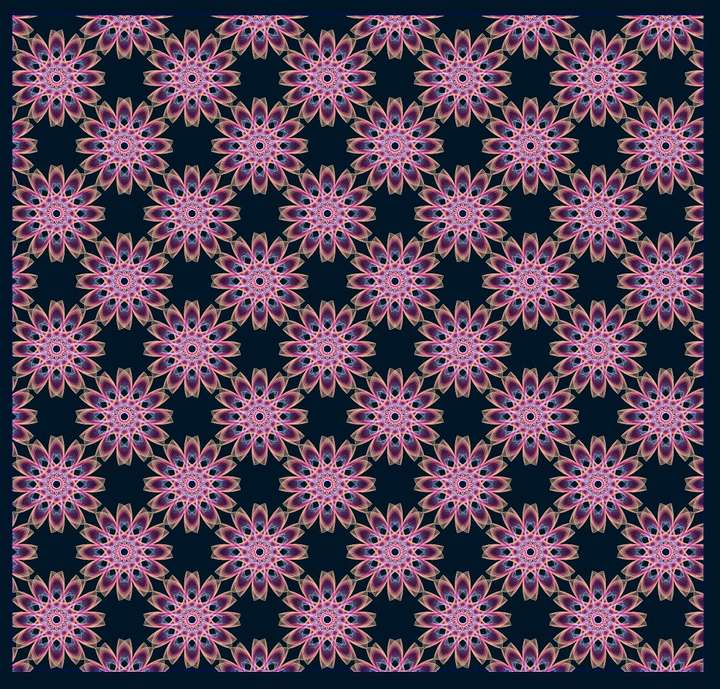
                    Here the pattern, nothing extraordinary but very easy to make in VS (described in the documentation):
                    0_1673716730971_Pattern.JPG

                    W11 Pro 25H2 - 12th Gen Intel(R) i7-12700K 3.61 GHz - RAM 64 Go - NVIDIA GF GTX 4070 Ti - Intuos - Dell UP3216Q / Eizo ColorEdge
                    W11 Pro 25H2 - 12th Gen Intel(R) i7-12700KF 3.60 GHz -RAM 64 Go - NVIDIA GF GTX 3080 - IntuosPro- ProArt PA329C

                    S 1 Reply Last reply Reply Quote 2
                    • S Offline
                      Subpath @B-Vs-V
                      last edited by

                      @Pat

                      cool pattern
                      nice to see that the tutorial was inspirational 🙂
                      I will do a "How to create seamless Pattern for Pattern Fill"
                      Tutorial next.

                      Win 11
                      CPU: AMD Ryzen 5 9600X, 6-core.
                      GPU: Nvidia Geforce RTX 5070.

                      1 Reply Last reply Reply Quote 1
                      • B Offline
                        B-Vs-V
                        last edited by

                        We can get very interesting abstract patterns for eventual backgrounds by changing the type (triangular, rhomboid):
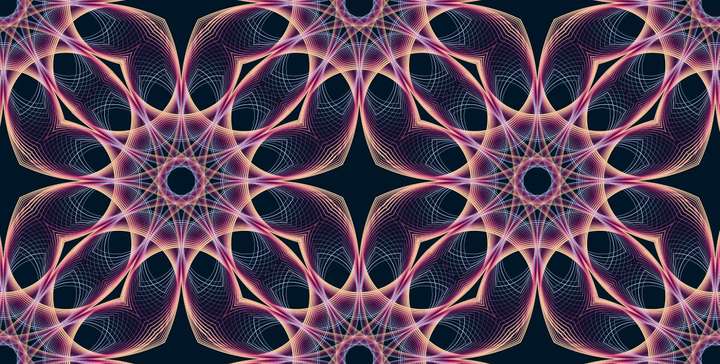
                        0_1673881226667_Capture.JPG

                        @VectorStyler ... but I would like to know if it is possible to change the colours of the pattern once the object has been defined as tile.

                        W11 Pro 25H2 - 12th Gen Intel(R) i7-12700K 3.61 GHz - RAM 64 Go - NVIDIA GF GTX 4070 Ti - Intuos - Dell UP3216Q / Eizo ColorEdge
                        W11 Pro 25H2 - 12th Gen Intel(R) i7-12700KF 3.60 GHz -RAM 64 Go - NVIDIA GF GTX 3080 - IntuosPro- ProArt PA329C

                        VectorStylerV 1 Reply Last reply Reply Quote 2
                        • VectorStylerV Offline
                          VectorStyler @B-Vs-V
                          last edited by

                          @Pat said in WIP - Testing Blending: not yet a tutorial but soon for beginners:

                          but I would like to know if it is possible to change the colours of the pattern once the object has been defined as tile.

                          Yes, but first the pattern tile must define those colors.
                          Basically any style used inside the pattern tile (content) can have an override selected using the Style Overrides from the pattern menu.

                          So use color styles inside the pattern content, then define the pattern content as a "Style" (not a "preset").

                          B 1 Reply Last reply Reply Quote 1
                          • B Offline
                            B-Vs-V @VectorStyler
                            last edited by

                            @VectorStyler Thanks, I'll have to think about this... & to test it.

                            W11 Pro 25H2 - 12th Gen Intel(R) i7-12700K 3.61 GHz - RAM 64 Go - NVIDIA GF GTX 4070 Ti - Intuos - Dell UP3216Q / Eizo ColorEdge
                            W11 Pro 25H2 - 12th Gen Intel(R) i7-12700KF 3.60 GHz -RAM 64 Go - NVIDIA GF GTX 3080 - IntuosPro- ProArt PA329C

                            1 Reply Last reply Reply Quote 1
                            • S Offline
                              STEVED @B-Vs-V
                              last edited by

                              @Pat HI.
                              I really like this path/design. But I simply do not understand how you created this. Could you possibly outline the steps you used to create it. Thanks,
                              steve

                              S B 2 Replies Last reply Reply Quote 1
                              • S Offline
                                STEVED @STEVED
                                last edited by

                                @STEVED PAT,
                                I was refering to the design in you post:
                                "Testing .73 & rendering in W10/11 is much better.
                                Just the transformation of one rectangle:"
                                Thanks, steve

                                1 Reply Last reply Reply Quote 0
                                • B Offline
                                  B-Vs-V @STEVED
                                  last edited by B-Vs-V

                                  @STEVED Hi Steve,
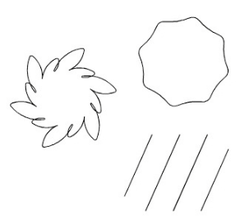
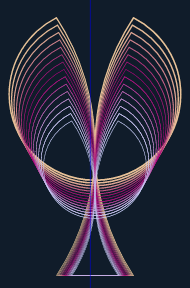
                                  The starting scheme is indeed one rectangle which is a parametric shape that can be modified in VS using the 'Node tool' (bending of each side).
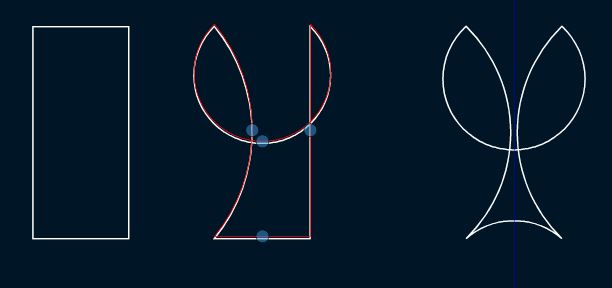
                                  0_1673975888133_Capture.JPG

                                  Then, the object is copied (once or several times) & its/their size(s) adjusted as wanted. The blending of the (two) shapes and the rotation (Oject--> Transform--> rotation) of copies do the overall design.
                                  0_1673976150123_231c0152-aea2-48a5-88d0-cdfebb3161f1-image.png

                                  W11 Pro 25H2 - 12th Gen Intel(R) i7-12700K 3.61 GHz - RAM 64 Go - NVIDIA GF GTX 4070 Ti - Intuos - Dell UP3216Q / Eizo ColorEdge
                                  W11 Pro 25H2 - 12th Gen Intel(R) i7-12700KF 3.60 GHz -RAM 64 Go - NVIDIA GF GTX 3080 - IntuosPro- ProArt PA329C

                                  S 1 Reply Last reply Reply Quote 0
                                  • S Offline
                                    STEVED @B-Vs-V
                                    last edited by

                                    @Pat Hi,
                                    Thank you so much for your kind response. Us old simple neophytes need a helping
                                    hand (and arm and leg) more often than not. I'm going to try to work my way thru
                                    your instructions. Best, steve

                                    B 1 Reply Last reply Reply Quote 0
                                    • B Offline
                                      B-Vs-V @STEVED
                                      last edited by

                                      @STEVED You are welcome.
                                      I consider myself a very beginner in the use of VS which offers so many possibilities. I haven't gone into detail to avoid being redundant with what is already presented on this forum & if you want help with blending, here is a tutorial made by @Subpath.

                                      W11 Pro 25H2 - 12th Gen Intel(R) i7-12700K 3.61 GHz - RAM 64 Go - NVIDIA GF GTX 4070 Ti - Intuos - Dell UP3216Q / Eizo ColorEdge
                                      W11 Pro 25H2 - 12th Gen Intel(R) i7-12700KF 3.60 GHz -RAM 64 Go - NVIDIA GF GTX 3080 - IntuosPro- ProArt PA329C

                                      1 Reply Last reply Reply Quote 0
                                      • S Offline
                                        Subpath
                                        last edited by Subpath

                                        @STEVED, @Pat

                                        I would like to add the following regarding the parametric shapes

                                        VS has two ways to handle parametric shapes
                                        (smart shapes)

                                        The first way is to use the Shape Editor tool.
                                        When you select a parametric shape with it, you
                                        will see blue dots that are used for manipulation.

                                        The second way is to use the Shape Panel.
                                        Which offers sometime some additional options.
                                        With Shape Panel you change the Shape Form
                                        by changing the values in the input fields.
                                        This may be helpful for creating more precise Designs.

                                        here a little video how it works

                                        0_1674034633260_Smart-Shapes-1.png

                                        Win 11
                                        CPU: AMD Ryzen 5 9600X, 6-core.
                                        GPU: Nvidia Geforce RTX 5070.

                                        S 1 Reply Last reply Reply Quote 3
                                        • S Offline
                                          STEVED @Subpath
                                          last edited by

                                          @Subpath
                                          I very much appreciate you connecting the dots involved here! (no pun intended☺ ).

                                          S 1 Reply Last reply Reply Quote 2
                                          • S Offline
                                            Subpath @STEVED
                                            last edited by Subpath

                                            @STEVED said in WIP - Testing Blending: not yet a tutorial but soon for beginners:

                                            @Subpath
                                            I very much appreciate you connecting the dots involved here! (no pun intended☺ ).

                                            your welcome
                                            also with your questions 🙂

                                            btw, I can generally recommend to deal with
                                            the different panels in the panel menu.
                                            E.g. the Transpose panel to change the size
                                            of objects.

                                            The values in the input fields can often be
                                            easily changed with the scroll wheel.
                                            (click once in the field to select it and
                                            then turn the scroll wheel).

                                            With the Action Panel you can record actions.
                                            "Panels > Presets > Actions"

                                            Win 11
                                            CPU: AMD Ryzen 5 9600X, 6-core.
                                            GPU: Nvidia Geforce RTX 5070.

                                            S 1 Reply Last reply Reply Quote 0
                                            • First post
                                              Last post