Switching between overlapping objects
-
Thanks to @Ingolf's information about the new version of Inkscape, we can discover a lot of interesting solutions.
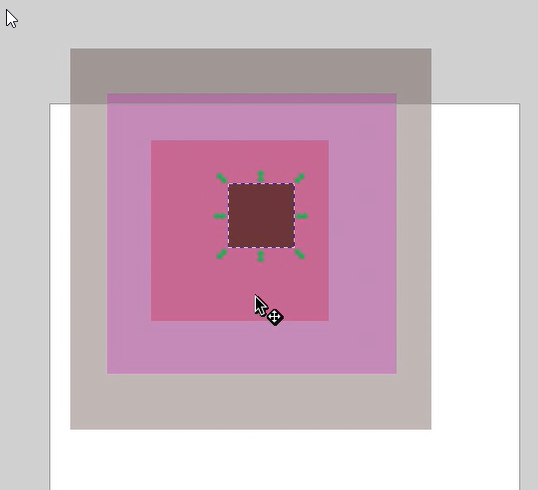
One such mechanism is switching between overlapping objects. When you place the cursor over objects and press Alt, the mouse wheel allows you to move between the objects in both directions. Transparency of objects is automatically activated. Very clever in my opinion https://recordit.co/JvF1niKHTI
MacBook Air M4 24Gb, Tahoe 26.3.1
-
@encart this feature might also come in handy with the "break apart" tool - allowing the user to dig down and select what they need.
-
@encart Yes, that too is a great idea.
-
@encart Added this to the backlog of features.
-
@VectorStyler could this same feature be applied to other uses of stacked vectors, like "break apart" results or clipped paths?
-
@Boldline Are there cases where the interior paths (holes) of a closed shape are not placed on top when you break it apart?
-
@b77 Perhaps my issue is more related to seeing each sublayer after a break apart action because everything is the same color - it's hard to know if I got everything. Maybe what I'm asking for in break apart is for each section to be visibly identifiable -whether through opacity or using different colors or shades?
-
@encart said in Switching between overlapping objects:
Thanks to @Ingolf's information about the new version of Inkscape, we can discover a lot of interesting solutions.
One such mechanism is switching between overlapping objects. When you place the cursor over objects and press Alt, the mouse wheel allows you to move between the objects in both directions. Transparency of objects is automatically activated. Very clever in my opinion https://recordit.co/JvF1niKHTIThe method and the mouse scroll wheel can be used elsewhere too, I think.
Today I was working with very complex graphic elements that consisted of many, many objects that I copy-pasted many times. To make the result look lifelike, I had to rearrange some objects so that they were moved down 20 times in the layer order or even more. Therefore "move up/down" were not useful (too slow) and when I visually oriented myself on the canvas to see if the change looked good, it was not constructive to drag the objects up and down with the mouse in the layers panel, where you then have your attention somewhere else than on the canvas.
And then of course I think that some way to move objects up and down with the mouse scroll wheel would be perfect. Modifier + scroll wheel, attention and eyes on canvas, efficient, easy and fast.

-
@Ingolf I like to involve a scroll wheel if possible. I mentioned this topic once. The biggest problem is finding a free, comfortable modifier. I use the F1-F12 and numeric 0-9 keys. In my case holding down the '3' key makes the wheel move the object up / down.
https://recordit.co/HG9orGdlqW




