VectorStyler
    • Categories
    • Unread
    • Recent
    • Tags
    • Popular
    • Register
    • Login

    Snap to canvas centre vertically and horisontally

    Scheduled Pinned Locked Moved Implemented Features
    17 Posts 4 Posters 24.4k Views 4 Watching
    Loading More Posts
    • Oldest to Newest
    • Newest to Oldest
    • Most Votes
    Reply
    • Reply as topic
    Log in to reply
    This topic has been deleted. Only users with topic management privileges can see it.
    • IngolfI Offline
      Ingolf
      last edited by

      When I select snap to artboard I would also like the option to snap to the centre of the artboard, vertically and horisontally. Much faster to work with when you place objects than using the alignment panel etc.

      🍏 macOS Sequoia Apple Silicon

      b77B 1 Reply Last reply Reply Quote 0
      • b77B Offline
        b77 @Ingolf
        last edited by

        @Ingolf Here it snaps to the center of the artboard: https://recordit.co/3vCJGj8es1

        MacBook Pro (Intel) running Monterey 12.6.4

        IngolfI 1 Reply Last reply Reply Quote 0
        • IngolfI Offline
          Ingolf @b77
          last edited by

          @b77 said in Snap to canvas centre vertically and horisontally:

          @Ingolf Here it snaps to the center of the artboard: https://recordit.co/3vCJGj8es1

          Using what settings? I just discovered the panel menu with... many more settings... whoa.

          I don't remember seeing yellow lines at all.

          🍏 macOS Sequoia Apple Silicon

          b77B VectorStylerV 2 Replies Last reply Reply Quote 0
          • b77B Offline
            b77 @Ingolf
            last edited by

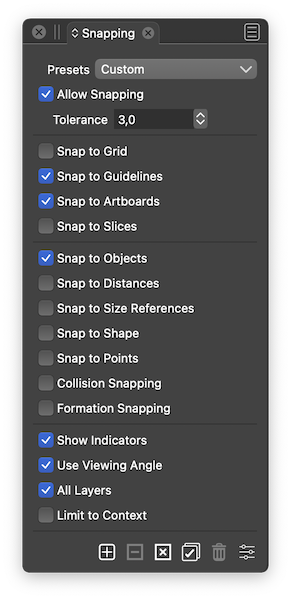
            @Ingolf These are my settings:

            0_1643247404147_sta.png

            MacBook Pro (Intel) running Monterey 12.6.4

            IngolfI 1 Reply Last reply Reply Quote 0
            • VectorStylerV Offline
              VectorStyler @Ingolf
              last edited by

              @Ingolf said in Snap to canvas centre vertically and horisontally:

              Using what settings? I just discovered the panel menu with... many more settings... whoa.

              Quick access to some snapping options in View -> Guides -> menu

              1 Reply Last reply Reply Quote 0
              • IngolfI Offline
                Ingolf @b77
                last edited by

                @b77 said in Snap to canvas centre vertically and horisontally:

                @Ingolf These are my settings:

                0_1643247404147_sta.png

                No centre of page snapping with those settings here - macOS and Win 10.

                🍏 macOS Sequoia Apple Silicon

                1 Reply Last reply Reply Quote 0
                • IngolfI Offline
                  Ingolf
                  last edited by

                  Hmm, I think it actually does snap to the centres, but I see no indicator line allthough enabled. Win 10.

                  Checking on macOS later.

                  🍏 macOS Sequoia Apple Silicon

                  1 Reply Last reply Reply Quote 0
                  • IngolfI Offline
                    Ingolf
                    last edited by

                    Same observation on macOS - it does snap to the centre(s) but no yellow line displayed.

                    🍏 macOS Sequoia Apple Silicon

                    b77B 1 Reply Last reply Reply Quote 0
                    • b77B Offline
                      b77 @Ingolf
                      last edited by b77

                      @Ingolf If 'Show Indicators' is enabled and indicators still don't show, check in Preferences > User Interface if the indicator is set to a non-white color and its opacity and outline width are like this:
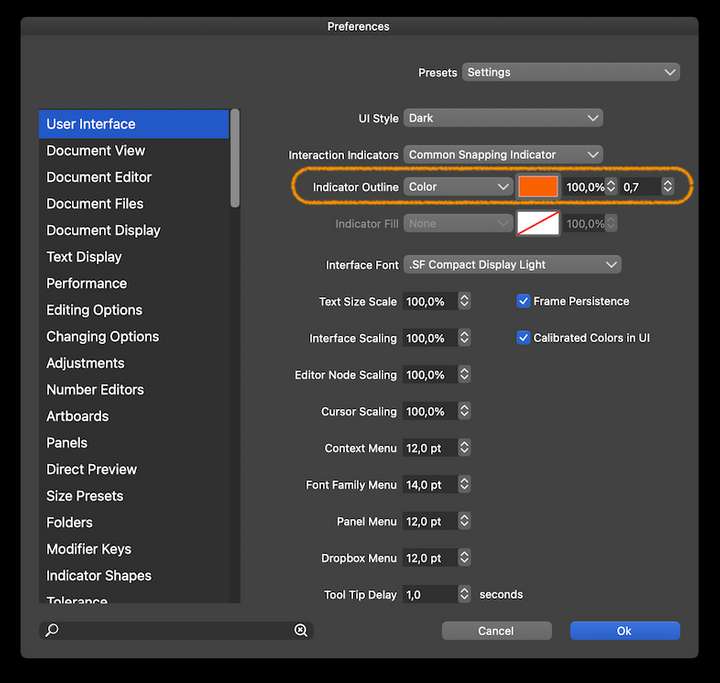
                      0_1643278630109_indicat.png

                      MacBook Pro (Intel) running Monterey 12.6.4

                      1 Reply Last reply Reply Quote 1
                      • IngolfI Offline
                        Ingolf
                        last edited by

                        Hm on both Windows and macOS almost all snapping indicators had an opacity of 0,0% - even when every snapping setting was enabled.

                        🍏 macOS Sequoia Apple Silicon

                        b77B 1 Reply Last reply Reply Quote 0
                        • IngolfI Offline
                          Ingolf
                          last edited by

                          But with your settings I still don't see the indicator lines. What outline color should I look for in preferences, @vectoradmin πŸ™‚

                          🍏 macOS Sequoia Apple Silicon

                          VectorStylerV 1 Reply Last reply Reply Quote 0
                          • b77B Offline
                            b77 @Ingolf
                            last edited by

                            @Ingolf and @vectoradmin
                            It is the same here by default (opacity is at 0.0%), but the snap indicators still work…

                            MacBook Pro (Intel) running Monterey 12.6.4

                            IngolfI 1 Reply Last reply Reply Quote 0
                            • IngolfI Offline
                              Ingolf @b77
                              last edited by

                              @b77 said in Snap to canvas centre vertically and horisontally:

                              @Ingolf and @vectoradmin
                              It is the same here by default (opacity is at 0.0%), but the snap indicators still work…

                              They also worked here - but no canvas centre lines to see after setting to 100%

                              🍏 macOS Sequoia Apple Silicon

                              1 Reply Last reply Reply Quote 0
                              • IngolfI Offline
                                Ingolf
                                last edited by

                                I also only see an indicator line when it snaps to the horisontal border of the canvas, not the vertical.

                                alt text

                                🍏 macOS Sequoia Apple Silicon

                                1 Reply Last reply Reply Quote 0
                                • VectorStylerV Offline
                                  VectorStyler @Ingolf
                                  last edited by

                                  @Ingolf The "Common Snapping Indicator" color should be the one.

                                  And the opacity should be 100% by default.

                                  I open a bug on this one, and will try to replicate the issue.

                                  1 Reply Last reply Reply Quote 1
                                  • D Offline
                                    DMBrown
                                    last edited by

                                    For information, I also do not have guidelines appearing when snapping to either the vertical or horizontal (or both) centers of the Artboard. I have verified the settings discussed in this post; e.g. Allow Snapping, Snap to Artboards, Show Indicators. As others have noted, the opacity of Indicators, in Preferences, was 0%, but setting it to 100% does not cause Indicators to appear.

                                    I tried changing the Indicator Outline to layer (no indicator appeared) and back to Color again; changing the color; and changing the line thickness. None of those actions caused indicators to appear.

                                    Mac Pro (Late 2019)
                                    macOS 12.1
                                    VectorStyler 1.1.008

                                    1 Reply Last reply Reply Quote 1
                                    • IngolfI Offline
                                      Ingolf
                                      last edited by

                                      @vectoradmin Fixed in latest build (1.1.010)

                                      🍏 macOS Sequoia Apple Silicon

                                      1 Reply Last reply Reply Quote 0
                                      • First post
                                        Last post