VectorStyler
    • Categories
    • Unread
    • Recent
    • Tags
    • Popular
    • Register
    • Login

    Color indicator+selector in layers panel superfluous
    Scheduled Pinned Locked Moved Implemented Features
    13 Posts 4 Posters 18.5k Views 3 Watching
    Loading More Posts
    • Oldest to Newest
    • Newest to Oldest
    • Most Votes
    Reply
    • Reply as topic
    Log in to reply
    This topic has been deleted. Only users with topic management privileges can see it.
    • IngolfI Offline
      Ingolf
      last edited by Ingolf

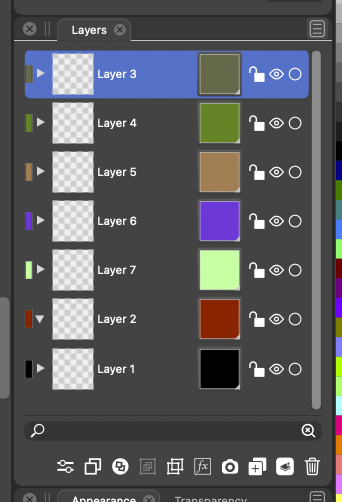
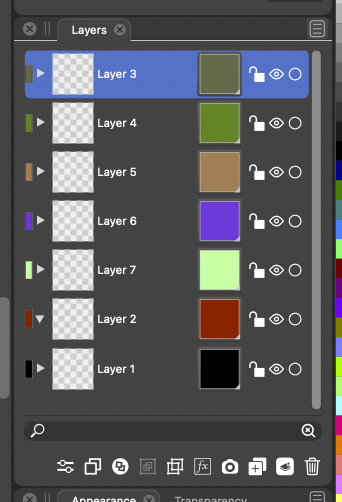
      I find the huge color indicator+selector box in the layers panel (next to the lock symbol) very distracting - the leftmost indicator is more than enough. The layers panel looks more like a color palette at times. And this element is only used rarely but colorful and on-screen constantly. It is like a flashlight in the night.
      0_1641334279341_Skærmbillede 2022-01-04 kl. 23.08.49.png

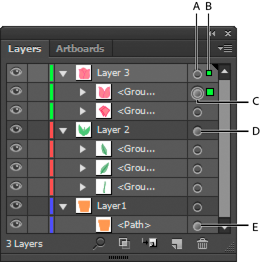
      I would personally do it like in Illustrator: Leftmost to the left of the layer name, as tall and perhaps a few pixels wider than in Illustrator (easier to hit with pointer). And I would not make it an option. 🙂 It is simply not necessary.

      0_1641334391004_0452e9bf-1426-4432-896f-d9340593cb21-image.png

      🙂

      🍏 macOS Sequoia Apple Silicon

      BoldlineB VectorStylerV 3 Replies Last reply Reply Quote 1
      • BoldlineB Online
        Boldline @Ingolf
        last edited by

        @Ingolf I agree the color boxes on the right side are not needed - especially if the shapes on the far left side are made a little wider as you mentioned.

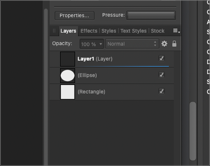
        Out of curiosity, I went and checked out Affinity's layer panel and was surprised to see it lacked the color coding entirely
        0_1641336958787_a13c4b11-e615-47e9-9303-85f509e084e9-BLD 2022-01-04 at 17.54.53.png

        I am glad VS has a color coding system for the layers themselves as I use it frequently as I design. That's something Illustrator got right as well.

        🍎 macOS Tahoe 26.2, Mac mini (M1, 2020), Chip Apple M1, Memory 16 GB
        Cintiq 27QHD Display and LG Ultra HD Display

        1 Reply Last reply Reply Quote 0
        • IngolfI Offline
          Ingolf
          last edited by Ingolf

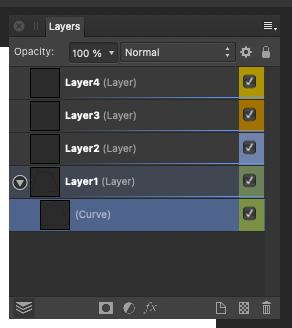
          It is there - right click a layer to add a color - but it is just for color coding the layers in the panel. Nothing else. One of many examples of half-assed minor features added to Affinity products shortly before deadline for the sake of adding SOME new functionality in a release after many complaints from beta users (customers!).

          (Check out a document with layer colors in VS in outline mode if you wonder what I am missing in Affinity!)
          0_1641339851987_Skærmbillede 2022-01-05 kl. 00.42.52.png

          🍏 macOS Sequoia Apple Silicon

          BoldlineB 1 Reply Last reply Reply Quote 1
          • BoldlineB Online
            Boldline @Ingolf
            last edited by

            @Ingolf Oh gotcha! yeah.... well with VS I know I was one of the ones advocating for color coded layers that also translated into corresponding selection boundaries and path selected lines, etc to be added to VS. You're preaching to the choir about the value they have!

            🍎 macOS Tahoe 26.2, Mac mini (M1, 2020), Chip Apple M1, Memory 16 GB
            Cintiq 27QHD Display and LG Ultra HD Display

            1 Reply Last reply Reply Quote 0
            • VectorStylerV Offline
              VectorStyler @Ingolf
              last edited by

              @Ingolf @Boldline This can be easily fixed. But would there be another quick (and easy) way to adjust the layer color?

              1 Reply Last reply Reply Quote 0
              • IngolfI Offline
                Ingolf
                last edited by Ingolf

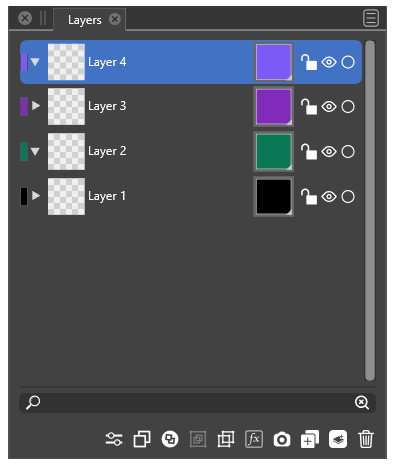
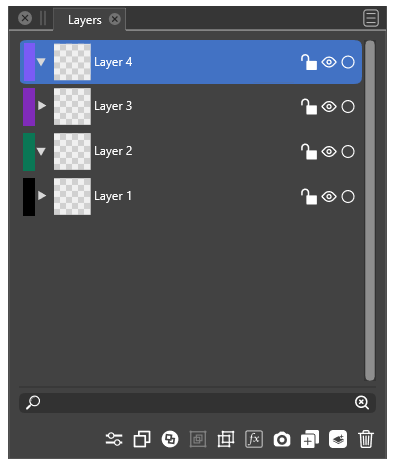
                My thoughts visualized:

                VS today:
                0_1641370985623_cf247305-1806-4d3f-9795-7284ae905d48-image.png

                My idea:
                0_1641372037309_cbae679b-6b0b-42b3-b0c0-2b2af4855fd0-image.png

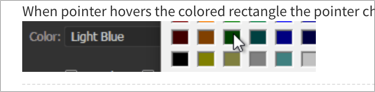
                When pointer hovers the colored rectangle the pointer changes like in Illustrator:

                alt text

                🍏 macOS Sequoia Apple Silicon

                S 1 Reply Last reply Reply Quote 3
                • S Offline
                  Subpath @Ingolf
                  last edited by

                  @Ingolf

                  like this idea

                  Win 11
                  CPU: AMD Ryzen 5 9600X, 6-core.
                  GPU: Nvidia Geforce RTX 5070.

                  1 Reply Last reply Reply Quote 1
                  • BoldlineB Online
                    Boldline
                    last edited by

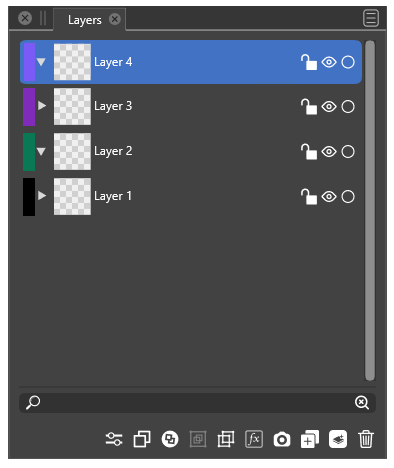
                    @Ingolf I agree with you on layout for this part - when you mentioned the full squares on the right being superfluous - enlarging the rectangles on the far left a little more made sense
                    0_1641394964899_2606912a-613b-44f2-944a-695820d98b9f-image.png

                    On your idea for a color selection method using those smaller left-aligned rectangles, why can't it stay what it currently is? When the cursor hovers the colored rectangle the same color wheel menu appears like it does already with the large squares. I love the flexibility of choosing a color that way. Opening a menu of static squares feels clunky and limits the color options

                    🍎 macOS Tahoe 26.2, Mac mini (M1, 2020), Chip Apple M1, Memory 16 GB
                    Cintiq 27QHD Display and LG Ultra HD Display

                    IngolfI 1 Reply Last reply Reply Quote 0
                    • IngolfI Offline
                      Ingolf @Boldline
                      last edited by

                      @Boldline The could also be right-aligned - but I would prefer it placed next to the scroll bar - not next to the lock icon. Next to the border of the panel it looks less intrusive.

                      🍏 macOS Sequoia Apple Silicon

                      BoldlineB 1 Reply Last reply Reply Quote 0
                      • BoldlineB Online
                        Boldline @Ingolf
                        last edited by Boldline

                        @Ingolf I think we agree on that part. I prefer the color rectangles as you displayed them in this image -on the left side of the layer tabs - making them a little wider than they are right now.
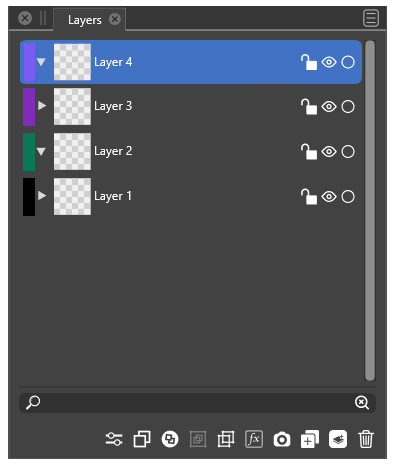
                        0_1641402067414_797aa8fc-cbae-41a1-81b9-b2f389dc1c9d-image.png
                        I was hoping we could keep the existing layer color picker as it currently is and just move it over to the small rectangles on the left. Like I am trying to demonstrate in the pic below 🙂
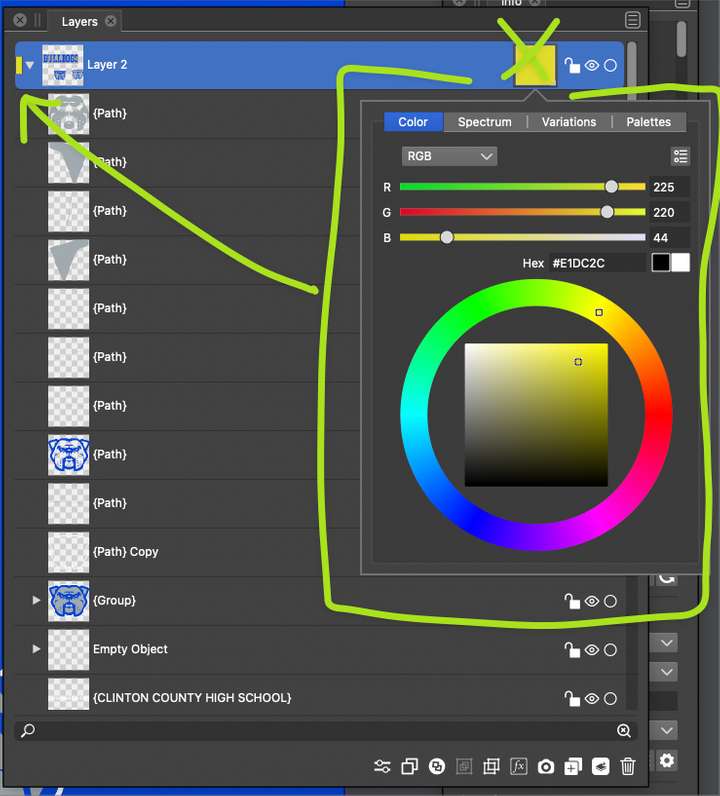
                        0_1641402218593_b77f34cc-6c31-46f2-899d-5274a1a7f8b1-BLD 2022-01-05 at 12.01.57.png

                        I was less excited about switching the layer color picker to a set of static clunky boxes of color lol
                        0_1641402357141_681df98e-b8ea-4706-a0f2-333fef5357c2-BLD 2022-01-05 at 12.05.12.png

                        🍎 macOS Tahoe 26.2, Mac mini (M1, 2020), Chip Apple M1, Memory 16 GB
                        Cintiq 27QHD Display and LG Ultra HD Display

                        1 Reply Last reply Reply Quote 1
                        • IngolfI Offline
                          Ingolf
                          last edited by

                          Well, ultimately not my decision 🙂

                          Just moving the huge box? Eh, no thank you. Personally I find it horribly big - huge - the colors catches my attention all the time, no matter where they would be, the small rectangle doesn't. And it is more than enough to hit with the pointer.

                          NOTE: I didn't at all suggest introducing the color picker from Illustrator (it is the ancient Windows color picker it activates, yuck), that is what happens in Illustrator, just showed how the cursor switching to a hand above the rectangle indicates that you can adjust something here. Elegant nudging at work.

                          To clarify: when the cursor changes to a hand symbol, click once and the current VS color selector appears.

                          🙂

                          🍏 macOS Sequoia Apple Silicon

                          BoldlineB 1 Reply Last reply Reply Quote 0
                          • BoldlineB Online
                            Boldline @Ingolf
                            last edited by Boldline

                            @Ingolf I'm not following what we disagree on then. It sounds like we're asking for the same thing. Removing the color square on the right side of each layer tab.... making the existing rectangle of color on the left side of layer tab wider and being able to click on that left-aligned rectangle to change the color. When you click on it, the current VS color selector appears (which is the same 'large" color box in the image below)
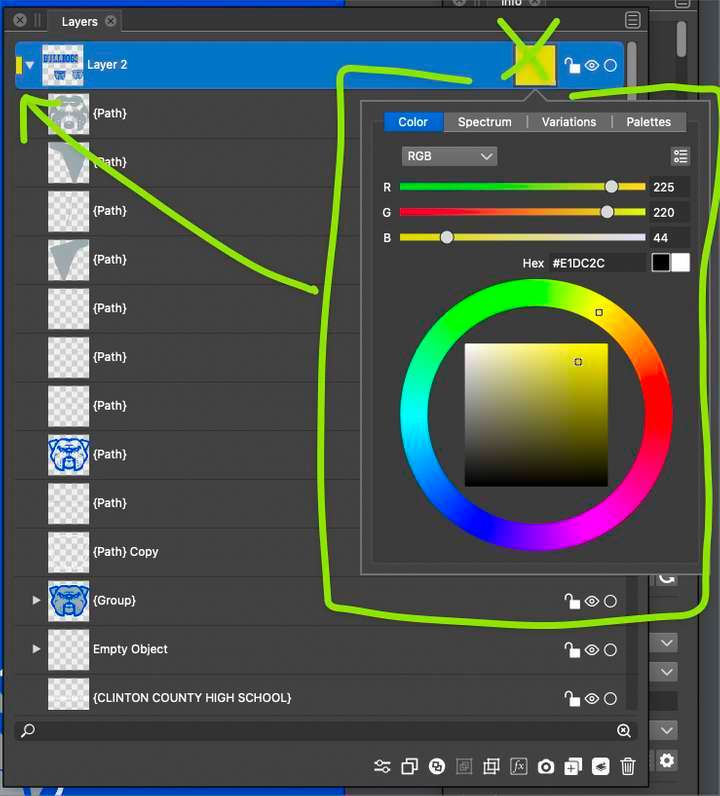
                            0_1641403163527_17f3685f-5fda-4eb5-907f-e343c30e3ff9-image.png

                            @Ingolf , you mentioned "To clarify: when the cursor changes to a hand symbol, click once and the current VS color selector appears." - Isn't what I am showing in the picture above the current VS color selector?

                            🍎 macOS Tahoe 26.2, Mac mini (M1, 2020), Chip Apple M1, Memory 16 GB
                            Cintiq 27QHD Display and LG Ultra HD Display

                            1 Reply Last reply Reply Quote 1
                            • VectorStylerV Offline
                              VectorStyler @Ingolf
                              last edited by

                              @Ingolf Layers panel layout is improved in build 1.1.008

                              1 Reply Last reply Reply Quote 1
                              • First post
                                Last post