How to expand and divide a single stroke overlapping object?
-
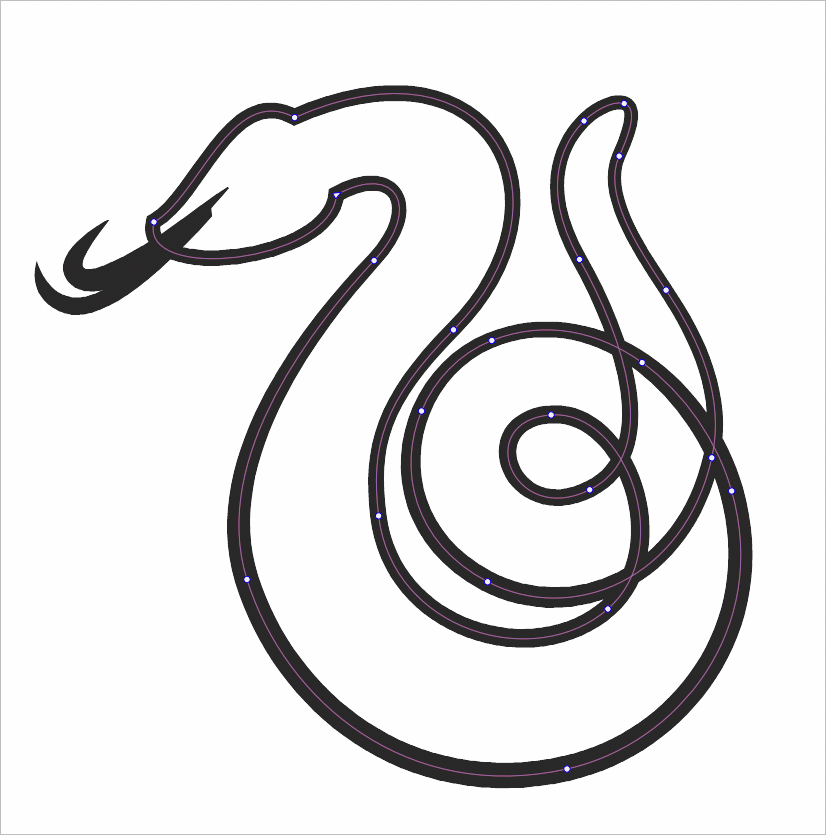
Interesting dilemma I ran into while using the pen tool to trace this snake - I drew it as one continuous path with the pen tool including where it overlaps itself toward the tail section. I drew out all the shapes to ensure the flow of the line made sense - plus I went back in after with the stroke width tool to adjust the tapering and thick to thin sections as I wanted them. Ordinarily at this point, I would expand the strokes and then use the divide boolean operation to divide where the overlap occurs and remove those sections.
However, because the snake is essentially one path - if I expand the path, it auto merges into one shape, which makes sense.
Is there an option to have it divide at overlapping points, even if it's the same stroke?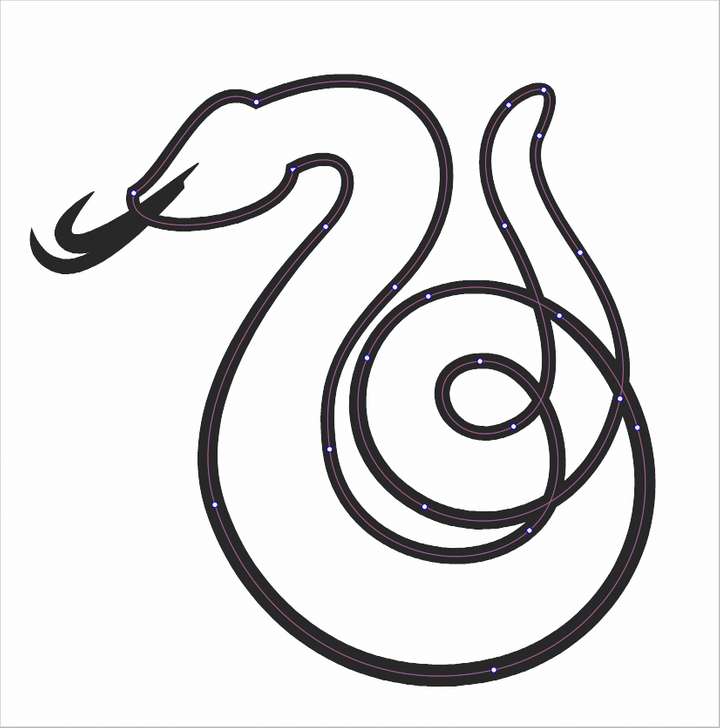
🍎 macOS Tahoe 26.2, Mac mini (M1, 2020), Chip Apple M1, Memory 16 GB
Cintiq 27QHD Display and LG Ultra HD Display -
@Boldline said in How to expand and divide a single stroke overlapping object?:
Is there an option to have it divide at overlapping points, even if it's the same stroke?
No such option. When the (single) stroke is expanded, it results in a single shape.
I see that there is a variable width stroke, this makes it a bit more complicated, as it would be hard to cut at points to deal with overlapping parts.
-
Hi
Of course I know that there are a few ways
to do this by hand.But I still came up with this idea.
Convert a copy of your snake to a bitmap
and trace it with the Bitmap to Vector Tracer
(In my example I use the screenshot you posted).My thinking was that this would turn these areas
into independent objects. Which it did.I created my result with the CorelDraw tracer, just to
to show the method and the result. Because I don't know
the VectorStyler tracer that well yet.Here is a screenshot of my result

-
@Subpath Hey! I appreciate your ideas and efforts to help. My specific issue in this case was that the stroke I had made was one unified long stroke that overlapped itself several times. I was hoping there was a way to expand the stroke and divide it where it overlapped itself. This is not possible because when you expand the stroke, it unifies with itself where it overlaps. I was focusing more on the strokes themselves in this question.
That said, your way does fill the body of the snake with individualized shape objects that can be colored independently.
I think one of the biggest tools still lacking from VS is a way to fill an empty space enclosed (or even partially enclosed) by an expanded vector shape. This tool is lacking from Affinity as well - their answer so far is to follow the shape and lay down an enclosed path underneath the vector expanded shape and then fill it with a color using the fill tool.
Illustrator has a good answer for this problem and they call it "Live Paint" where you can select a vector shape that has a negative shape within and then click in that negative shape and it fills with a color that is "live" - when you are done you expand it to confirm it. I should probably make a post about that tool and share some videos if it in action in Illustrator in hopes it can be added in VS sometime sooner than later!
thanks again for taking the time to offer ideas and suggestions for solutions - I always appreciate it! -
Understand your needs in this case and indeed a tool like
Illustrator's Live Paint function, would be a very nice and
useful addition to VS. -
@Subpath said in How to expand and divide a single stroke overlapping object?:
Illustrator's Live Paint function, would be a very nice and useful addition to VS.
There is "Shape Paint" in VS (Styles -> Shape Paint -> Create Shape Paint) that does similar (planar map) graphics as Live Paint in AI
-
@vectoradmin
Thanks for the Info, a often overseen Tool.
I try it, but i must say i dont know how to use it.
Especially in the case of one intersecting Stroke
like in Boldlines Example above.Found some infos and fiddle a bit
and seems to get it to work in overlapping circles.But not if there is only one intersecting Stroke.
Then it seems it works just like a normal fill
will do.

