Creating a custom vector brush stroke
-
I am new to VectorStyler and am trying to create a vector brush stroke from a photo of a brush stroke I created, however I am struggling to figure out how to do it.
First off, I cannot find an image trace feature anywhere. I've seen a 'Trace' window on other posts, but the closest I can find is 'Trace Guide'.
For the second part, I think I have it figured out with turning the graphic into an artistic brush style/preset, however I don't know the difference between style and preset, and which should be used for what.
Any help would be greatly appreciated. Thanks.
-
@nrdesign welcome to Vectorstyler!
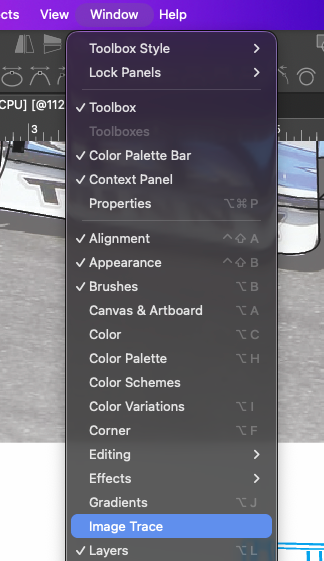
The image trace feature is found under Window>Image Trace
once you open the image trace feature you'll see the panel where you control the settings:
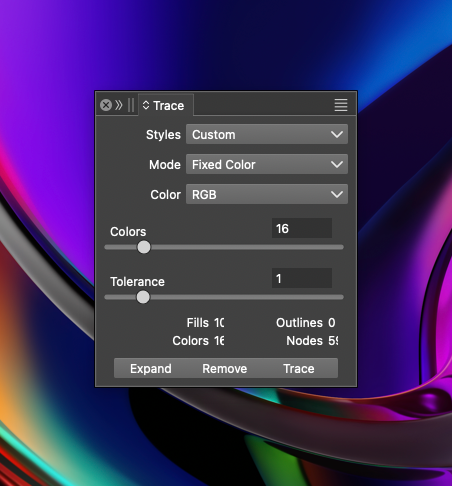
Select the image you imported into VS
Open Window > Image Trace
Pick a preset/style
Adjust a few settings
Hit Trace
Review the result
Expand it when you are ready to edit the actual vector shapesBy default, VectorStyler keeps the trace linked to the image as an image trace group. That means you can keep changing the trace settings and retrace. To edit the real vector paths, you use Expand Content.
To answer your second question about Preset vs Style
Preset = saved settings you apply as a copy.
Use it when you want a reusable starting point, but you do not need future edits to update every object that used it.Style = linked reusable definition.
Use it when you want many objects to stay connected to one master appearance, so changing the style updates every object using that style.VectorStyler’s manual says styles are “similar to presets,” but the key difference is that styles are stored in the document, applied as symbolic links, and changing a style changes all objects using it.
Simple rule
Use this When
Preset “Give me this saved setup once.”
Style “Keep these objects tied together so I can change them all later.”
Practical examples
Use a preset for:
A favorite stroke width setup
A saved brush configuration
A document setup
A shape effect starting point
A dash pattern you may tweak separately after applying
Anything you want available across projects or as a quick reusable toolVectorStyler’s Presets panel contains presets built into VectorStyler and presets stored in application settings folders, and the Document Presets panel can store presets inside a document.
Use a style for:
Brand colors
Team colors
Repeated outline treatments
Text formatting systems
A common shadow or effect used across many objects
Reusable object appearances inside one design
Screen print designs where one color change should update multiple parts fastExample: make a red ink color style, use it across 40 shapes, then change that style to navy. All 40 update. That is the point. The manual specifically says changing a color style changes all objects using it, and the same applies to shape styles.
-
@nrdesign There is a downloadable pdf version of Vectorstyler located in the "Tutorials " section of the forum. Here is a direct link to the file.
I've found it very helpful for looking up tools and explanations. I also uploaded it to Chat GPT and use it inside that AI as a project to get simpler or more extensive answers
Feel free to ask any questions you might run into as you use VS and myself and others will be happy to assist as best we can!
-
@Boldline Thank you. That breakdown is very helpful.
-
I’m going to create a short tutorial on creating artistic brushes,
including a few extra tips in the Tutorial Section for other Users too.
It will take yet some time. I’ll let you know when it’s ready. -
Here is the Artistic brush Tut I promised—it’s finished and released.
It took a few days longer than planned due to the heatwave here in Germany.The order of the day was mostly eating ice cream, drinking plenty of fluids,
and sitting outside in the shade.Here the Link for the Tut
https://www.vectorstyler.com/forum/topic/5850/some-basics-regarding-the-creation-and-use-of-artistic-brushes-as-well-as-a-fast-way-for-selecting-such-a-brush.
