VectorStyler
    • Categories
    • Unread
    • Recent
    • Tags
    • Popular
    • Register
    • Login

    Reference Scaling

    Scheduled Pinned Locked Moved Features and Ideas
    17 Posts 3 Posters 15.6k Views 3 Watching
    Loading More Posts
    • Oldest to Newest
    • Newest to Oldest
    • Most Votes
    Reply
    • Reply as topic
    Log in to reply
    This topic has been deleted. Only users with topic management privileges can see it.
    • encartE Offline
      encart
      last edited by

      When I create some of my projects, I refer to real objects in them. Sometimes I want to scale a design in relation to a particular element.
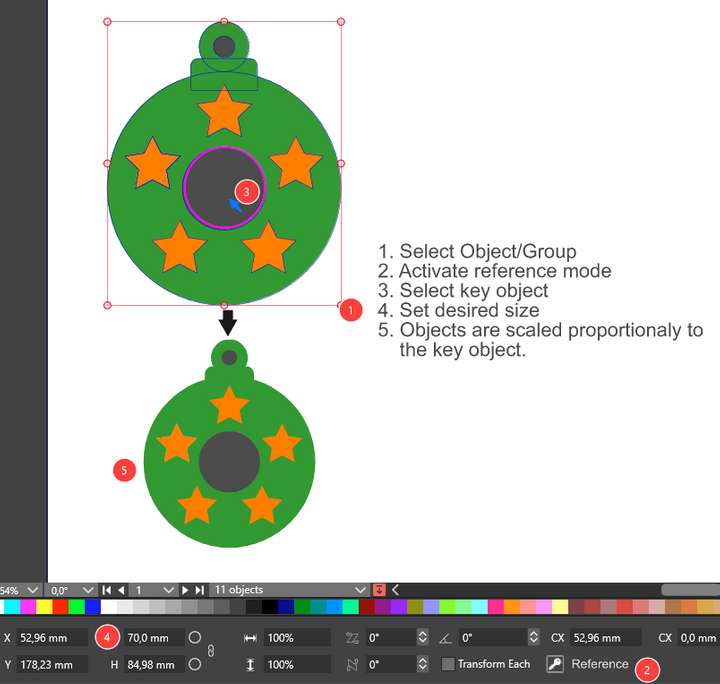
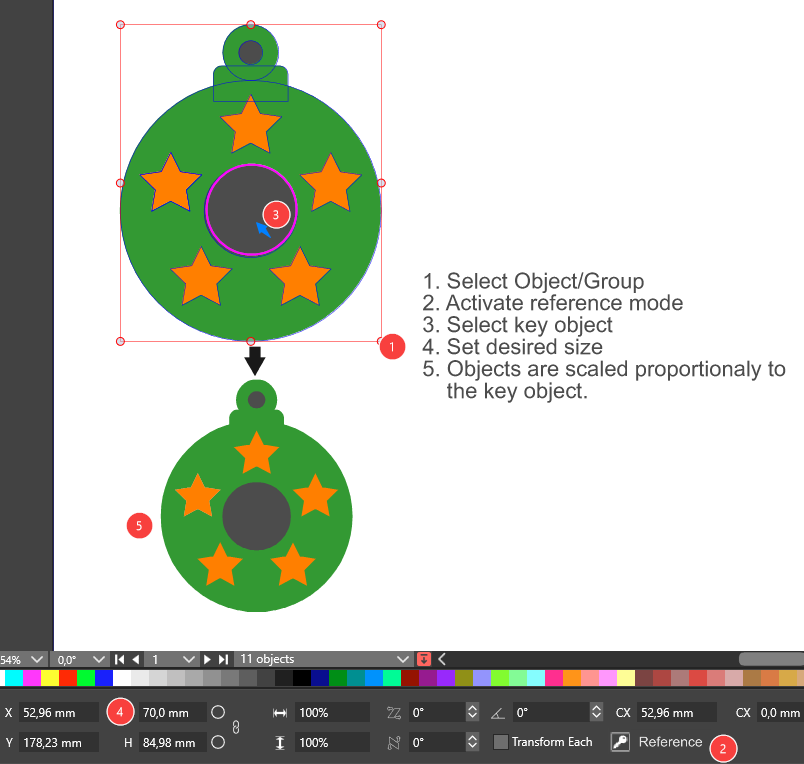
      In this case, it is a hole in the middle. You can aim more or less precisely by scaling the whole and checking the dimension every time. A much better solution would be to be able to select a reference object. Here is a concept sketch of how I imagine such a mechanism to work.

      1. Select object/group
      2. Activate reference mode
      3. Pick the key object
      4. Set desired size

      0_1699301827698_reference scaling.png

      MacBook Air M4 24Gb, Tahoe 26.2

      VectorStylerV 1 Reply Last reply Reply Quote 0
      • VectorStylerV Offline
        VectorStyler @encart
        last edited by

        @encart In the Alignment panel, enable the "Align Sizes" option (panel menu), these should align the size to reference object sizes (there are different size alignment modes).

        encartE 1 Reply Last reply Reply Quote 0
        • encartE Offline
          encart @VectorStyler
          last edited by encart

          @VectorStyler I think we didn't quite understand each other. This is not what I meant.I have tried several times to do this with the Alignment Panel, but it is not possible. All the possibilities scale the object to the reference dimensions, and I wanted scaling proportional to the new dimension.
          If a small circle is 10mm and I resize it to 15mm, all objects will scale proportionally to that scale.
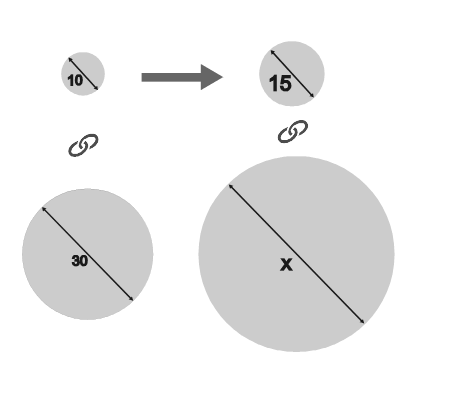
          0_1699348293414_screenshot_20231107_100527.png

          Currently i couldn't find any better solution than:
          1.Duplicating reference shape , changing it's size and than scale manually
          https://recordit.co/PsMrxMPHQD
          2. Manually scaling and checking how close I am to the required dimension of that key element.

          MacBook Air M4 24Gb, Tahoe 26.2

          VectorStylerV 2 Replies Last reply Reply Quote 0
          • VectorStylerV Offline
            VectorStyler @encart
            last edited by

            @encart Now I got it. No such feature. But I thing it is an interesting idea that could be implemented.

            1 Reply Last reply Reply Quote 1
            • VectorStylerV Offline
              VectorStyler @encart
              last edited by

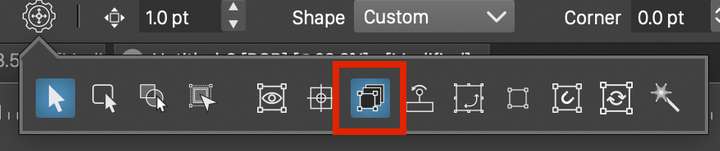
              @encart Could the "Transform Each" feature help here.
              It does not work for objects inside groups, but separate objects can be transformed.0_1700501471992_transformeach.png
              encartE 1 Reply Last reply Reply Quote 1
              • encartE Offline
                encart @VectorStyler
                last edited by

                @VectorStyler Basically, that's what I meant. The only problem is displaying the size for all the scaled elements together, not for the key object.

                MacBook Air M4 24Gb, Tahoe 26.2

                AyoA 1 Reply Last reply Reply Quote 1
                • AyoA Offline
                  Ayo @encart
                  last edited by Ayo

                  @encart @VectorStyler

                  Illustrator has a movable 'scaling reference point' that you can place anywhere you want. So does Vectorstyler.
                  Difference is that you can start scaling also from any point you want from the target object.
                  This is how it works.

                  • Place your target object somewhere aligned with your reference object
                  • Select Scale tool
                  • Drag tiny blue 'scaling reference point' to matching point
                  • (Shift+drag) scale manually somewhere on target object to reference object
                  • Snapping ON

                  Finished!

                  https://recordit.co/bD0stxtN1P

                  AyoA 2 Replies Last reply Reply Quote 2
                  • AyoA Offline
                    Ayo @Ayo
                    last edited by

                    @encart
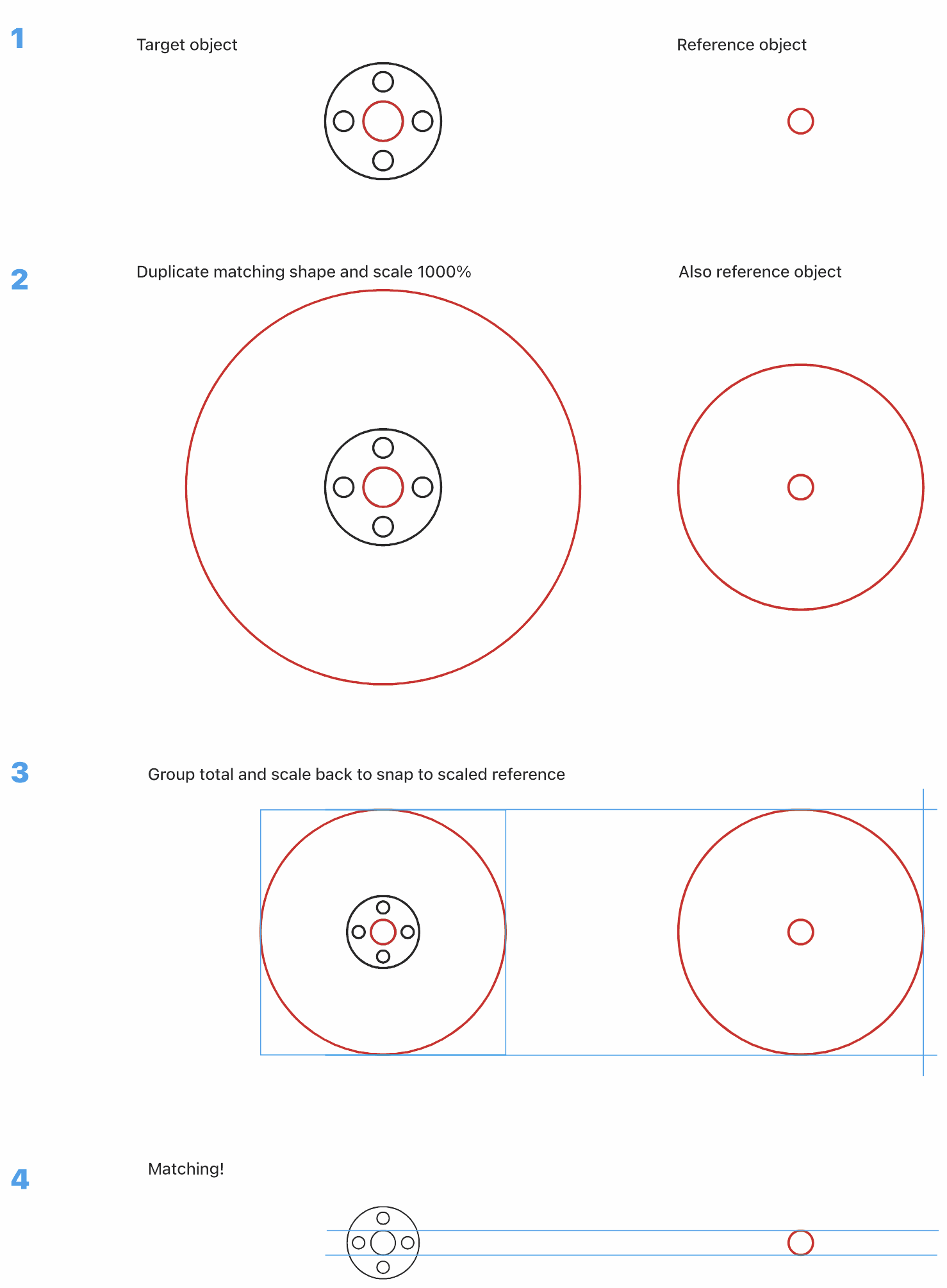
                    A Workaround...

                    0_1700513318175_d2a4f3ab-4756-4150-9230-e931b4a02774-image.png

                    1 Reply Last reply Reply Quote 2
                    • AyoA Offline
                      Ayo @Ayo
                      last edited by Ayo

                      @Ayo said in Reference Scaling:

                      can start scaling also from any point you want

                      Apart from the underlying programming, the Illustrator method of course only works if you are able to tap nodes with the Transform Tool, but unfortunately no nodes are shown when working with this tool. I already argued for this in an earlier post in "Ten Points for Vectorstyler".
                      https://www.vectorstyler.com/forum/topic/3147/ten-points-for-vectorstyler-my-experience-and-ideas

                      Sometimes I have the feeling that Vectorstyler relies a bit too much on the "Dynamic Shape" phenomenon, which is nice but can also have its disadvantages in terms of hermetic objects and and the effect on the capabilities of the select and transform tools. The classic "path" object sometimes comes off a bit unfavorably in my opinion. It's a feeling. 🤔

                      VectorStylerV 1 Reply Last reply Reply Quote 1
                      • VectorStylerV Offline
                        VectorStyler @Ayo
                        last edited by

                        @Ayo Is Illustrator doing this scaling with a separate Scale tool?

                        AyoA 2 Replies Last reply Reply Quote 0
                        • AyoA Offline
                          Ayo @VectorStyler
                          last edited by

                          @VectorStyler

                          Tool icon not much different from Vectorstyler. Scale tool panel offers quite different options.
                          In Illustrator:

                          • Select an object with Selection Tool
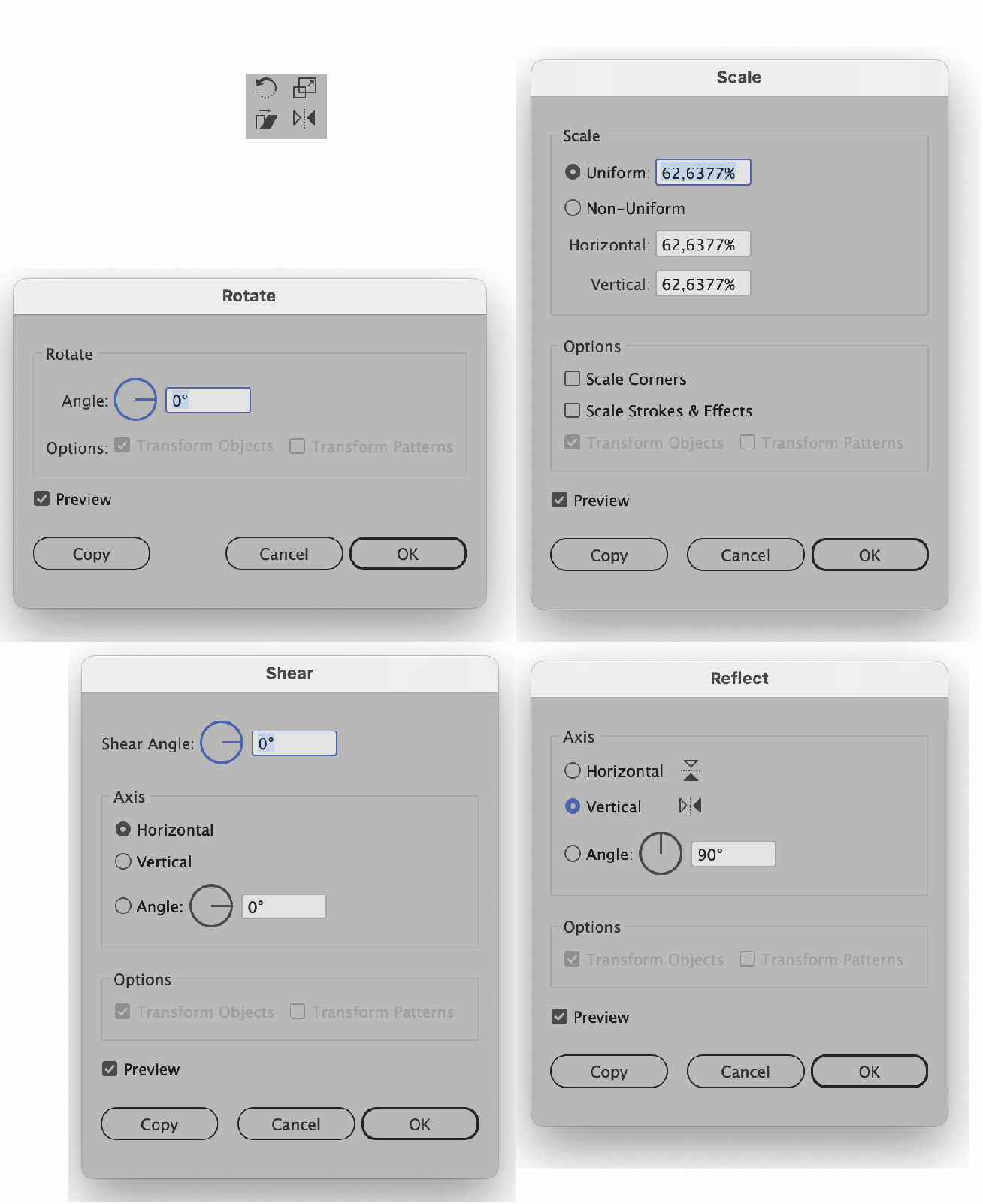
                          • Activate Scale, Rotate, Sheer, Reflect or Free Transform Tool
                          • As soon as you do this, Illustrator will show the objects Nodes plus an origin cross that you can move (magnetically if you like).
                          • You can then transform manually immediately picking up any point/node from the object
                          • Double click the tool icon for numerical transformation

                          Another small video:
                          https://recordit.co/92TdRJNJab
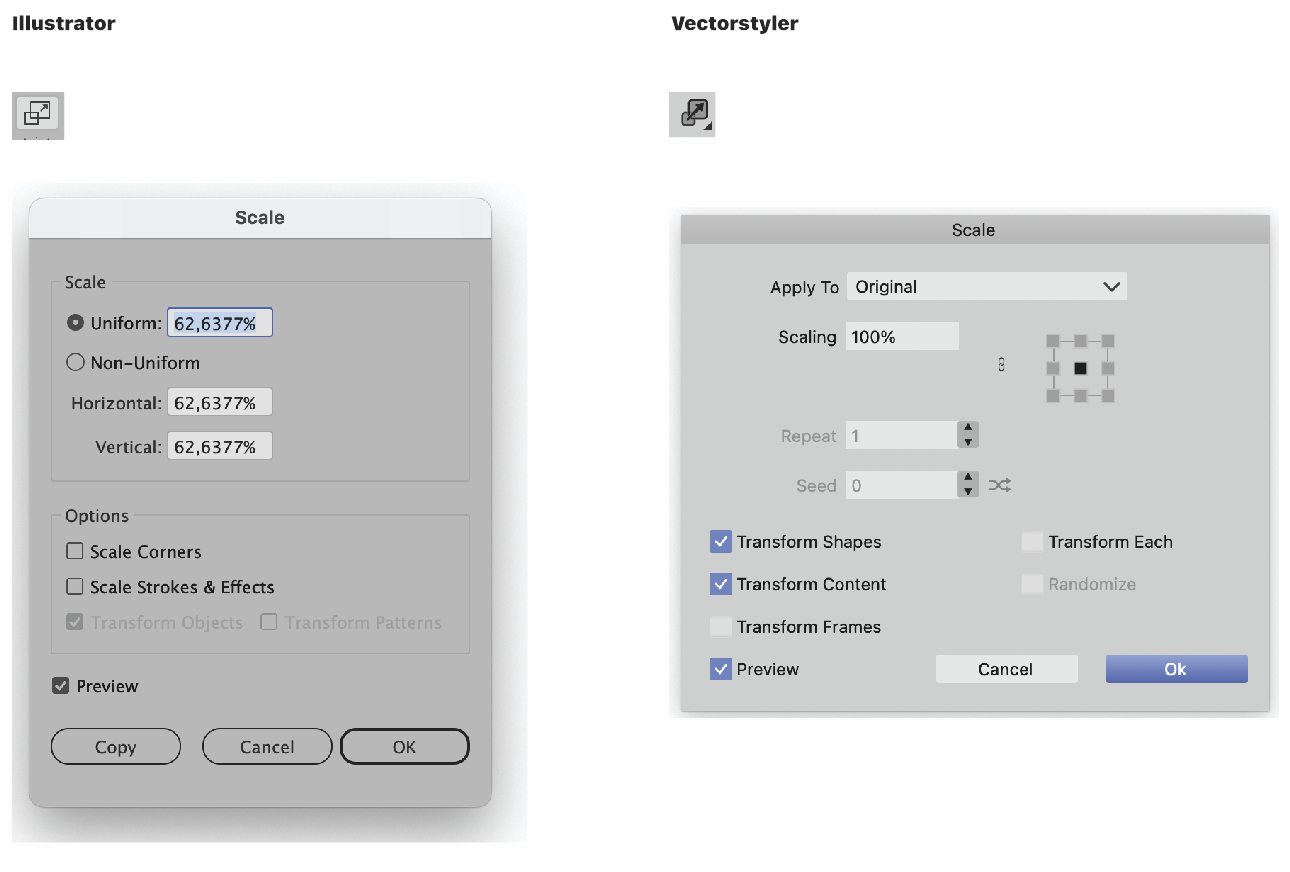
                          0_1700557292921_505600aa-5210-444d-a16a-38abd7277e29-image.png

                          AyoA 1 Reply Last reply Reply Quote 1
                          • AyoA Offline
                            Ayo @VectorStyler
                            last edited by

                            @VectorStyler
                            FYI the whole group

                            0_1700558583757_3b861e8d-243b-4b0b-a29a-3c23573b406e-image.png

                            VectorStylerV 1 Reply Last reply Reply Quote 1
                            • VectorStylerV Offline
                              VectorStyler @Ayo
                              last edited by

                              @Ayo said in Reference Scaling:

                              FYI the whole group

                              Got it. I will try to figure this out.

                              AyoA 2 Replies Last reply Reply Quote 1
                              • AyoA Offline
                                Ayo @VectorStyler
                                last edited by

                                @VectorStyler

                                One final note

                                Free placement of the Origin Cross for numerical transformation works a little differently:

                                • select the object to scale
                                • select the scale tool
                                • hold option (alt) and click/drag the on the canvas to set transform origin
                                • numeric input dialog opens prompt after origin set/release (option) alt
                                • enter value

                                https://recordit.co/ocj8iQqfTJ

                                1 Reply Last reply Reply Quote 1
                                • AyoA Offline
                                  Ayo @VectorStyler
                                  last edited by

                                  @VectorStyler

                                  One very last comment

                                  In addition, there is of course the transform panel, but it cannot scale towards/from a free placed origin reference. Only center and the 8 bounding box extremes.
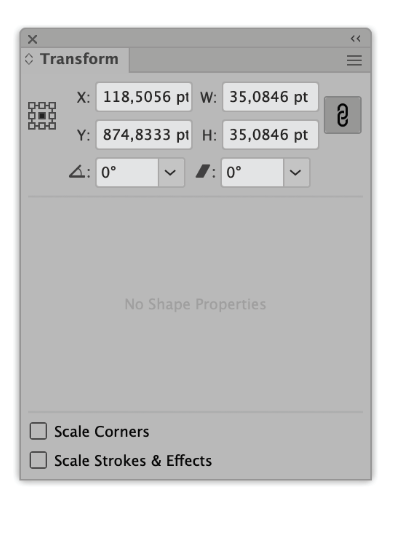
                                  0_1700565363458_50a7f88b-cb2c-43e3-823d-025b592dc14a-image.png

                                  1 Reply Last reply Reply Quote 1
                                  • AyoA Offline
                                    Ayo @Ayo
                                    last edited by

                                    @VectorStyler @Ayo said in Reference Scaling:

                                    You can then transform manually immediately picking up any point/node from the object

                                    Addition:
                                    Also works on segments (not only nodes)

                                    VectorStylerV 1 Reply Last reply Reply Quote 0
                                    • VectorStylerV Offline
                                      VectorStyler @Ayo
                                      last edited by

                                      @Ayo I added these transform improvements to the backlog.

                                      1 Reply Last reply Reply Quote 1
                                      • First post
                                        Last post