Collision Snapping with space
-
Hi
A couple of questions (even having just RTFM
 )...
)...-
I assume that the spacing option in the snapping menu options is to allow individual objects to have their own collision boundary (ie space) ?
-
If that is the case, then I just can't get it to work - ie there is no collision boundary between the selected object (which has a boundary space of 5mm set).
Having set and selected say a 5mm boundary then OK to all, nothing happens, snapping is still at zero. On return to that object's space setting, it is on zero and not on the 5mm I set in the list ???
Collision snapping using the collider tool works perfectly well for me in it's normal zero space mode.
The Collision Snapping checkbox in the snapping panel doesn't seem to have any function - collision snapping occurs whether it is checked or not.
Can someone maybe enlighten me Further, why is there a collision snapping checkbox anyway - if you pick up the collider tool, then you want to collide with something - otherwise why would you have chosen that tool ?I'm guessing that there's some bug here (either in the app or I'm just not getting it
)Neil
iMac 27" 2015 Catalina 32Gb, MacBook Pro 13" 2016 Monterey 8Gb, Mac Mini M2 2023 8Gb
-
-
@Igull said in Collision Snapping with space:
I assume that the spacing option in the snapping menu options is to allow individual objects to have their own collision boundary (ie space) ?
Yes.
If that is the case, then I just can't get it to work - ie there is no collision boundary between the selected object (which has a boundary space of 5mm set).
It works here: https://recordit.co/KZaEEvdKIj
Having set and selected say a 5mm boundary then OK to all, nothing happens, snapping is still at zero. On return to that object's space setting, it is on zero and not on the 5mm I set in the list ???
There is a (+) button that may need to be pressed to add the spacing. Multiple spaces (including the default 0) are allowed.
Collision snapping using the collider tool works perfectly well for me in it's normal zero space mode.
Collision snapping and the collider tool are completely different features.
In the collider tool, a selected shape is moved and rotated to match the location / direction of another shape at a point (this is basically Snap to Shape, with rotation added).
In the collision snapping the moved shape(s) are snapped to one or two other shapes, without rotation, just finding the position where the shapes touch.
In this recording: https://recordit.co/900M3NSGea the moved blue circle snaps to two other shapes, finding an exact position. This is not possible with the collider tool.I'm not sure if collision snapping as is in VS exists in other vector design apps, and least not in the most known ones.
-
EDIT: Oops, I didn't see the reply of the admin, so I'll just leave the screenshot here:
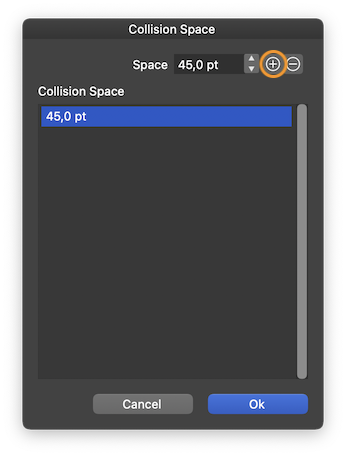
-
It works here: https://recordit.co/KZaEEvdKIj
OK
There is a (+) button that may need to be pressed to add the spacing. Multiple spaces (including the default 0) are allowed.
Yes, I tried with a few entires in the list - didn't work. I removed all except the single 5mm one - still didn't work. The + key adds an entered value to the value list.
OK on the collider and and collision snapping, I now understand - I was being confused with the collider tool allowing rotation - the transform tool just allows a collision - without rotation - and the Collision Snapping option does work - for simple collisions (sans rotation).
I'm not sure if collision snapping as is in VS exists in other vector design apps, and least not in the most known ones.
Not to my knowledge in the regular apps - an outstanding feature, I use it for a couple of things I would normally use (in AI) to rotate and snap - the collider tool just does it in one. For instance, aligning an imported PDF/TIF document to 0,0 - just draw a horizontal line or guide and use the collider tool to snap it to 0,0 - simples !!
So, the issue for me still exists, I can't get collision spacing to work. I'm guessing that there is some option that is not switched on (ie, that I have switched off
) I've even tried adding spacing to each of the two objects - still the same issue.Perhaps someone else can check this out and see if this works for them - can't imagine it's a metric/imperial/pointsize thing ? I will check that tho.
Neil
-
@Igull Make sure 'Allow Snapping' is checked in the Snapping panel — here it works: https://recordit.co/kym1bX8MXY
-
@b77 said in Collision Snapping with space:
Make sure 'Allow Snapping' is checked in the Snapping panel
Yep, that's definitely selected
However
I just cracked it - your vid shows an indication of the spacing on the primary object - I didn't have show indicators switched on otherwise I would have seen that. The issue is that you can still snap through the spacing set by the panel and snap to the bounds of the object - that's why I assumed it wasn't working !I (wrongly?) assumed that setting a spacing would not allow it to pass through that boundary - surely, that's the whole point ?
Neil
-
I (wrongly?) assumed that setting a spacing would not allow it to pass through that boundary - surely, that's the whole point ?
If you can explain a bit how you use the Collider tool and where would this limit be useful (a use case scenario?), I guess it might be considered.
(Btw, this snapping value also creates an interior snap boundary for the object).
-
@b77
I use it to ensure the minimum separation distance between objects that are being cut on the laser (so that the beam doesn't interfere with local objects). Now that I understand both collision methods, I can use both methods to do this. Depending on materials, I can use collision rotate freely (say a laminate material without any grain - acrylic maybe - where it doesn't matter the rotation of the object) in others that require the grain to be in the direction of the object for strength (wood for instance), then simple collision is ideal.
Being able to ensure that the objects cannot break through the boundary would be very useful as you wouldn't have to re-correct the positions.
It is also superb for manually nesting parts on a sheet as the collider tool rotates parts neatly (paralleled) into place. You can pay huge sums of $$$ for automatic fast nesting software - doing it mandraulically is generally fine for me
BTW, that would also apply to the inside snap where that would be the boundary of the sheet material - ensuring that the parts can't breach the edge of the material itself.
Neil


