Intertwine Effect: Where is it?
-
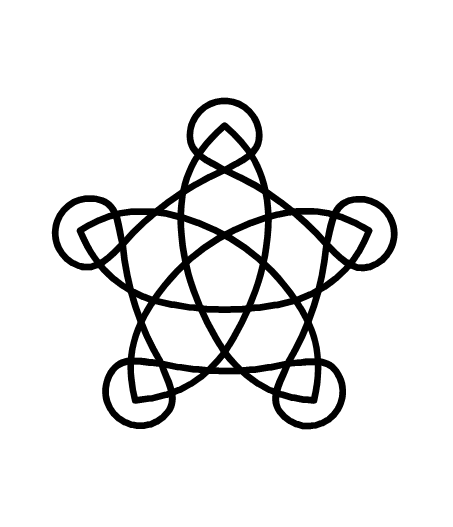
@Subpath Let me try this and get back to you. Thank you!
-
@Subpath: Nope. Very similar problem. Leading to strange distortions.
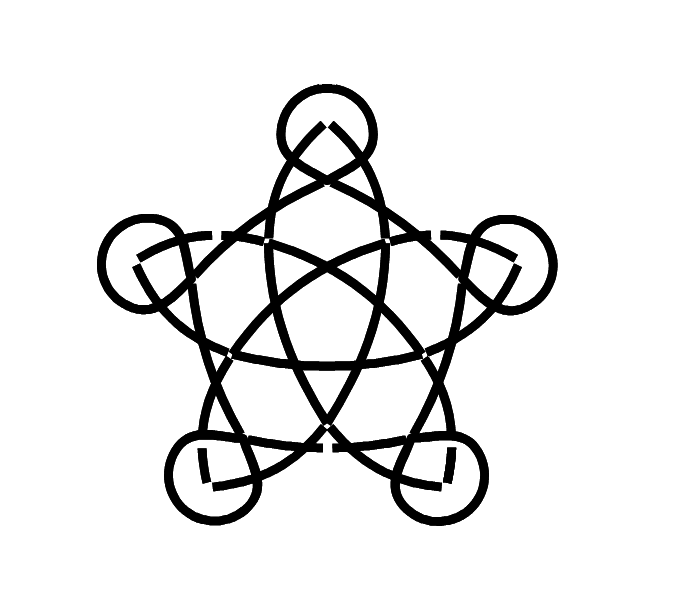
Even in your example, you can see what the problem is: The gap does not follow the path.

Work: Windows 11 | Intel i9 14900HS (24 Cores/32 Threads) | GeForce RTX 4070 | 64 GB RAM
Personal: Windows 11 | Amd Ryzen 9 7950X (16 Core, 32 Threads) | GeForce RTX 3060 | 32 GB RAM -
@Daniel Send me that VS file
-
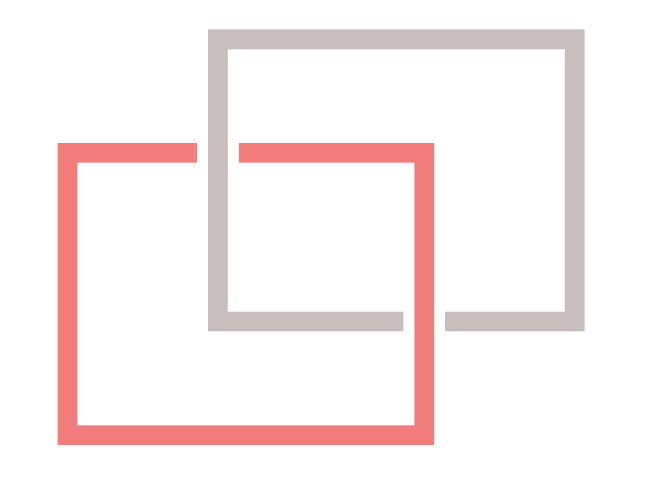
in the meantime i found a way to create (fake) gaps with the Intertwine Effect.
Create your Stroke, Expand that Stroke and give it a white outline
now you could use the the Intertwine Effect to fake gaps.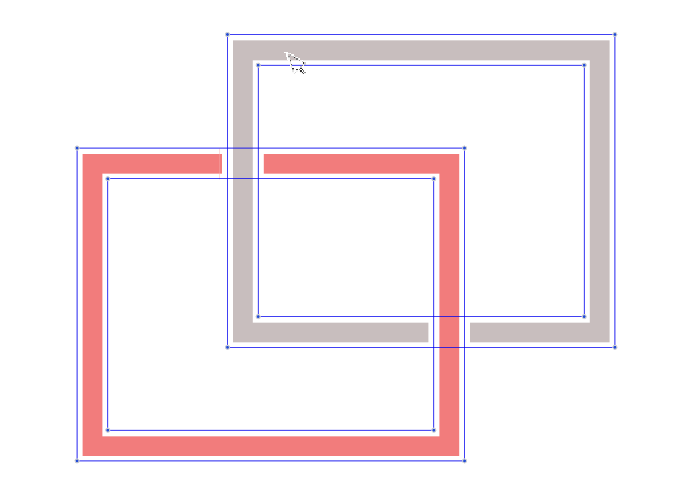
-
@Subpath: This too failed eventually. Getting the gaps to follow the direction of the path was difficult. I did however manually complete the project.
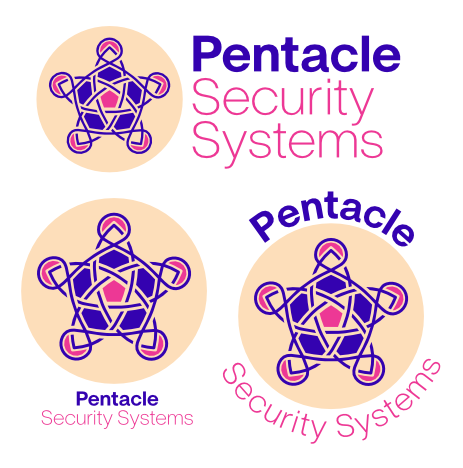
It's for an AI-based security firm. The central pentagon stands for the SOC, the security operations centre. The circles on the outer perimeter represent the constant social listening of the AI engine. The interlocking lines show unending stream of data. The filled blue hexagons represent co-ordination and continuous monitoring. Sort of like a beehive.
 Wanted to share because the client was chuffed and I was very excited.
Work: Windows 11 | Intel i9 14900HS (24 Cores/32 Threads) | GeForce RTX 4070 | 64 GB RAM
Personal: Windows 11 | Amd Ryzen 9 7950X (16 Core, 32 Threads) | GeForce RTX 3060 | 32 GB RAM -
-
@Daniel This might be solvable with some new features in the Intertwine tool.
First I will try to fix the stroke crossing gap problem, but that cannot solve this case with multiple objects
-
@VectorStyler; Thank you!
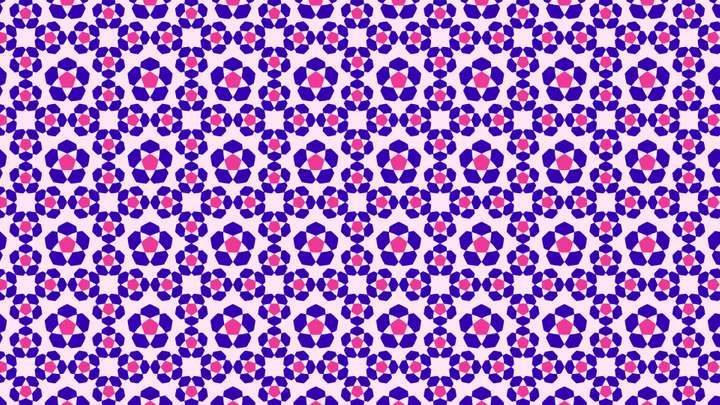
By the way, I created a pattern out of the logo. It is very Arabesque. But still, a great looking pattern.
-
-
@Daniel
I can't find "Intertwine" anywhere. Is there a search function for menu items, tools or operations?
Here is what I see under Styles: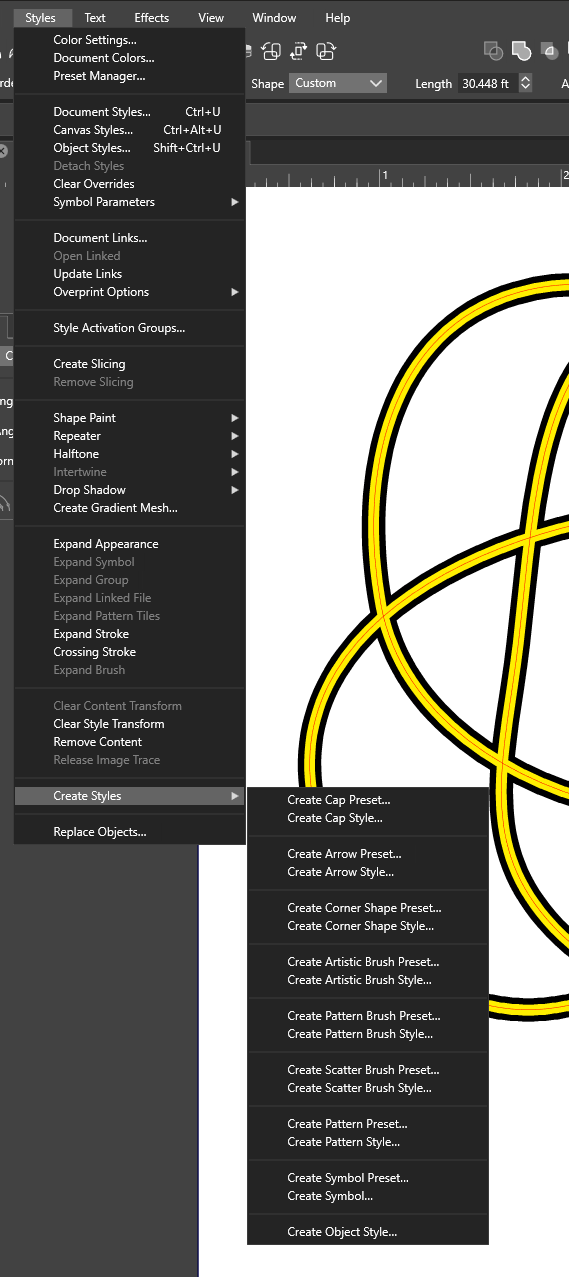
-
@ThatMikeGuy "Intertwine" between the "Halftone" and "Drop Shadow" menus (around the middle).
You need to select some objects to activate the menu
-
The object in your pic seems to be a single stroke ?
For single stroke you have to use the "Crossing Gap"
Shape effect, you find it under Outline shape effectsthe interwine effect needs at least two Objects
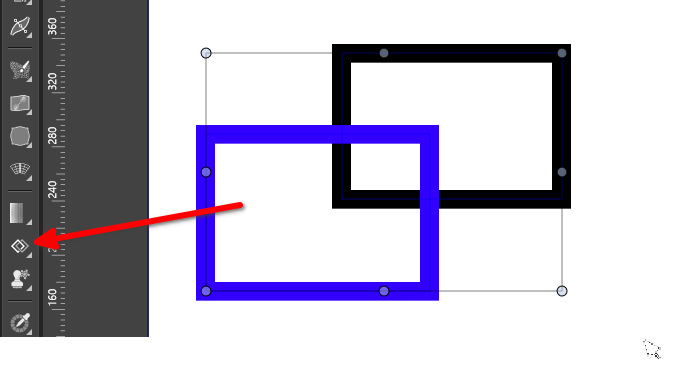
the intertwine tool is here, see pic
-
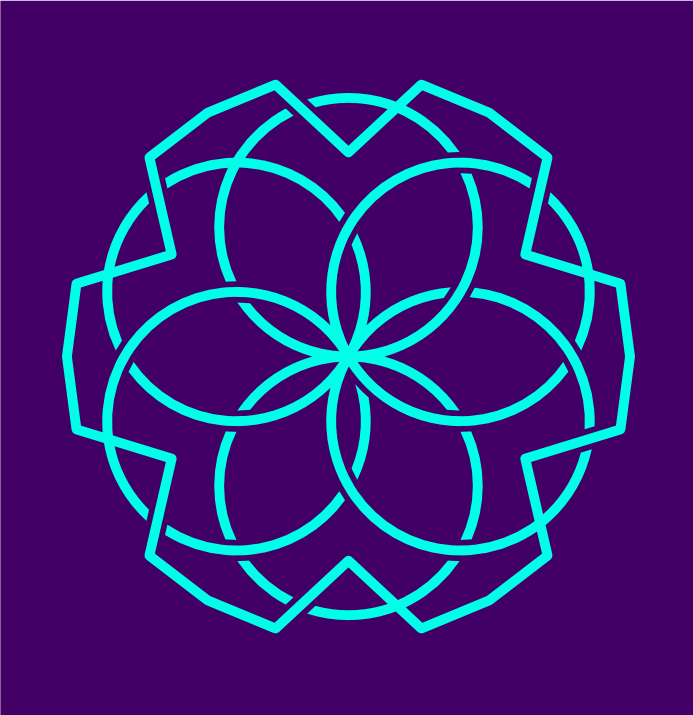
While our developer is working the intertwine and crossing gap function, I thought through a simple but very effective solution based on @Subpath's suggestion, which might be useful to others who want create intertwine effect perfectly.
First, sketch out your idea:
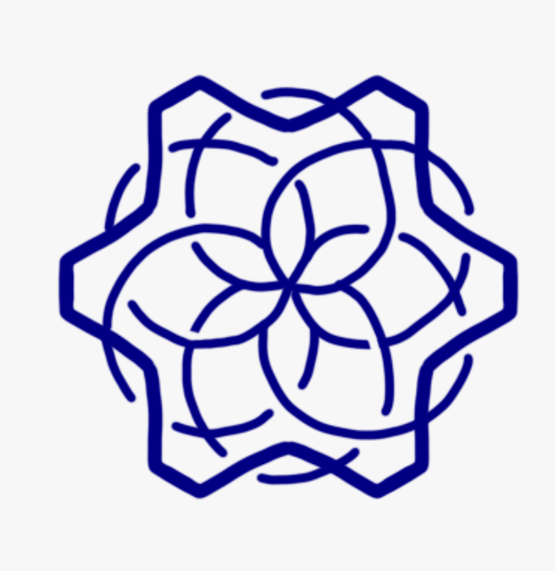
Mark out alternating sections of above and under for the knotting.
Then create your vector shape.
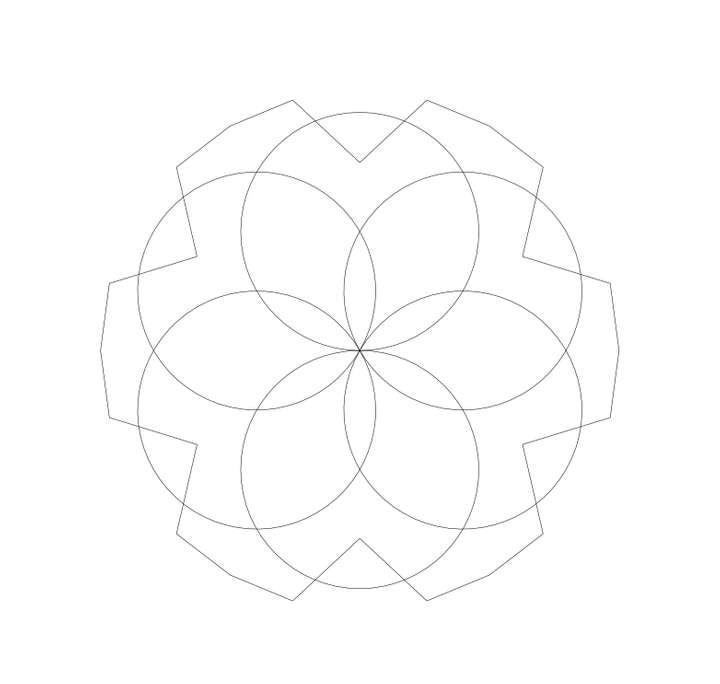
Then, expand the stroke:
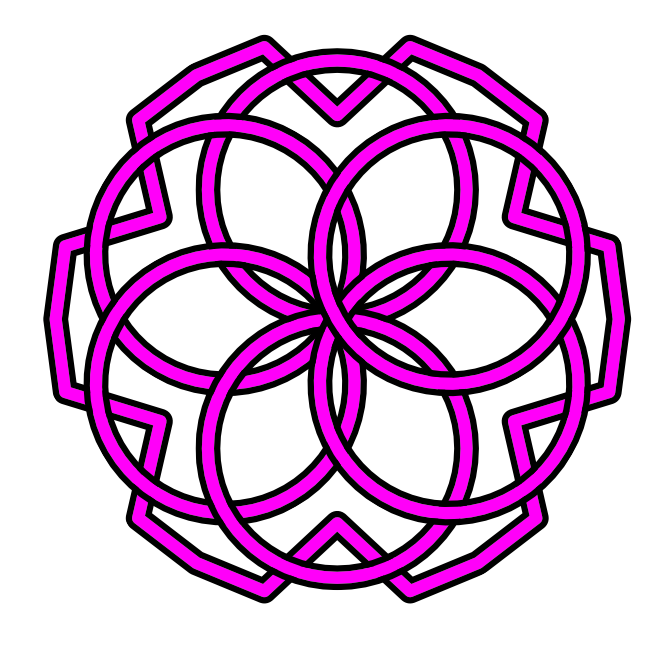
Then apply a stroke to the expanded shape.
Then expand the shape again. Now you'll have two set of expanded strokes.
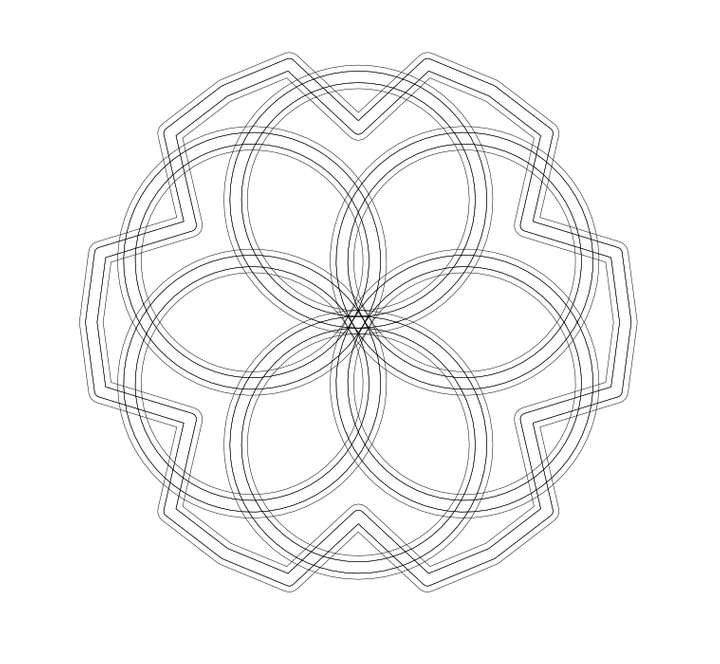
Now, use the shape builder and cut out the under portions of the knot. You'll be left with the desired result.
Work: Windows 11 | Intel i9 14900HS (24 Cores/32 Threads) | GeForce RTX 4070 | 64 GB RAM
Personal: Windows 11 | Amd Ryzen 9 7950X (16 Core, 32 Threads) | GeForce RTX 3060 | 32 GB RAM -
@Daniel It turns out that some of these use cases re not suitable for intertwine, but something new.
-
@VectorStyler: Fair enough. Something like the knotting path effect in Inkscape? https://www.youtube.com/watch?v=08zpOs-yoTw - Check this tutorial.
Work: Windows 11 | Intel i9 14900HS (24 Cores/32 Threads) | GeForce RTX 4070 | 64 GB RAM
Personal: Windows 11 | Amd Ryzen 9 7950X (16 Core, 32 Threads) | GeForce RTX 3060 | 32 GB RAM -
@Subpath Yes. I used a single path with two stroke parameters on it. The thicker one underneath.
The Crossing Gap gives wierd results for this kind of thing. I'll try duplicating that path and trying Intertwine.
Thanks -
@VectorStyler Doh! I missed that. Maybe since it was grayed out. I guess since it required selection of two paths. I'll try that. Thanks.
How about a search function? Is there a way to search if you don't know where to find a tool or function? -
@Daniel said in Intertwine Effect: Where is it?:
@VectorStyler: Fair enough. Something like the knotting path effect in Inkscape? https://www.youtube.com/watch?v=08zpOs-yoTw - Check this tutorial.
This is actually something I need to create for an upcoming client project.
-
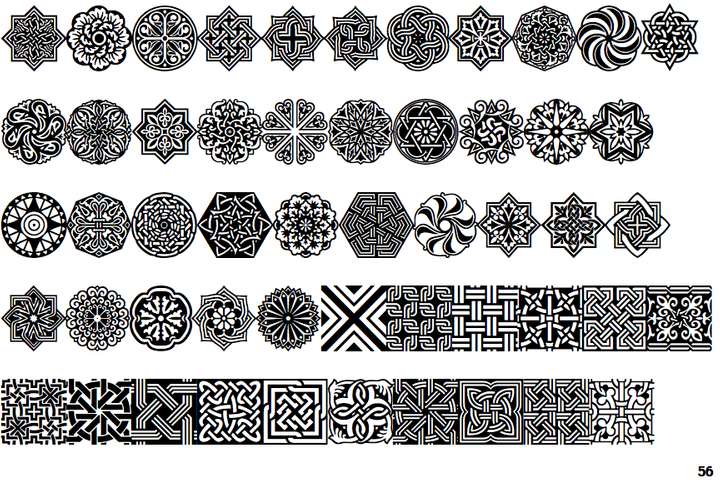
@Boldline: if you want inspiration for some very intricate knotting patterns, look up Henman Pictogram font 2.
Work: Windows 11 | Intel i9 14900HS (24 Cores/32 Threads) | GeForce RTX 4070 | 64 GB RAM
Personal: Windows 11 | Amd Ryzen 9 7950X (16 Core, 32 Threads) | GeForce RTX 3060 | 32 GB RAM -
I just wanted to let you know that @VectorStyler is already working on the problems with the "crossing gap" shape effect.
It is already mentioned in the top region of this thread.


