Detail Optimizations for Version 1.3
-


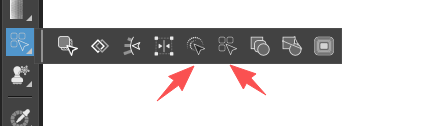
@VectorStyler Please add the Remove Halftone function from the halftone hidden menu to the panel as a button, just like the Repeater.
-
@monsterfox I will add these
-
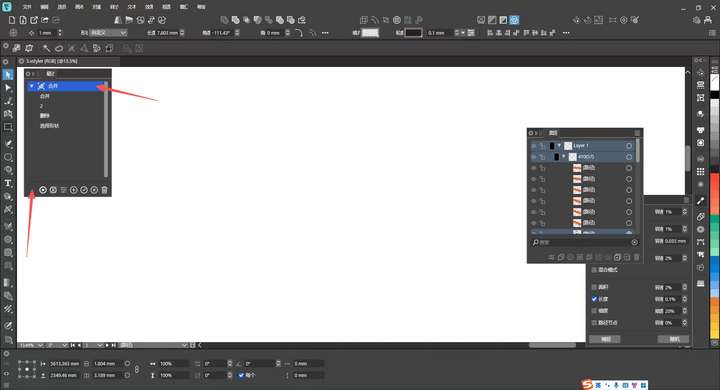
@VectorStyler I hope to add a lock function to the Recent Operations panel, which should have the following two features:
1. Locked operation records will not be overwritten or updated by subsequent operations and will be retained permanently.
2. Locked records cannot be deleted directly; they need to be manually unlocked before deletion.In my daily workflow, I often need to save a set of recent operations. However, if I don’t use them for a short period, they will be replaced by new operations. If I need to reuse the previous set of operations later, I have to perform all those steps again, which is rather cumbersome.
If this lock function is implemented, I can lock the required operation set to prevent it from being lost. When I need to use it, I can just delete all existing records—since the locked operation set won’t be deleted, I can use it directly, which will greatly improve my workflow efficiency. I sincerely hope this feature can be added.
-
@monsterfox I added this to the backlog
-
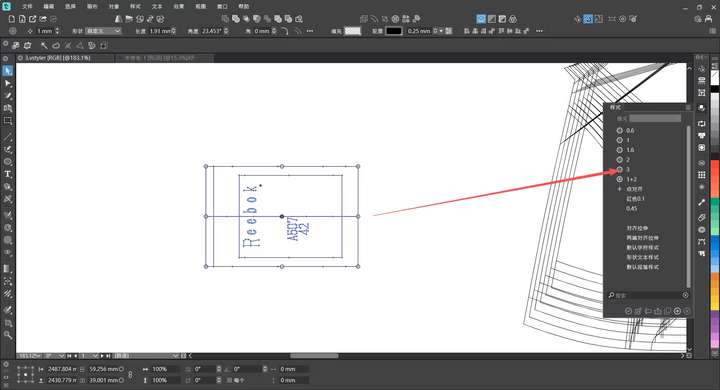
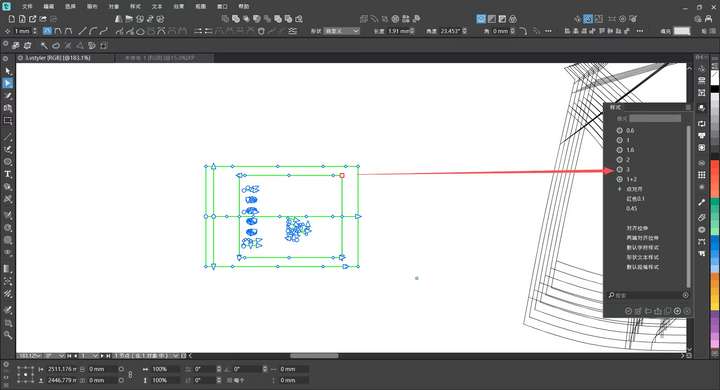
@VectorStyler I hope that when an object is selected first, and then a shape from my custom styles is chosen, the selected object can be replaced with the styled shape at its original coordinate position.
If a node is selected instead of an object, I also wish that the styled shape can replace the node at the node’s current coordinate position. This would enable much more precise shape replacement operations.
It would be absolutely perfect if this feature could be integrated into the shape selection tool, style panel, and the shape selection function in the menu bar.
-
@VectorStyler I would like to suggest an optimization for the Group Overlapping feature in VectorStyler. Currently, when this option is triggered, it identifies and groups all objects that overlap with the selected shape.
From my experience as a user (and based on common forum discussions), the primary use case for this function is resolving unintended overlaps from misoperations, where the end goal is to delete the redundant overlapping elements. The existing design forces users to manually separate one base object from the grouped overlaps before deletion, which adds unnecessary complexity.
My suggestion is to add a logic adjustment: when activating Group Overlapping, automatically retain one original overlapping object outside the grouped set (not selected by the grouping action). This would allow users to directly delete the grouped redundant parts in one go, significantly streamlining the workflow—especially useful for tasks like complex pattern design where accidental overlaps are frequent.
-
@monsterfox said in Detail Optimizations for Version 1.3:
My suggestion is to add a logic adjustment
Send me an example file with before / after grouping.
-
-
@VectorStyler
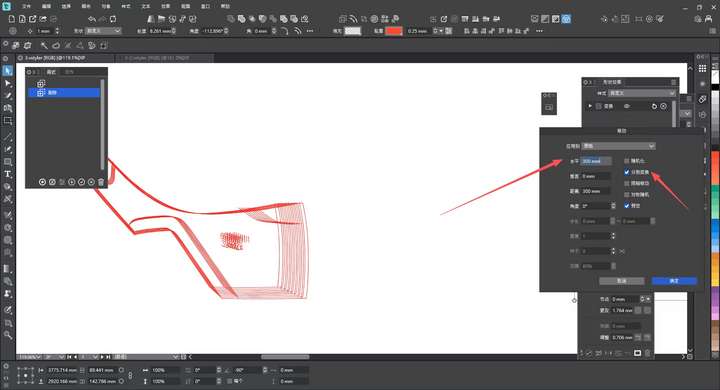
After using the move operation, all previous settings will revert to the default state in about one minute. Is there a way to make it remember the previous operation settings? -
@monsterfox said in Detail Optimizations for Version 1.3:
Is there a way to make it remember the previous operation settings?
It should keep the previous values, if not it is a bug. I will try to replicate this
-
@monsterfox said in Detail Optimizations for Version 1.3:
After using the move operation, all previous settings will revert to the default state in about one minute
Were there some other commands used after the Move?
-
@VectorStyler Yes, I edited other graphics after performing the move operation. When I executed the move operation again about one minute later, these parameters disappeared.
-
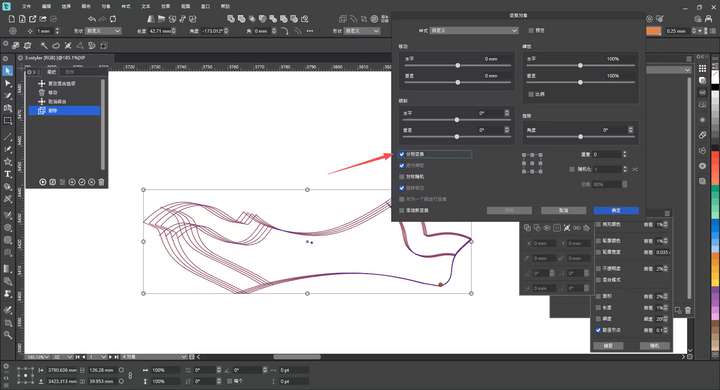
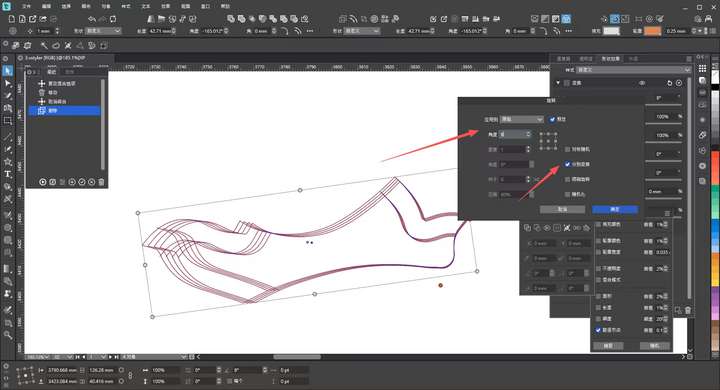
@VectorStyler It has come to my attention that certain transformation functions like rotation and scaling in the transformation panel cannot be operated in the same way as the separate transform function in the move tool. Could this feature be added?
-
@monsterfox I will try to add this.
-
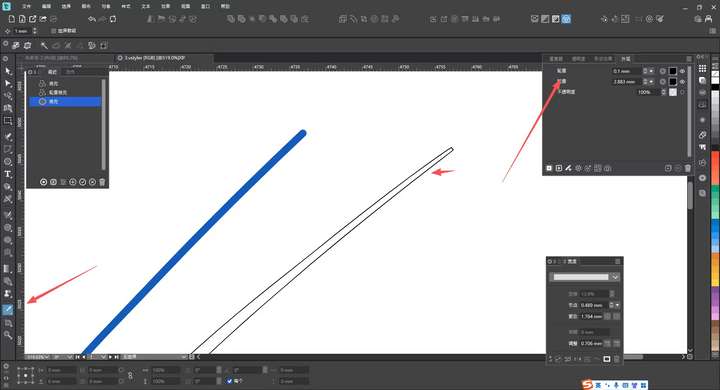
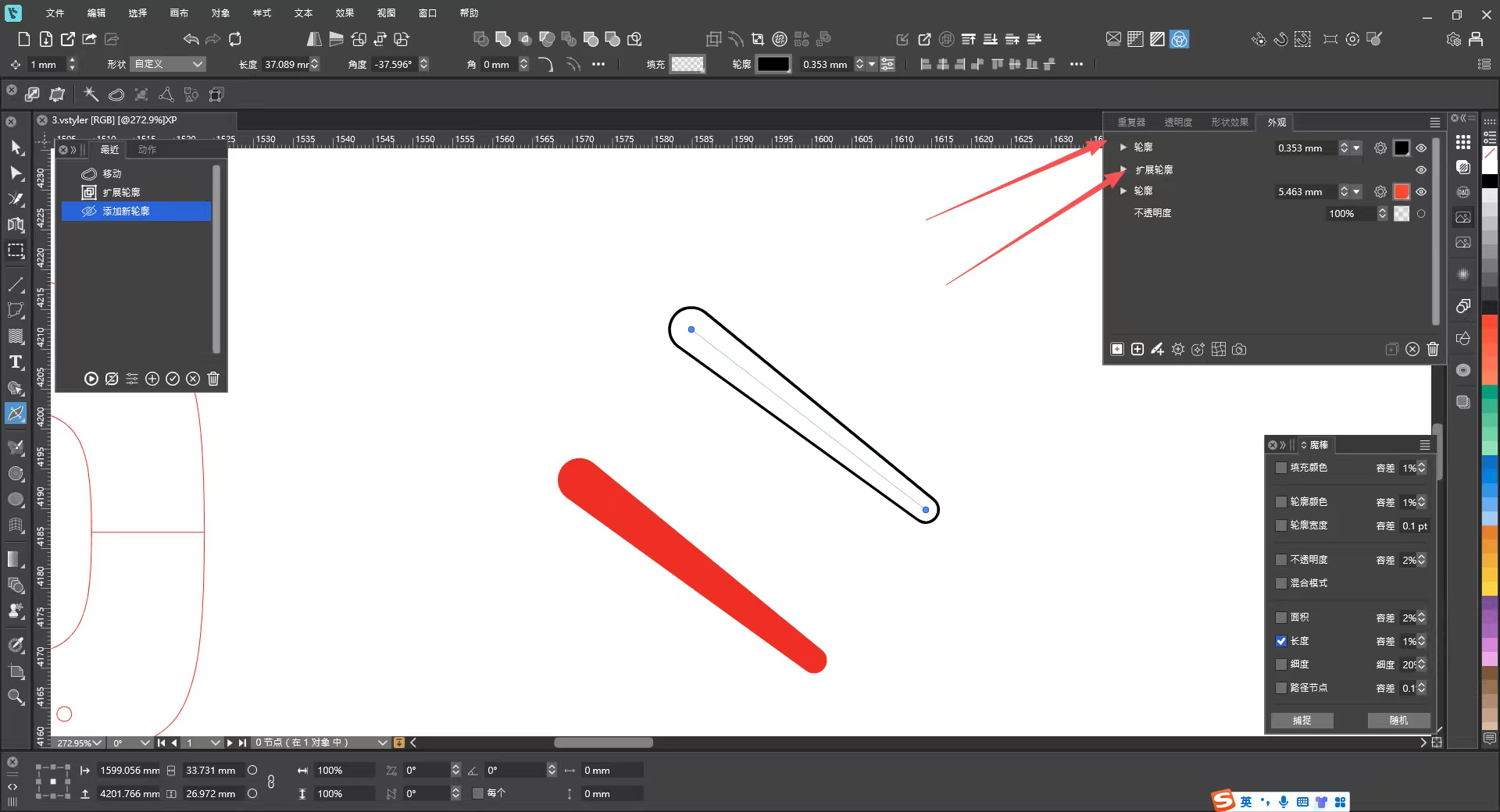
@VectorStyler The blue path is a 2mm stroke path, while the black path uses the Expand Outline effect in the Appearance panel. I want to use the Style Picker to let the blue path inherit the expanded outline style from the black path, but the result is different. Could you add support for this operation?
-
@monsterfox I added this to the backlog
-
@monsterfox said in Detail Optimizations for Version 1.3:
@VectorStyler It has come to my attention that certain transformation functions like rotation and scaling in the transformation panel cannot be operated in the same way as the separate transform function in the move tool. Could this feature be added?!
Can you explain what is the difference here, what is needed to be added?
-
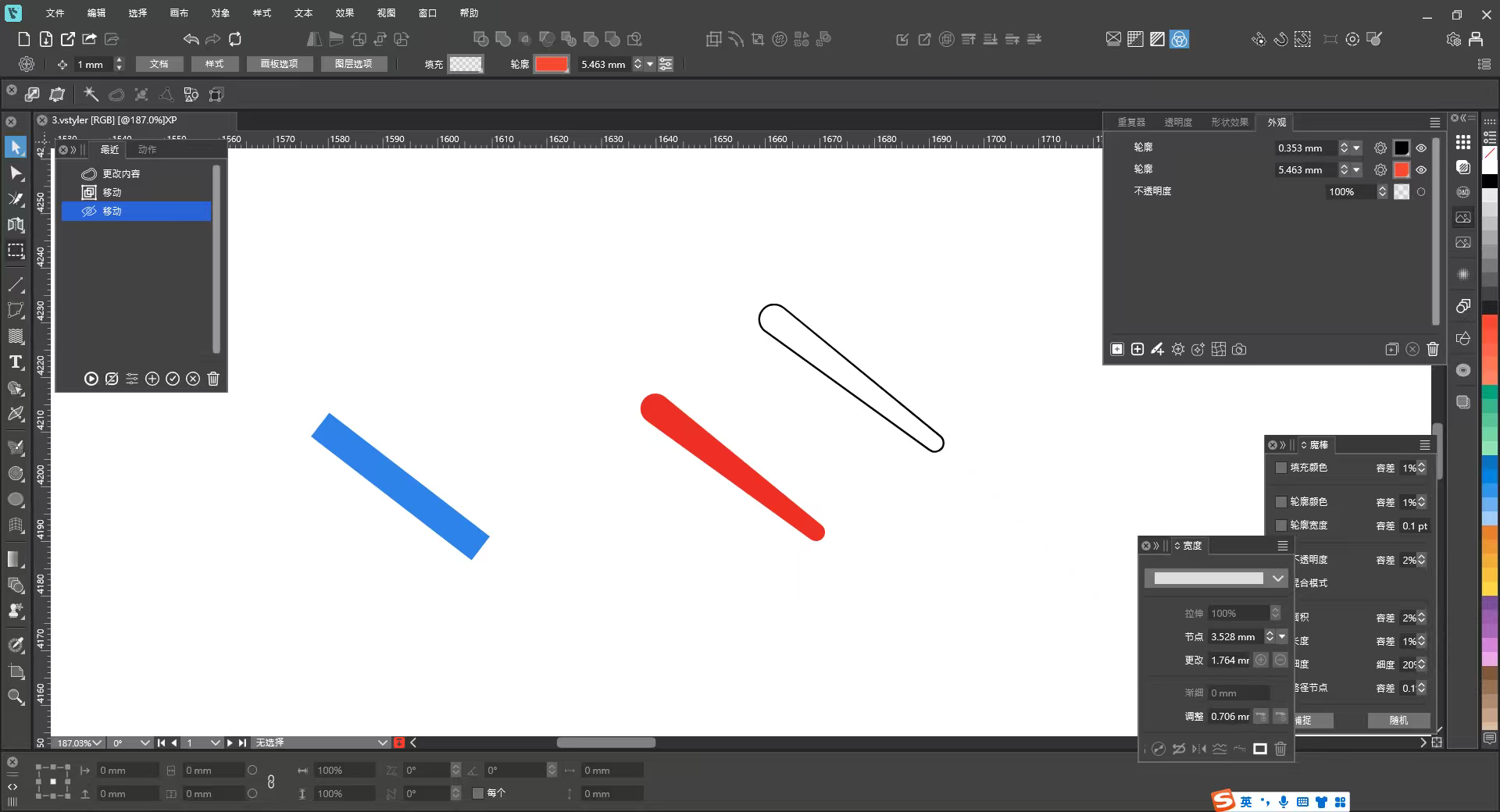
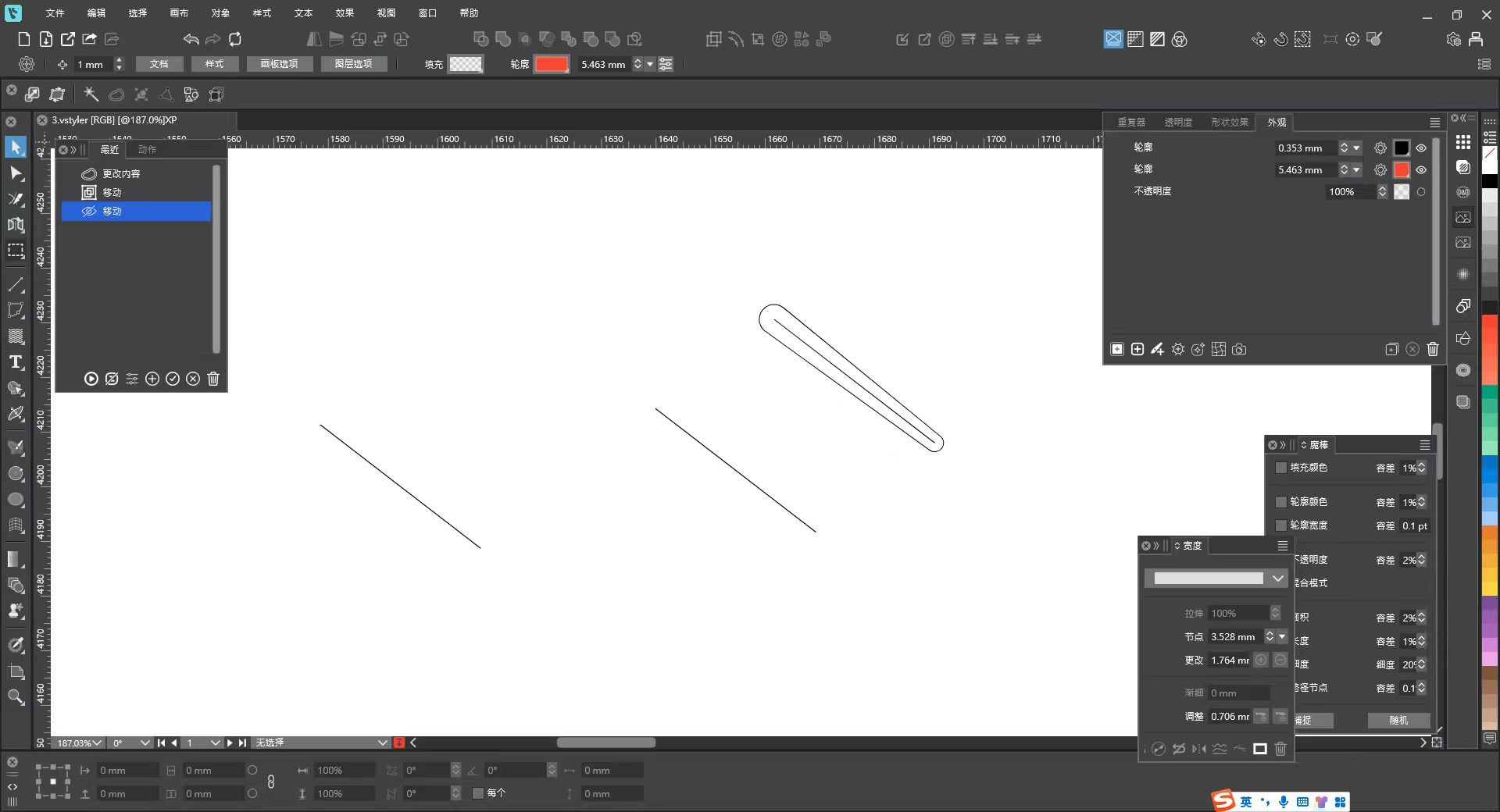
@VectorStyler The blue path is the base path, the red path uses the Outline Width Tool, and the black path is a duplicate of the red path—with the only difference being the Expand Outline function applied in the panel.
I’ve considered scenarios where the Expand Outline function is used, which is most likely after applying the Outline Width Tool. For example: select the blue path, then use the Style Picker to click the red path, and the blue path will become a red path with Outline Width properties. However, I want the blue path to have the effect of the black outline path, which is currently not supported—as indicated by the two arrow-pointed properties.
Right now, there’s no quick way to call up parameter properties set in the Appearance panel; you have to adjust them one by one, which is quite cumbersome.
In reality, the black path now has three layers of styles:
1. The original Outline Width Tool properties;
2. The Expand Outline properties;
3. The outline color properties.My suggestion is: in this state, if using the Style Picker tool, only call up the Expand Outline and outline color properties—this would be more compatible with more complex scenarios.
-
@VectorStyler said in Detail Optimizations for Version 1.3:
@monsterfox said in Detail Optimizations for Version 1.3:
@VectorStyler It has come to my attention that certain transformation functions like rotation and scaling in the transformation panel cannot be operated in the same way as the separate transform function in the move tool. Could this feature be added?!
Can you explain what is the difference here, what is needed to be added?
Currently, the Rotation panel has a Transform Separately option, but it doesn’t support incremental operations like the one in the Move panel. For example, when selecting multiple objects, checking Transform Separately in the Rotation panel and setting a rotation of 5 degrees should make each object rotate 5 degrees incrementally one after another. This would greatly expand the panel’s usability. The same logic should apply to Scale and Shear as well.
-
@monsterfox said in Detail Optimizations for Version 1.3:
Currently, the Rotation panel has a Transform Separately option, but it doesn’t support incremental operations like the one in the Move panel. For example, when selecting multiple objects, checking Transform Separately in the Rotation panel and setting a rotation of 5 degrees should make each object rotate 5 degrees incrementally one after another. This would greatly expand the panel’s usability. The same logic should apply to Scale and Shear as well.
Is this possible to do in the Transform dialog?
